Can I Trick My Printer Into Thinking It Has Ink
You can trick your printer into thinking it has ink by resetting ink levels with software tools, covering cartridge chips, or using “ignore” warnings. These methods are popular for bypassing ink alerts temporarily, but they don’t add actual ink to the cartridge.
As a result, print quality may suffer over time.
Doing this too often risks poor print quality and potential printer damage. Using compatible cartridges or official reset utilities helps sometimes, but these are short-term solutions. Eventually, you’ll need to replace the cartridge for good results and printer health.
Keep exploring to learn the safest and most effective methods. Proper maintenance and genuine ink cartridges ensure your printer runs smoothly. Avoid repeated tricks to prevent long-term issues.
Key Takeaways
- Printers detect ink levels via sensors and chips, so tricks often target fooling these sensors or resetting ink counters.
- Common methods include covering cartridge chips with tape, pressing “Ignore” on alerts, or shaking cartridges to redistribute ink.
- Software utilities from manufacturers and third parties can reset ink level warnings, making printers think cartridges are full.
- These tricks do not replenish ink; print quality may decline, and resets should be used cautiously to avoid damage.
- When printouts fade, streak, or cartridges aren’t recognized, replacing cartridges is the reliable solution to restore print function.
How Printers Detect Ink Levels
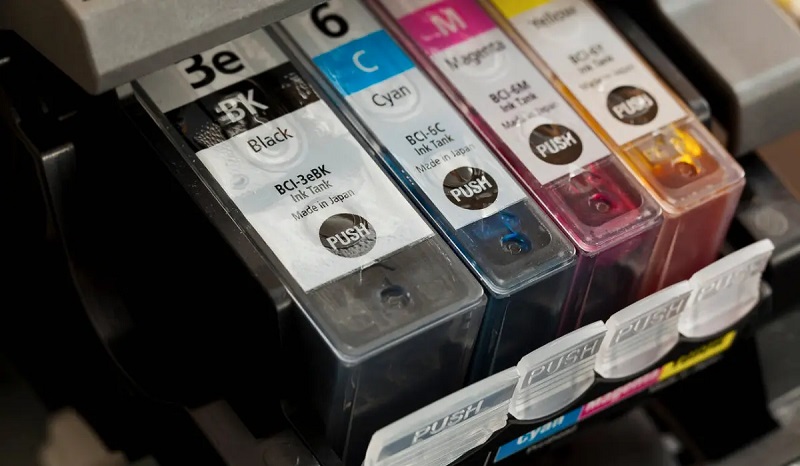
Although it might seem like printers just guess when ink is low, they actually use sensors and software to monitor ink levels. When you insert a cartridge, the printer’s chip communicates with the device, tracking the amount of ink based on usage. Some printers have optical sensors that detect ink presence by measuring light passing through the cartridge, while others rely on pressure sensors or electrical contacts to gauge ink levels.
The software estimates remaining ink by counting pages printed or analyzing print head activity. This system helps avoid sudden ink shortages, ensuring you know when to replace cartridges. So, the printer’s indication isn’t random—it’s a calculated measurement combining hardware and software working together to keep you informed about ink status.
Why Printers Stop Printing When Ink Runs Low
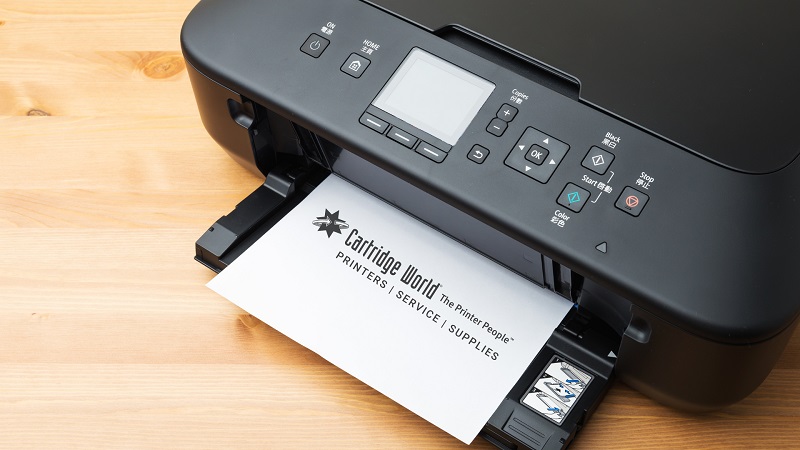
When your printer signals that ink is low, it often stops printing to protect itself and maintain print quality. If it continued printing, you’d risk streaks, smudges, or incomplete pages.
Plus, some printers pause to prevent damage to print heads, which rely on ink for cooling and lubrication. You might feel frustrated when it halts, but this safeguard helps avoid costly repairs and wasted paper.
| Feeling | Reason |
|---|---|
| Frustration | Interrupted workflow |
| Concern | Fear of printer damage |
| Relief | Avoids poor print quality |
| Motivation | Reminder to replace ink soon |
Understanding these reasons helps you appreciate why your printer acts this way—even if it’s inconvenient.
Risks of Ignoring Ink Warnings
If you ignore ink warnings, you risk damaging your printer’s internal components. Your print quality will likely suffer, producing faded or streaky pages.
Plus, bypassing these alerts could void your warranty and limit support options.
Potential Damage to Printer
Even though it might seem harmless to bypass ink warnings, doing so can seriously harm your printer. Ignoring these alerts can lead to mechanical stress and long-term issues that are costly to fix. Here’s what could happen:
- Clogged Printheads: Without ink, printheads can dry out and clog, causing permanent damage.
- Overheated Components: The printer may keep trying to print, overheating parts not designed to run dry.
- Sensor Malfunctions: Bypassing warnings can confuse ink level sensors, leading to inaccurate readings.
- Internal Damage: Running the printer without ink might cause wear on internal rollers and other moving parts.
Skipping ink replacement isn’t just risky—it might force you to buy a new printer sooner than you expected.
Print Quality Degradation
Although bypassing ink warnings might seem convenient, you’ll quickly notice a sharp decline in print quality. When your printer runs low on ink but continues printing, colors become faded, streaky, or blotchy. Text can appear faint or incomplete, making documents hard to read and photos look unprofessional.
Ignoring these warnings means your printer’s nozzles might not receive enough ink, causing clogging and inconsistent ink flow. Over time, this degrades output quality further and leads to wasted paper and ink as you attempt reprints. You might save a cartridge initially, but the ongoing print defects undermine your work’s appearance and can cause frustration.
Warranty and Support Issues
While bypassing ink warnings might save you time in the short term, it can void your printer’s warranty and limit your access to technical support. Manufacturers often tie their warranties to proper use, including using genuine ink cartridges. If you trick your printer into thinking it has ink, you risk:
- Losing free repairs or replacements due to warranty voiding.
- Being denied help from customer support when issues arise.
- Facing complications in diagnosing problems caused by unauthorized modifications.
- Potential damage not covered by the manufacturer, leading to costly fixes.
Ignoring ink warnings might seem convenient, but the long-term costs and lost support can outweigh the benefits. It’s safer to follow manufacturer guidelines to protect your printer and your investment.
Common Methods People Use to Bypass Ink Alerts
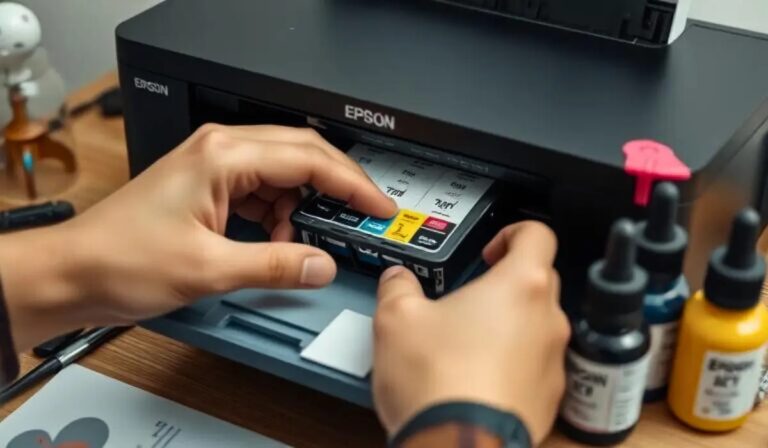
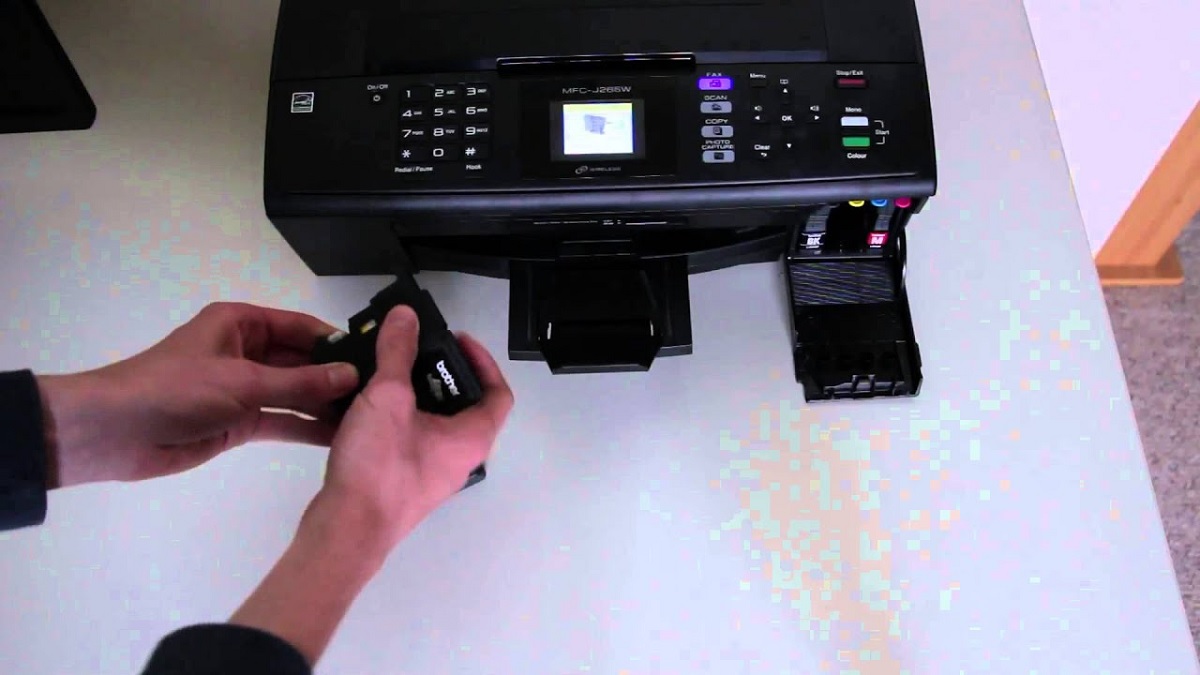
If you’ve ever faced the frustration of your printer refusing to work despite having ink, you’re not alone. Many people try simple tricks like covering the cartridge’s chip with tape to block the sensor from detecting an empty cartridge. Others reset the printer’s internal ink counter either by using a reset button or software tools designed for this purpose.
Some users shake the cartridges gently to redistribute the ink inside, hoping the printer will register them as full. Another common method is to override the warning by pressing “Continue” or “Ignore” when the alert pops up, allowing you to print a limited number of pages. While these methods can work temporarily, they’re often a stopgap rather than a permanent fix.
Using Compatible or Remanufactured Cartridges
You can save money by using compatible or remanufactured cartridges, but you’ll want to make sure they’re fully compatible with your printer model. These cartridges often work just as well as OEM ones and help reduce waste.
Just be careful to choose quality options to avoid detection errors that can mess with your prints.
Cartridge Compatibility Tips
Although compatible or remanufactured cartridges can save you money, they sometimes cause your printer to misread ink levels or display error messages. To avoid compatibility issues, you’ll want to take some careful steps.
- Check Cartridge Model: Always confirm the cartridge model matches your printer’s specifications exactly.
- Inspect Chip and Contacts: Ensure the chip and electrical contacts are clean and undamaged for proper communication.
- Update Printer Firmware: Sometimes your printer needs a firmware update to recognize third-party cartridges correctly.
- Reset Ink Levels: Use printer settings or software tools to reset ink level readings after installing a new cartridge.
Benefits of Remanufactured Cartridges
While some worry about print quality, remanufactured cartridges offer a cost-effective alternative that doesn’t sacrifice performance. When you choose remanufactured cartridges, you’re often paying a fraction of the cost compared to brand-new originals, saving you money without compromising your printer’s output. These cartridges are recycled and refilled, which means you’re also making an environmentally friendly choice by reducing plastic waste.
Plus, many remanufactured cartridges undergo rigorous testing to ensure they meet quality standards, so you can expect consistent, reliable prints. If you’re aiming to cut expenses while maintaining good print quality, remanufactured cartridges are a smart option. Just be sure to purchase from reputable suppliers to get the best results and avoid any unexpected issues.
Avoiding Printer Detection Issues
Even if you opt for compatible or remanufactured cartridges to save money, your printer might not always recognize them correctly. To avoid detection issues, you need to take a few smart steps. First, make sure the cartridge chip is clean and properly aligned.
Second, update your printer’s firmware cautiously, as updates can block third-party cartridges. Third, use cartridges that match your printer model exactly to prevent compatibility errors. Finally, reset the printer’s ink monitoring system when you install a new cartridge to clear false alerts.
- Clean and align the cartridge chip carefully.
- Avoid firmware updates that reject third-party inks.
- Use the exact cartridge model recommended.
- Reset ink monitoring after installation.
These steps help your printer accept remanufactured cartridges seamlessly.
Software Solutions to Reset Ink Levels
If your printer falsely reports low ink levels, software tools can help you restore these alerts without replacing cartridges. Many printer manufacturers offer utility programs that let you clear ink level warnings or reset the cartridge memory. You can usually find these on the official support website for your printer model.
Additionally, third-party applications designed for printer maintenance may provide reset functions, but be cautious and ensure they’re compatible with your device. Using these tools, you can effectively “trick” your printer into thinking the ink cartridges are full, extending their usability.
Just remember, while software resets can bypass false low ink messages, they don’t replenish actual ink. So, monitor print quality closely to avoid damage or poor output.
When It’s Time to Replace Your Ink Cartridge
Software tricks can help mask low ink warnings, but they won’t restore actual ink levels. Eventually, you’ll need to replace your ink cartridge to maintain print quality and avoid damage.
Software tricks only hide low ink alerts; replacing cartridges is essential to keep print quality and prevent damage.
Here are signs it’s time to swap cartridges:
- Faded or streaky prints: Colors look washed out or lines appear.
- Printer warnings: Persistent low ink or empty cartridge alerts.
- Smudging or bleeding: Ink isn’t drying properly or smears easily.
- Unresponsive cartridge: Printer doesn’t recognize the cartridge or won’t print.
Ignoring these signs can harm your printer or ruin documents. Replacing cartridges promptly ensures your prints stay sharp and your printer runs smoothly.
It’s better to invest in new ink than risk costly repairs later.
Frequently Asked Questions
Can Refilling Ink Cartridges Damage My Printer?
Yes, refilling ink cartridges can sometimes damage your printer if the ink is low quality or if you spill it inside.
You should handle refills carefully and use compatible ink to avoid clogs or hardware issues.
How Do Ink Sensors Work in Different Printer Brands?
You’ll find optical sensors in HP, mechanical sensors in Canon, and electrical sensors in Epson printers; each detects ink levels differently, but all work similarly by monitoring ink presence, quality, or cartridge chips to guarantee proper printing.
Will Tricking Ink Levels Void My Printer Warranty?
Yes, tricking ink levels will likely void your printer warranty since it involves tampering with the device’s sensors or software. Manufacturers consider this unauthorized modification, so you should avoid it to keep your warranty valid.
Are There Eco-Friendly Ways to Manage Printer Ink Use?
Like planting a tree beside a buzzing printer, you can save ink by printing drafts, using grayscale, and recycling cartridges.
These eco-friendly choices won’t just protect nature—they’ll keep your wallet happy, too.
Can Printer Firmware Updates Affect Ink Detection?
Yes, firmware updates can change how your printer detects ink levels, sometimes making it harder to bypass empty cartridge warnings.
Staying updated helps performance but might affect third-party or refilled ink compatibility.
Conclusion
You can try to trick your printer into thinking it has ink by resetting cartridges, using compatible ink, or bypassing alerts, but remember to weigh the risks.
You can save money, you can extend printing time, but you can also damage your printer, void warranties, or get poor quality prints.
You can push limits, you can find workarounds, but sometimes you just need to replace your cartridge and keep printing smoothly.
In conclusion, while it’s possible to trick your printer into thinking it has ink, always consider the potential risks to your device and print quality before attempting any DIY solutions.