How to Delete Printer Queue
If you want to delete your printer queue and clear stuck print jobs, start by accessing your printer’s queue on Windows or Mac. Managing your printer queue effectively is key to ensuring smooth printing.
On Windows, stop the print spooler service, delete files in the spool folder, then restart the service.
On a Mac, just open the print queue and cancel each job individually. This clears stuck or unwanted jobs so your printer can work smoothly again.
Keep going, and you’ll discover more ways to troubleshoot and prevent future printing issues.
Key Takeaways
- On Windows, open “Devices and Printers,” right-click the printer, and select “See what’s printing” to view and manage the queue.
- Stop the Windows print spooler service, delete files in C:WindowsSystem32spoolPRINTERS, then restart the spooler to clear all pending jobs.
- On Mac, go to “System Preferences” > “Printers & Scanners,” select your printer, and open the print queue to cancel individual jobs.
- To delete all Mac print jobs, cancel each job individually within the print queue until it is empty.
- Clearing the printer queue resolves stuck or corrupted print jobs and allows new printing tasks to proceed smoothly.
Understanding Printer Queues
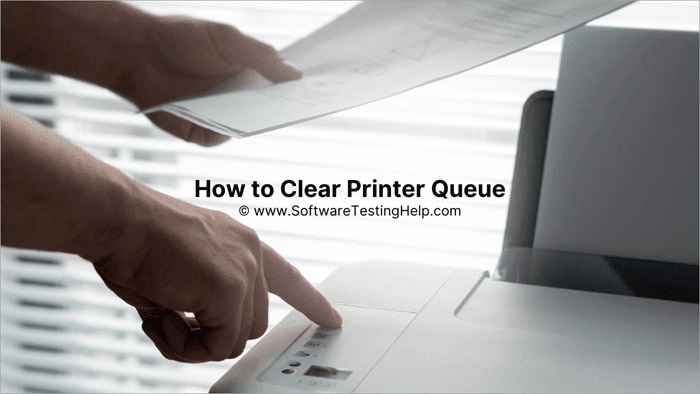
Before you can delete a printer queue, it helps to understand what it actually is. A printer queue is basically a list of print jobs waiting to be processed by your printer. When you send a document to print, it doesn’t always print immediately; instead, it joins this queue.
This system helps manage multiple print requests efficiently, ensuring each job prints in order. You can view the queue on your computer to see what’s waiting or if a job is stuck. Knowing this helps you decide when deleting the queue is necessary, especially if a print job is causing delays or errors.
Understanding how the queue works is key to managing your printer effectively and keeping your printing smooth.
Common Causes of Printer Queue Issues
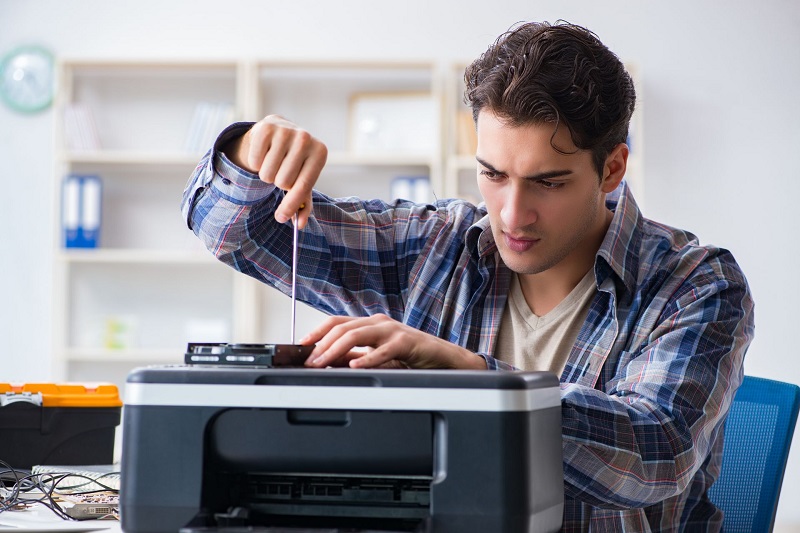
Now that you know what a printer queue is and how it functions, it’s easier to identify why issues might occur. One common cause is a stuck print job, which happens when a document gets corrupted or the printer loses connection mid-print. Another cause could be driver problems—outdated or incompatible drivers can prevent jobs from processing correctly.
Network issues also play a role; if your printer is networked, interruptions or weak signals can halt the queue. Sometimes, the printer simply runs out of paper or ink, causing jobs to pause. Finally, software conflicts or system errors on your computer may freeze or delay the queue.
Recognizing these causes helps you troubleshoot efficiently and keep your printing smooth.
How to View Your Printer Queue
Wondering how to check what’s waiting in your printer queue? It’s simple and helps you manage pending print jobs effectively. On Windows, open the Control Panel or Settings, go to “Devices and Printers,” then find your printer.
Right-click it and select “See what’s printing.” This opens the printer queue window, showing all jobs lined up. On a Mac, click the Apple menu, select “System Preferences,” then “Printers & Scanners.”
Choose your printer from the list, then click “Open Print Queue.” You’ll see all active and pending print jobs here. Checking the queue lets you spot stuck or unnecessary prints, so you can decide what to do next.
This keeps your printing smooth and hassle-free.
Steps to Clear Printer Queue on Windows
Once you’ve checked your printer queue and found jobs that need removing, clearing it on Windows is straightforward. You’ll want to stop the print spooler service, delete the stuck print jobs, and then restart the service to refresh the queue.
To clear stuck print jobs, stop the print spooler, delete jobs, then restart the service to refresh the queue.
Here’s how you can do it quickly:
- Press Windows + R, type “services.msc,” and hit Enter
- Find “Print Spooler,” right-click it, and select “Stop”
- Navigate to C:WindowsSystem32spoolPRINTERS and delete all files inside
- Go back to “Services,” right-click “Print Spooler,” and choose “Start”
This process clears all pending print jobs, letting you start fresh without any stuck documents blocking your printer.
Steps to Clear Printer Queue on Mac
Although clearing the printer queue on a Mac differs from Windows, you can quickly remove stuck print jobs by accessing the printer settings and managing the queue directly through the system preferences.
First, click the Apple menu and select “System Preferences,” then choose “Printers & Scanners.” Select your printer from the list on the left, then click “Open Print Queue.”
Here, you’ll see all pending print jobs. To clear the queue, select the print job you want to cancel and click the “X” button or press the Delete key. If you want to clear all jobs, cancel each one individually.
Once done, close the window. This method helps you manage and clear printer queues efficiently on your Mac.
Troubleshooting Persistent Printer Queue Problems
If your printer queue keeps getting stuck despite your efforts to clear it, there are a few troubleshooting steps you can try to fix the issue. Persistent problems often stem from software glitches or connection errors.
Try these solutions:
- Restart the printer spooler service to reset the queue.
- Check for and install any pending printer driver updates.
- Disconnect and reconnect the printer to refresh the network or USB connection.
- Clear stuck print jobs manually by deleting files in the spooler folder.
If none of these work, consider restarting your computer or reinstalling the printer software. These steps usually resolve stubborn queue problems and get your printer back to working smoothly.
Tips to Prevent Printer Queue Backups
To keep your printer queue running smoothly, you’ll want to adopt a few simple habits that prevent backups before they start. Regularly checking your print jobs, keeping your drivers updated, and avoiding large print batches can reduce delays.
Also, clear completed jobs promptly to avoid clutter.
| Habit | Why It Helps | How to Do It |
|---|---|---|
| Check Jobs Regularly | Spot stuck jobs early | Use printer settings panel |
| Update Drivers | Ensures compatibility | Visit manufacturer’s website |
| Avoid Large Batches | Prevents overload | Print in smaller groups |
Frequently Asked Questions
Can I Delete a Printer Queue Remotely?
Yes, you can delete a printer queue remotely if you have proper administrative access to the target computer or print server. You’ll need remote management tools or PowerShell commands to connect and clear the queue securely.
Ensure you have the necessary permissions before attempting to modify printer settings. Using remote desktop or similar tools can facilitate this process. Proper security measures should be in place to protect the network during such operations.
Does Clearing the Printer Queue Delete Saved Print Jobs?
No, clearing the printer queue doesn’t delete saved print jobs stored elsewhere. It only removes pending or stuck jobs waiting to print.
Your saved documents remain intact, so you won’t lose any files by clearing the queue.
How Do Printer Queues Affect Network Printing Performance?
You might think printer queues slow network printing, but they actually organize jobs efficiently.
If the queue’s overloaded or stuck, though, your performance drops.
Can Printer Queue Issues Cause Hardware Damage?
No, printer queue issues themselves won’t cause hardware damage, but persistent jams or overheating from continuous printing without clearing errors could eventually harm parts.
You should manage queues promptly to keep your printer running smoothly and avoid risks.
Are There Software Tools to Manage Multiple Printer Queues?
Around 65% of businesses use software tools to manage multiple printer queues efficiently. You can rely on solutions like PaperCut or PrinterLogic, which help you monitor, prioritize, and troubleshoot queues across various devices seamlessly.
Conclusion
Now that you know how to view, clear, and troubleshoot your printer queue, you’re ready to keep your printing smooth and hassle-free. Don’t let stuck jobs slow you down, don’t ignore common causes, and don’t forget simple prevention tips.
By staying proactive, staying informed, and staying patient, you’ll master your printer queue in no time. Keep your workflow steady, your prints flawless, and your frustrations minimal.
You’ve got this! Remember, managing and deleting your printer queue regularly is key to maintaining efficient printing and avoiding delays.