How to Open Epson Printer Driver
To open your Epson printer driver, start by going to the Control Panel on Windows. Find “Devices and Printers,” then right-click your Epson printer icon and select “Printer properties” or “Properties.” This allows you to access and manage your Epson printer settings easily.
On macOS, open “System Preferences” and click “Printers & Scanners.” Choose your Epson printer from the list, then select “Options & Supplies.” This is where you can adjust your printer driver preferences on a Mac.
You can also use the Epson Printer Utility software for more advanced settings. This utility helps you adjust print preferences like paper type and print quality quickly.
Keep following along to explore updating and troubleshooting tips for your Epson printer driver.
Key Takeaways
- On Windows, open Control Panel, go to “Devices and Printers,” right-click your Epson printer, and select “Printer properties” to open the driver settings.
- On macOS, open “System Preferences,” choose “Printers & Scanners,” select your Epson printer, then click “Options & Supplies” for driver access.
- Use the “Epson Printer Utility” software found in the Start menu (Windows) or Applications folder (Mac) for advanced driver settings and maintenance.
- Access print preferences by opening the driver window and navigating to the “Main” or “Quality” tab to adjust paper type and print quality.
- Download and install the latest Epson driver from the official Epson support website to ensure full access to driver features and updates.
Locating Your Epson Printer Driver on Windows
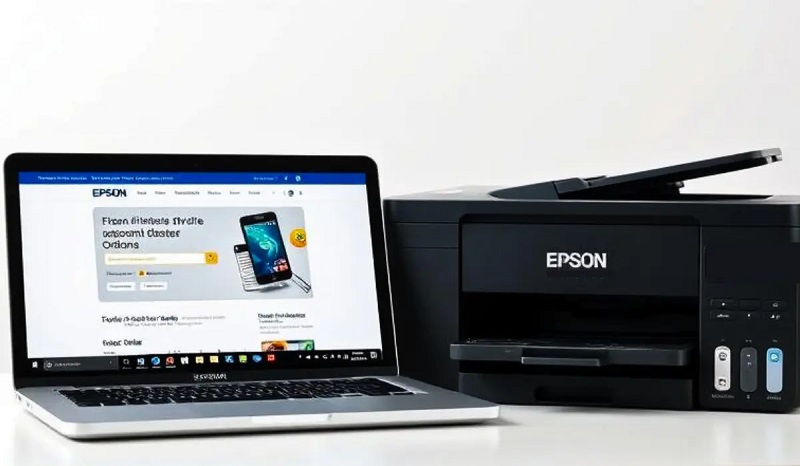
Before you can open your Epson printer driver on Windows, you’ll need to locate where it’s installed. Typically, the driver is found in the “Devices and Printers” section of your Control Panel. To get there, click the Start menu and type “Control Panel,” then select it.
Inside, choose “Devices and Printers” to see a list of connected printers. Find your Epson printer icon and right-click it. From the context menu, select “Printer properties” or “Properties.”
This opens a window where you can access the driver settings. Alternatively, you can open the Epson printer utility by searching for “Epson” in the Start menu, which often launches the driver software directly. Knowing where to find this guarantees you can manage your printer settings smoothly.
Accessing Epson Printer Settings on Macos
To access your Epson printer settings on macOS, start by opening System Preferences from the Apple menu. Next, select Printers & Scanners to see your list of connected printers.
From there, choose your Epson printer and click Options & Supplies to adjust its settings.
Locate System Preferences
When you want to adjust your Epson printer settings on macOS, the first step is to locate System Preferences. You’ll find it by clicking the Apple menu icon in the top-left corner of your screen. From the dropdown list, select “System Preferences.”
Alternatively, you can click the System Preferences icon directly from your Dock if it’s already there. Inside System Preferences, various settings categories will appear, but don’t click anything just yet—you’re only locating this central hub for now.
Knowing where System Preferences is helps you access and manage all your device settings, including printers. Once you’re familiar with this, moving on to configuring your Epson printer becomes straightforward.
Select Printers & Scanners
After you’ve found System Preferences, the next step is to click on “Printers & Scanners.” This section lets you view and manage all printers connected to your Mac, including your Epson device.
Once inside, you’ll see a list of printers on the left side. Locate and select your Epson printer from this list. Selecting it brings up details about the printer, such as its status and available options.
This is where you can confirm your Mac recognizes the Epson printer and prepare to adjust its settings. If your Epson printer isn’t listed, you might need to add it by clicking the “+” button below the list.
This ensures your Mac can communicate properly with the device before you proceed to open the Epson printer driver.
Access Epson Printer Options
Although you’ve selected your Epson printer, accessing its specific settings on macOS requires opening the printer options menu. To do this, go to System Preferences and click on “Printers & Scanners.” Select your Epson printer from the list on the left, then click the “Options & Supplies” button.
In the new window, choose the “Driver” or “Options” tab to view and adjust printer-specific settings like paper type, print quality, and ink usage. For more advanced features, you might need to open the printer’s dedicated utility by clicking “Open Printer Utility.” This gives you access to maintenance tasks and further customization options.
Using these steps, you can easily manage your Epson printer settings to suit your printing needs on macOS.
Using the Epson Printer Utility Software
You can find the Epson Printer Utility software on your computer to easily manage your printer settings. Once opened, you’ll be able to access and adjust various print preferences to suit your needs.
This tool makes it simple to customize how your Epson printer operates.
Locating Epson Utility
When you need to manage your Epson printer settings, locating the Epson Printer Utility software is vital. To find it, start by checking your computer’s Start menu on Windows. Look under “Epson” or “Epson Printer” folders where the utility is often listed.
On a Mac, open the “Applications” folder, then look for the Epson folder or the “Epson Printer Utility” app directly. If you’ve installed the full printer software package, the utility should be included. Alternatively, you can search your system by typing “Epson Utility” in the search bar or Spotlight.
If you can’t find it, you might need to download the latest version from Epson’s official website. This ensures you have the right tool for managing your printer efficiently.
Accessing Printer Settings
Once you’ve located the Epson Printer Utility, accessing your printer settings becomes straightforward. Open the utility by double-clicking its icon or selecting it from your computer’s applications menu. Inside, you’ll find various tabs or sections that let you view and manage printer status, ink levels, and maintenance tasks.
You can check for firmware updates, run nozzle checks, and perform print head cleaning from here. The interface is designed to be user-friendly, so you won’t have trouble steering through to the settings you need. Remember, this utility is separate from your print preferences, which you adjust during the actual printing process.
Using the Epson Printer Utility software lets you maintain and troubleshoot your printer effectively without diving into complex menus.
Adjusting Print Preferences
Although accessing the Epson Printer Utility is simple, adjusting your print preferences within it allows you to tailor print jobs to your specific needs. Once you’ve opened the utility, you’ll find options like paper size, print quality, and color settings. You can select draft mode for quicker prints or high quality for detailed images.
If you’re printing photos, you might want to choose the photo paper type to get the best results. You can also adjust layout settings, such as orientation and number of copies. Don’t forget to check advanced settings for features like ink-saving mode or grayscale printing.
After customizing these options, click “OK” or “Apply” to save your preferences. This way, every printout matches exactly what you want.
Adjusting Print Preferences and Quality Settings
Before you start printing, you’ll want to adjust the print preferences and quality settings to match your specific needs. Open the Epson printer driver and navigate to the “Main” or “Quality” tab. Here, you can select options like paper type, print quality, and color mode.
For everyday documents, a standard quality setting works well, but if you’re printing photos or detailed graphics, choose a higher quality or photo mode for sharper results. Don’t forget to set the correct paper size and type to avoid jams or smudges. Adjusting these settings guarantees your prints look exactly how you want them, saving ink and time.
Once you’ve made your selections, click “OK” or “Apply” to save the changes before printing.
Troubleshooting Common Driver Access Issues
If you’re having trouble opening or accessing the Epson printer driver, it’s often due to software conflicts, outdated drivers, or incorrect installation. First, make sure no other programs are using the printer, as this can block access. Check if your antivirus or firewall is interfering by temporarily disabling them and trying again.
Also, confirm that your printer is properly connected and powered on. Sometimes, simply restarting your computer and printer resolves the issue. If you see error messages, note them down—they can help identify the problem.
Finally, ensure your user account has the necessary permissions to access printer settings. By following these steps, you can usually pinpoint and fix common driver access issues without needing advanced troubleshooting.
Updating and Reinstalling Epson Printer Drivers
When your Epson printer driver isn’t functioning properly, updating or reinstalling it can often resolve the issue quickly. To update, visit Epson’s official website and locate the support page for your printer model. Download the latest driver compatible with your operating system.
Before installing, close any open applications and disconnect your printer temporarily. Run the installer and follow the prompts. If updating doesn’t help, you might need to reinstall the driver.
Close apps, disconnect the printer, run the installer, and follow prompts; reinstall if updating doesn’t resolve issues.
First, uninstall the current driver via your computer’s control panel or settings. Restart your device, then download and install the driver fresh from Epson’s site. This process removes corrupt files and resets configurations, often fixing persistent problems.
Regularly updating guarantees your printer runs smoothly and supports new features or fixes.
Frequently Asked Questions
Can I Use Third-Party Software With Epson Printers?
Yes, you can use third-party software with Epson printers, but compatibility isn’t always guaranteed. You’ll want to make certain the software supports your specific printer model to avoid issues with printing quality or functionality before relying on it.
How Do I Connect My Epson Printer to Wi-Fi?
Imagine Sarah quickly connecting her Epson printer by pressing the Wi-Fi button, selecting her network on the printer’s screen, and entering the password.
You just follow these steps using the printer’s control panel to connect it to Wi-Fi.
What Should I Do if My Epson Printer Is Offline?
If your Epson printer is offline, you should check its connection, restart both printer and computer, make sure it’s set as the default printer, and verify your Wi-Fi is working.
Also, update or reinstall the printer driver if needed.
Are Epson Printer Drivers Compatible With Linux?
You’d think Epson drivers for Linux are mythical creatures, but they actually exist! Epson offers Linux-compatible drivers, though sometimes you’ll need to hunt a bit or use open-source alternatives to get everything working smoothly.
How Do I Print Double-Sided on an Epson Printer?
To print double-sided on your Epson printer, open the print settings, select “Print on Both Sides” or “Duplex Printing,” then choose flip options if available.
Not all models support this, so check your printer’s manual first.
Conclusion
Just like finding the right key to unlock a treasure chest, opening your Epson printer driver gives you access to a world of print possibilities. Whether you’re on Windows or Mac, using the Epson Utility, or tweaking settings, you’ve got the power to make your prints perfect.
If issues arise, updating or reinstalling the driver is your trusty sword to conquer them. So, explore confidently and master your Epson printer like a true print wizard! Opening the Epson printer driver is the first step to optimizing your printing experience and ensuring smooth operation.