How to Print From Phone to Printer
To print from your phone to printer, first connect your printer to your Wi-Fi network and ensure your phone is connected to the same network. This is essential for seamless communication between your devices.
Once connected, you can easily send documents or photos to print directly from your mobile device.
On Android, open the file or photo you want to print, tap the menu, and select “Print.” Next, pick your printer and customize the print settings according to your preferences. This straightforward process allows you to print quickly without needing a computer.
On iPhone or iPad, use AirPrint by tapping the share button and choosing your printer from the list. AirPrint is a built-in feature that simplifies wireless printing for Apple devices.
Alternatively, you can use manufacturer apps or cloud print services to enhance your printing options.
If you want smoother, hassle-free printing, there are some handy tips and troubleshooting steps you can explore. These can help resolve common issues and improve your overall printing experience.
Following these guidelines ensures your printing from phone to printer is efficient and reliable.
Key Takeaways
- Connect your phone and printer to the same Wi-Fi network to enable wireless communication for printing.
- Use the phone’s print option from the share menu or file viewer to locate and select your printer.
- Confirm your printer supports mobile printing technologies like AirPrint, Google Cloud Print, or manufacturer apps.
- Adjust print settings such as copies, color, and paper size before sending the print job.
- Troubleshoot by restarting devices, updating software, and ensuring network stability if printing fails.
Setting Up Your Printer for Wireless Printing
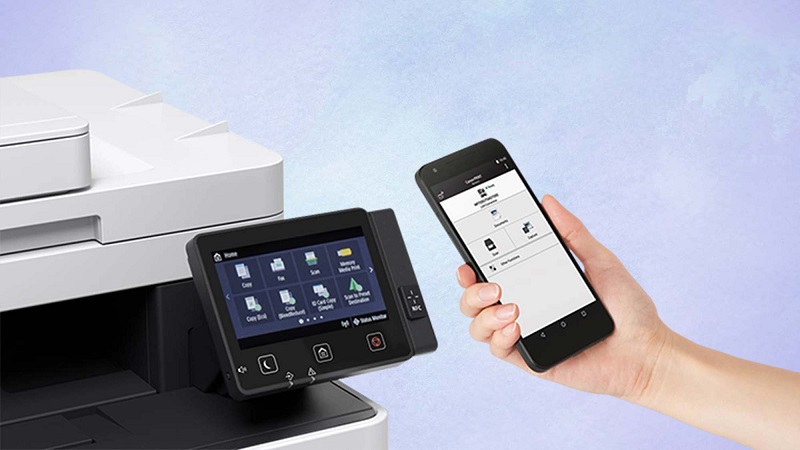
Before you can print directly from your phone, you’ll need to connect your printer to your Wi-Fi network. Start by powering on your printer and accessing its settings menu, either on the printer’s touchscreen or through its control panel buttons. Look for the wireless or network setup option, then select your Wi-Fi network from the list of available connections.
Enter your Wi-Fi password carefully to avoid errors. Once connected, your printer should display a confirmation message or show a wireless icon. Make sure your phone is connected to the same Wi-Fi network to ensure smooth communication.
If your printer supports WPS, you can also connect by pressing the WPS button on both devices. After completing these steps, your printer is ready for wireless printing.
Printing From an Android Device
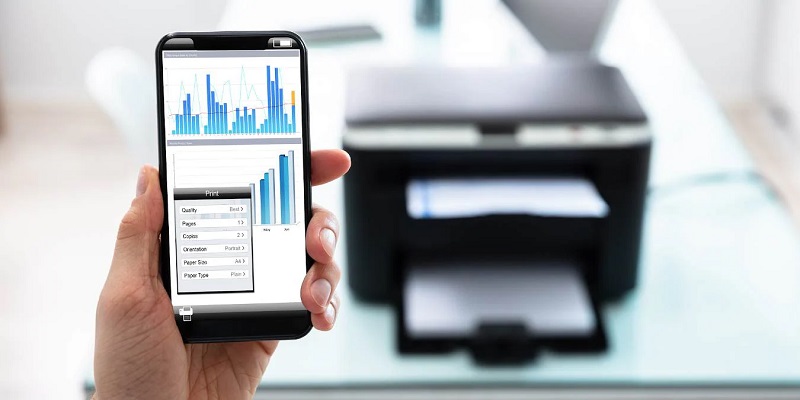
Once your printer is connected to the same Wi-Fi network as your Android device, you can easily send documents and photos to print. Start by opening the file or photo you want to print. Tap the three-dot menu or share icon, then select “Print.”
Your Android will search for available printers; choose yours from the list. Adjust print settings like copies, color, and paper size if needed. When ready, tap the print button.
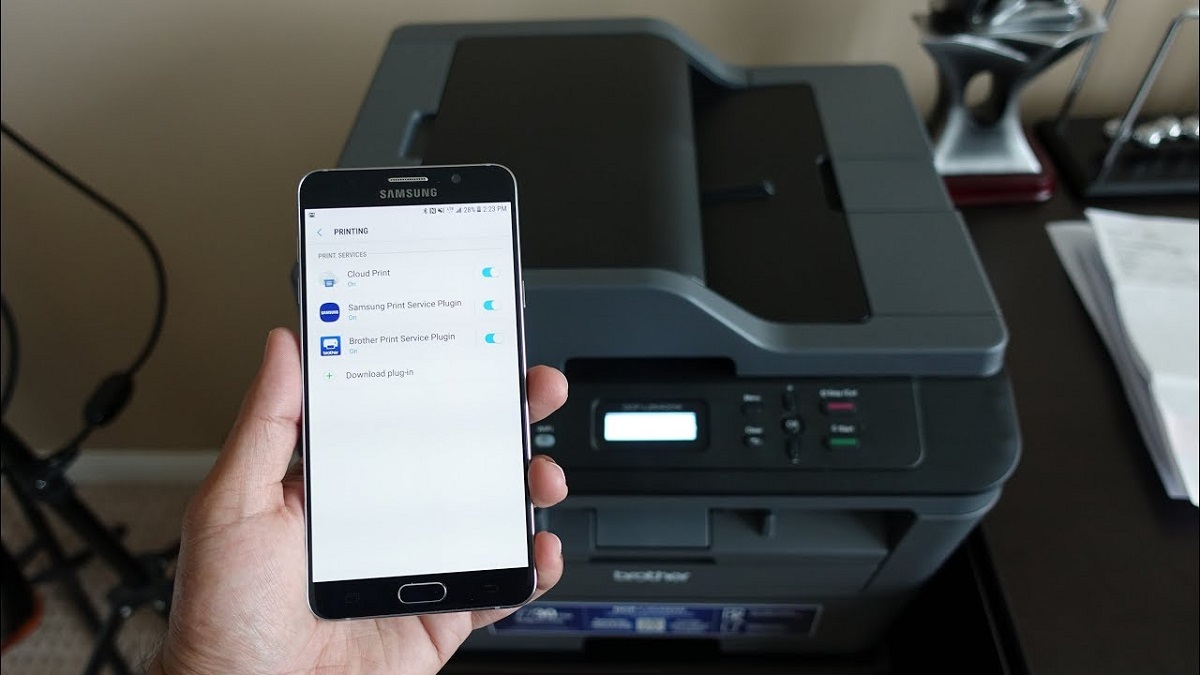
If your printer isn’t showing up, make sure it supports Google Cloud Print or has its own app available in the Play Store. Installing the printer’s official app often simplifies the process and offers extra features. Printing from Android is quick once everything’s set up correctly.
Printing From an Iphone or Ipad
If you’re using an iPhone or iPad, printing is simple with AirPrint. You’ll just need to set up AirPrint and connect your device to a wireless printer.
If you run into any issues, we’ll cover some quick troubleshooting tips to get you back on track.
AirPrint Setup Steps
Setting up AirPrint on your iPhone or iPad is a straightforward process that lets you print wirelessly with ease. To get started, follow these simple steps:
- Make sure your iPhone or iPad is running the latest iOS or iPadOS version.
- Confirm your printer supports AirPrint and is connected to the same Wi-Fi network as your device.
- Open the app you want to print from, like Photos or Safari.
- Tap the Share icon, select “Print,” then choose your AirPrint-enabled printer and tap “Print.”
That’s it! With these quick steps, you’ll be ready to print documents, photos, and more directly from your iPhone or iPad without any extra apps or cables.
Connecting to Wireless Printer
Although connecting your iPhone or iPad to a wireless printer might seem tricky at first, the process is usually quick and intuitive. First, make sure your printer is turned on and connected to the same Wi-Fi network as your device.
On your iPhone or iPad, open the app you want to print from, such as Photos or Safari. Tap the share icon or look for the print option within the app. Select “Print,” then tap “Select Printer” to choose your wireless printer from the list.
Once selected, you can adjust the number of copies and other settings before tapping “Print.” Your device will send the job wirelessly, and your printer should start printing shortly after.
Troubleshooting Print Issues
Once you’ve connected your iPhone or iPad to a wireless printer and started printing, you might encounter some issues that prevent your documents from printing correctly. Don’t worry; here’s how to troubleshoot:
- Check Printer Connection: Ensure your printer is turned on and connected to the same Wi-Fi network as your device.
- Restart Devices: Power off your iPhone/iPad and printer, then turn them back on to reset any temporary glitches.
- Update Software: Make sure your iOS and printer firmware are up to date to avoid compatibility problems.
- Clear Print Queue: If prints are stuck, open the print queue on your device and cancel or delete pending jobs before retrying.
Following these steps can usually resolve most printing issues quickly and get your documents flowing smoothly.
Using Google Cloud Print Alternatives
Since Google Cloud Print is no longer available, you’ll want to explore top cloud print services that work with your phone. Setting up these alternatives is usually straightforward and can get you printing quickly.
Let’s look at some reliable options and how to get them running.
Top Cloud Print Services
If you’re looking to print directly from your phone without relying on Google Cloud Print, there are several reliable alternatives worth considering. These cloud print services let you connect and print seamlessly, often supporting multiple printer brands. Here are the top options:
- HP Smart – Great for HP printers, it offers easy setup and mobile-friendly controls.
- Epson Connect – Ideal for Epson users, allowing remote printing via email or app.
- Brother iPrint&Scan – Supports Brother printers with scanning and printing features.
- Mopria Print Service – Works across many Android devices and printers, simplifying wireless printing.
Each service provides a user-friendly way to print from your phone, eliminating the need for Google Cloud Print. Choose one that matches your printer brand for the best experience.
Setting Up Alternatives
Although Google Cloud Print has been discontinued, you can still easily set up alternative printing services on your phone. Start by checking if your printer supports Apple AirPrint or Mopria Print Service, both of which allow wireless printing without extra apps. For Android users, enabling Mopria Print Service in your phone’s settings usually does the trick.
If your printer manufacturer offers its own app—like HP Smart, Epson iPrint, or Canon PRINT—download it from your app store and follow the setup instructions. These apps connect your phone directly to the printer over Wi-Fi. Finally, some printers support printing via email; just send your document to the printer’s unique email address.
With these options, you can print quickly and hassle-free without relying on Google Cloud Print.
Printing Photos Directly From Your Phone
Wondering how to print your favorite photos straight from your phone? It’s easier than you think! Most modern printers support direct photo printing via Wi-Fi or Bluetooth.
Here’s how to get started:
- Connect your phone to the printer – Use Wi-Fi, Bluetooth, or a direct USB connection.
- Open your photo gallery app – Select the photo you want to print.
- Tap the share or print icon – Choose your printer from the list.
- Adjust print settings – Select paper size, quality, and number of copies, then hit print.
With these steps, you can quickly turn your digital memories into physical prints without needing a computer.
Just make sure your printer supports mobile printing and has the right photo paper loaded.
Troubleshooting Common Printing Issues
Printing photos directly from your phone is convenient, but sometimes things don’t go as smoothly as expected. If your prints aren’t coming out right, don’t worry—you can troubleshoot common issues with a few quick checks.
| Issue | Cause | How You Feel |
|---|---|---|
| Printer not found | Connection problem | Frustrated |
| Blurry or faded print | Low ink or wrong settings | Disappointed |
| Print job stuck | Software glitch or overload | Annoyed |
First, ensure your phone and printer are on the same Wi-Fi network. Check ink levels and paper placement. Restart both devices to clear glitches.
If prints look off, adjust print quality in your phone’s print settings. These steps usually fix most problems, letting you get back to printing hassle-free.
Tips for Efficient Mobile Printing
When you want to get the best results fast, knowing a few tips for mobile printing can save you time and frustration.
Here’s how to print efficiently from your phone:
- Check Printer Compatibility: Ensure your printer supports mobile printing apps like AirPrint or Google Cloud Print.
- Use a Reliable Connection: Connect your phone and printer to the same stable Wi-Fi network to avoid disruptions.
- Preview Before Printing: Always preview documents or photos to avoid wasting paper and ink on unwanted pages.
- Keep Apps Updated: Update your printer’s app and your phone’s software regularly for smooth performance and new features.
Following these tips helps you get your prints right the first time, making mobile printing a seamless part of your workflow.
Frequently Asked Questions
Can I Print From My Phone Without Wi-Fi?
Yes, you can print from your phone without Wi-Fi by using Bluetooth, USB cable, or a direct Wi-Fi connection like Wi-Fi Direct.
Just make sure your printer supports these options and your phone’s compatible with them.
Are There Apps to Print From a Phone Without a Printer Brand?
You don’t need to chase rainbows for brand-specific apps; universal printing apps like PrinterShare or Mopria let you print from your phone without worrying about the printer brand.
Just connect and print with ease, no strings attached!
How Do I Print Double-Sided From My Phone?
You’ll need to select “Print” in your app, then tap “Printer Properties” or “Preferences.” Look for “Duplex” or “Double-sided” printing options and enable them.
If unavailable, manually print odd pages first, then even pages.
Can I Print Documents Saved in Cloud Storage Directly?
Yes, you can print documents saved in cloud storage directly. Just open the file in your phone’s printing app or compatible app, select your printer, and choose print.
Make sure your printer supports cloud printing services.
Is It Possible to Print From a Phone Using Bluetooth?
Yes, you can print using Bluetooth, but it’s like a dance—both devices must be paired and compatible. Not all printers support Bluetooth printing, so you’ll want to check your printer’s specs before you start the groove.
Make sure your phone and printer both have Bluetooth enabled and are within range. After pairing, you can select the printer from your phone’s print menu. Keep in mind, some apps might require additional setup or specific printer apps to work properly.
Conclusion
Now that you’ve got the hang of printing from your phone, you’re all set to ditch those floppy disks and embrace wireless convenience.
Whether you’re using Android or iPhone, printing photos or documents is simpler than ever. Just remember to keep your printer connected and troubleshoot any hiccups as they come.
With these tips, mobile printing will feel as natural as sending a telegram—only a lot faster and way more modern! Printing from phone to printer has never been easier.