How to Update Printer Driver
To update your printer driver, start by checking your current driver version and confirming your printer model. This step ensures compatibility and a smooth update process. Updating printer drivers regularly helps maintain optimal printer performance and resolve issues.
Next, visit the manufacturer’s official website to download the latest driver compatible with your operating system. On Windows, you can use Device Manager to automatically search for and install updates, while on macOS, update through System Preferences or manual download.
After installation, make sure to restart your computer to apply the changes. If you want to guarantee a smooth update and troubleshoot issues, there’s more detailed guidance available. Following these steps will help keep your printer running efficiently.
Key Takeaways
- Verify your current printer driver version and model to ensure compatibility before updating.
- Download the latest driver only from the official manufacturer’s website matching your operating system.
- Use Device Manager on Windows or Printers & Scanners on macOS to search for and install driver updates.
- Restart your computer after installation to apply changes and improve printer performance.
- Uninstall old or conflicting drivers if updates fail, and troubleshoot with error codes and system updates.
Check Your Current Printer Driver Version
Before you update your printer drivers, it’s important to check which version you’re currently using. This helps you determine if an update is necessary or if you already have the latest version.
On Windows, you can do this by opening the Device Manager, finding your printer under “Printers” or “Print queues,” right-clicking it, and selecting “Properties.” Then, go to the “Driver” tab to see the driver version and date.
On a Mac, open “System Preferences,” select “Printers & Scanners,” choose your printer, and click “Options & Supplies” to find driver details. Knowing your current driver version guarantees you avoid unnecessary updates and helps troubleshoot issues effectively if problems arise.
Identify Your Printer Model and Manufacturer
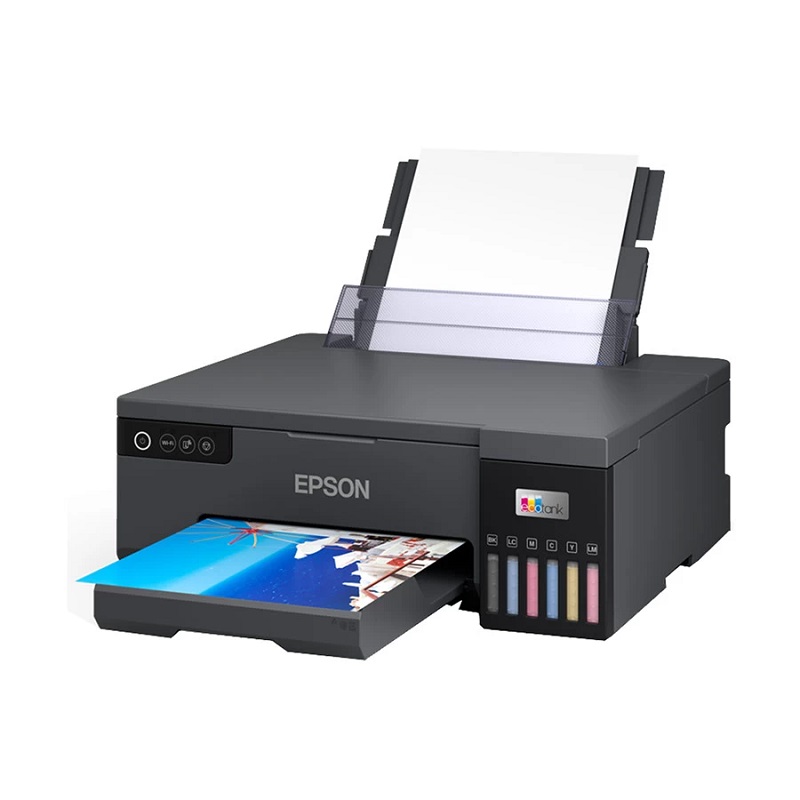
How do you find your printer’s exact model and manufacturer? It’s essential before updating your driver to verify compatibility. First, check the physical printer itself—most have a label or sticker displaying this info.
Finding your printer’s exact model and manufacturer is crucial before updating drivers to ensure compatibility.
Alternatively, you can find it through your computer’s settings or software.
Here’s how to identify your printer model and manufacturer:
- Look for a label on the back or bottom of your printer.
- Check the printer’s front panel or display screen for model info.
- Open your computer’s “Devices and Printers” or “Printers & Scanners” settings.
- Use the printer’s installation software or app for identification.
- Review the printer manual or original packaging if available.
Knowing this helps you get the right driver for your device.
Download the Latest Driver From the Official Website
Where can you find the most reliable and up-to-date printer drivers? The best place is always the official website of your printer’s manufacturer. Head to their support or downloads section, then enter your printer model to locate the correct driver.
Avoid third-party sites to reduce the risk of downloading outdated or unsafe files. Once you find the latest driver, check its compatibility with your operating system to ensure it works smoothly. Download the file to a known location on your computer, like the desktop or downloads folder, so you can easily access it later.
Keeping your drivers from the official source helps maintain printer performance and security, setting you up for a hassle-free update process.
Update Printer Driver on Windows
To update your printer driver on Windows, start by opening Device Manager and locating your printer. Then, download the latest driver from the official website if you haven’t already.
Finally, install the driver update by following the on-screen instructions to guarantee your printer runs smoothly.
Access Device Manager
Before you can update your printer driver on Windows, you’ll need to access Device Manager, the tool that lets you manage all hardware connected to your system. Here’s how to get there quickly:
- Press the Windows key + X and select “Device Manager” from the menu.
- Alternatively, click the Start button, type “Device Manager,” and hit Enter.
- In Windows 11, you can also right-click the Start button and choose “Device Manager.”
Once open, look for the “Printers” or “Print queues” section.
Expand that section to find your printer listed.
Accessing Device Manager is straightforward, and it puts you in control of updating, disabling, or troubleshooting printer drivers.
Once you locate your printer, you’re ready for the next step: downloading the latest driver.
Download Latest Driver
After you’ve found your printer in Device Manager, the next step is to get the latest driver for it. Head to the printer manufacturer’s official website—this is the safest place to download drivers. Look for a support or downloads section, then enter your printer model to find the most recent driver.
Make sure you choose the correct operating system version to avoid compatibility issues. Once you locate the right driver, download the installation file to your computer. If your printer came with a CD or software, these might be outdated, so rely on the online version instead.
Avoid third-party sites as they might offer incorrect or harmful files. Having the latest driver ensures your printer runs smoothly and can fix bugs or add new features.
Install Driver Update
Wondering how to install your new printer driver update on Windows? It’s simpler than you think. Once you’ve downloaded the latest driver, follow these steps to get it set up properly:
- Locate the downloaded driver file, usually in your Downloads folder.
- Double-click the file to start the installation wizard.
- Follow the on-screen prompts, agreeing to terms and selecting installation preferences.
- Wait for the installation to complete; your screen might flicker or restart printer services.
- Once done, restart your computer to guarantee the driver updates take effect.
After restarting, your printer should work seamlessly with the new driver. If you encounter any issues, you can always revisit the manufacturer’s site for troubleshooting tips or try reinstalling the driver.
Update Printer Driver on Macos
If you’re having trouble with your printer on macOS, updating the printer driver is often the quickest way to fix the issue. Start by clicking the Apple menu, then choose “System Settings” (or “System Preferences” on older versions). Next, select “Printers & Scanners.”
Find your printer in the list and click on it. You’ll see an option to update the driver if one is available. Alternatively, visit the manufacturer’s website to download the latest driver compatible with your macOS version.
| Step | Action |
|---|---|
| Open System Settings | Click Apple menu > System Settings |
| Access Printers | Select “Printers & Scanners” |
| Update Driver | Choose your printer > Update if available |
Use Device Manager for Automatic Driver Updates
You can use Device Manager to quickly update your printer drivers. Just open Device Manager, find your printer, and choose to search for updates automatically.
This tool will handle downloading and installing the latest drivers for you.
Accessing Device Manager
Although updating printer drivers manually can be time-consuming, accessing Device Manager lets you quickly find and install automatic updates. To get started, you’ll need to open Device Manager, where Windows organizes all your hardware devices, including printers.
Here’s how you can access it easily:
- Press the Windows key + X and select Device Manager.
- Type “Device Manager” in the Windows search bar and hit Enter.
- Open Control Panel, go to Hardware and Sound, then Device Manager.
- Use the Run dialog (Windows key + R), type “devmgmt.msc”, and press Enter.
- Right-click the Start button and choose Device Manager.
Once there, you can locate your printer and manage driver updates efficiently.
Searching for Updates
Where should you start when searching for printer driver updates using Device Manager? Begin by opening Device Manager and locating your printer under “Printers” or “Print queues.” Right-click the printer’s name and select “Update driver.”
This action lets Windows search automatically for the latest driver software online.
Here’s a quick guide:
| Step | Action |
|---|---|
| 1. Locate Printer | Find your printer in Device Manager |
| 2. Right-click | Select “Update driver” |
| 3. Search Automatically | Choose “Search automatically for updated driver software” |
This method conserves time and ensures Windows checks trusted sources for updates. Remember, you’re only searching here—not installing yet. That comes next.
Installing Driver Automatically
After searching for updates in Device Manager, the next step is to let Windows install the driver automatically. This process saves you time and guarantees you get the correct driver version without manual searching.
Here’s how you can proceed:
- Right-click your printer device in Device Manager.
- Select “Update driver” from the context menu.
- Choose “Search automatically for updated driver software.”
- Wait as Windows scans online and installs the best available driver.
- Restart your computer if prompted to complete the installation.
Troubleshooting Common Driver Update Issues
When you run into problems updating your printer drivers, it can be frustrating, but most issues have straightforward solutions. First, make sure your internet connection is stable; interrupted downloads often cause update failures. If the update won’t install, try restarting your computer and running the update again.
Sometimes, uninstalling the current driver before installing the new one helps avoid conflicts. Also, check if your printer model is compatible with the driver version you’re trying to install. If error messages pop up, note their codes and search online for specific fixes.
Finally, ensure your operating system is up to date since outdated system files can interfere with driver updates. Following these steps usually gets your printer back in working order quickly.
Frequently Asked Questions
Can Outdated Drivers Cause Printer Hardware Damage?
Outdated drivers typically won’t physically damage your printer hardware, but they can cause malfunctions, poor performance, or errors.
Keeping drivers updated guarantees your printer works smoothly and helps avoid software-related issues that might affect functionality.
Are Third-Party Driver Update Tools Safe to Use?
Third-party driver update tools can be risky since they might install incorrect or malicious software. You’re better off downloading drivers directly from your printer manufacturer’s official website to guarantee safety and compatibility. This approach ensures that you get the most accurate and up-to-date drivers for your device.
Using official sources helps avoid potential security threats. It also reduces the chance of encountering compatibility issues that third-party tools might cause. Always double-check the website’s authenticity before downloading any drivers.
How Often Should I Update My Printer Driver?
Better safe than sorry—you should update your printer driver whenever you notice issues or new features are released.
Regular checks every few months keep things running smoothly and prevent headaches down the road.
Can I Rollback to a Previous Printer Driver Version?
Yes, you can rollback to a previous printer driver version through your device manager.
Just open properties for the printer driver, select the “Driver” tab, and click “Roll Back Driver” if the option’s available.
Do Printer Drivers Affect Print Quality or Speed?
Yes, printer drivers can affect print quality and speed. If your driver’s outdated or incompatible, it might cause slower printing or poor output. Keeping drivers current ensures your printer runs smoothly and produces the best results.
Conclusion
Updating your printer driver might seem like trying to solve a mystery wrapped in an enigma, but it’s actually pretty straightforward. By checking your current driver, finding the right model, and downloading the latest version from the official site, you’ll keep your printer running smoothly.
Whether you’re on Windows or macOS, following these steps will save you from endless frustration. Don’t forget, troubleshooting tips are your secret weapon for any hiccups along the way!
In conclusion, keeping your printer driver up to date is essential for optimal performance and compatibility. Regularly updating your printer driver ensures a seamless printing experience and helps avoid common technical issues. Remember, updating your printer driver is a simple step that can save you time and hassle.