Why Is the Screen Glitching Out on My Epson Printer
If your Epson printer’s screen is glitching, this common issue can stem from several causes such as outdated drivers, firmware problems, or loose internal connections.
Power fluctuations and environmental factors like humidity or temperature might also disrupt the display. Addressing these causes early can help maintain your printer’s performance.
Sometimes, a quick reset or driver update can fix the problem. However, persistent glitches might indicate hardware damage requiring professional assistance.
Understanding the root causes of these screen problems can guide you toward the right fix and keep your printer running smoothly.
Key Takeaways
- Screen glitches often result from outdated, corrupted, or incompatible printer drivers needing update or reinstallation.
- Loose or damaged display cables and internal hardware issues can cause flickering or distorted images on the screen.
- Firmware corruption or interrupted updates may disrupt screen functionality and cause display malfunctions.
- Power supply inconsistencies and environmental factors like temperature extremes or electromagnetic interference affect screen stability.
- Persistent glitches, physical damage, or unresponsive displays usually require professional repair rather than DIY fixes.
Common Hardware Issues Causing Screen Glitches
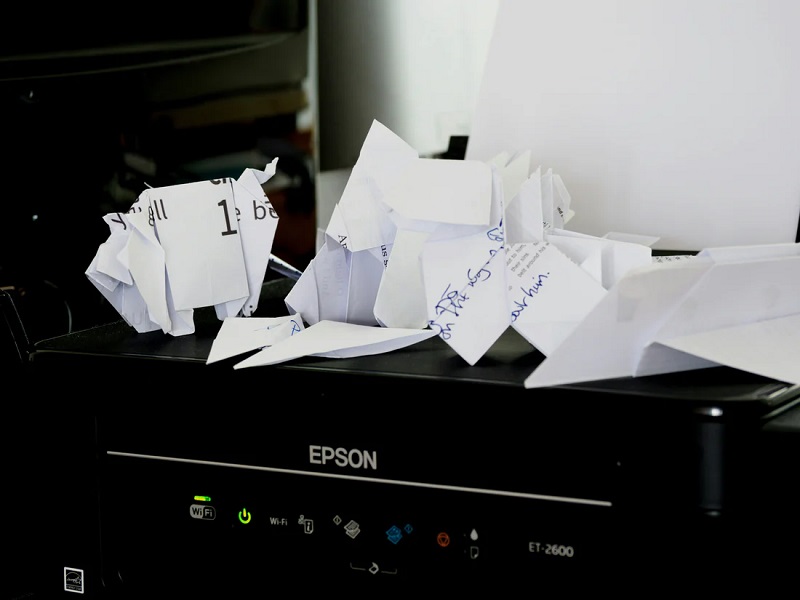
Although screen glitches on your printer can stem from software problems, common hardware issues are often the real culprits. First, check the display cable connecting the screen to the printer’s main board; if it’s loose or damaged, you’ll see flickering or distorted images.
Next, consider the screen itself—physical damage or manufacturing defects might cause persistent glitches. Power supply problems can also impact the display; inconsistent voltage can make the screen behave erratically.
Additionally, internal components like the printer’s main circuit board could be failing, disrupting communication with the display. To troubleshoot, ensure all connections are secure, inspect for visible damage, and try resetting the device.
If issues persist, hardware replacement or professional repair might be necessary to restore your Epson printer’s screen functionality.
Software and Firmware Problems Affecting Display
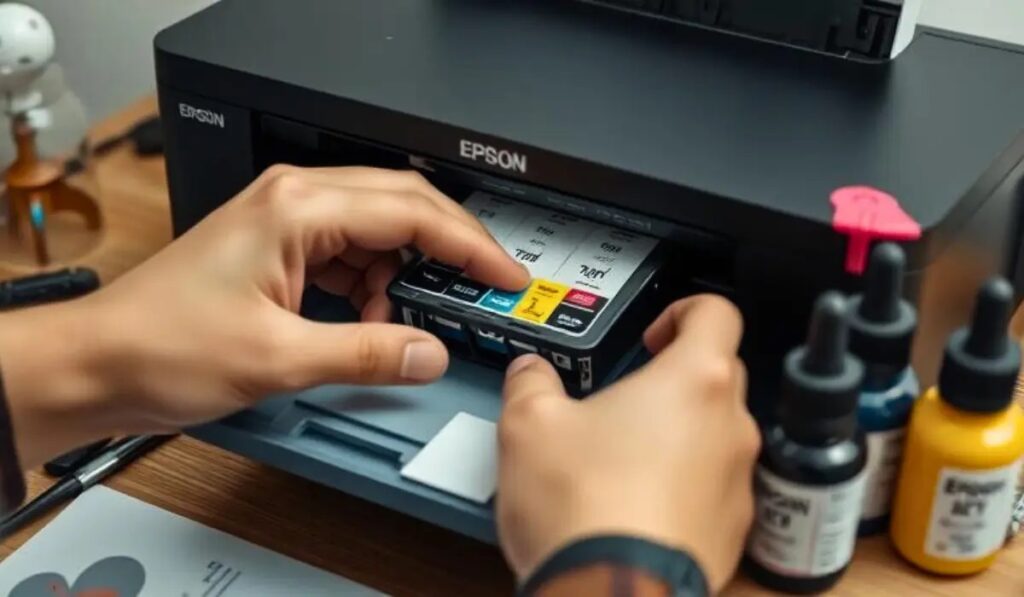
You might notice your printer screen glitching after a firmware update that didn’t install properly. Sometimes, software conflicts can also cause display problems if the drivers or applications aren’t fully compatible.
Understanding these issues can help you troubleshoot and fix the glitches quickly.
Firmware Update Issues
Why does a firmware update sometimes cause your printer screen to glitch? When you update your Epson printer’s firmware, the process rewrites internal software controlling hardware functions, including the display. If the update is interrupted—due to power loss or connectivity issues—the firmware may become corrupted, leading to screen glitches or unresponsive behavior.
Even a successful update can introduce bugs or incompatibilities with the existing hardware, causing display anomalies. To avoid problems, make sure your printer is plugged into a stable power source and connected properly during updates. If glitches appear afterward, try resetting the printer or reinstalling the firmware.
Keeping the firmware current is important, but you need to follow update instructions carefully to prevent screen issues.
Software Compatibility Conflicts
When your printer’s software and firmware don’t work well together, you might notice glitches or erratic behavior on the screen. This often happens if the software you’re using isn’t fully compatible with your printer’s current firmware version.
For example, if you’ve recently updated your computer’s operating system or Epson software but haven’t updated the printer’s firmware, conflicts can arise. These mismatches can cause display errors, unresponsive menus, or flickering.
To fix this, make sure both your printer firmware and software drivers are up to date and compatible with each other. Checking Epson’s website for official updates and compatibility notes can help you avoid these conflicts and keep your printer’s screen functioning smoothly.
Impact of Power Supply Fluctuations on Screen Performance
Although power supply fluctuations might seem minor, they can markedly disrupt your printer screen’s performance. When the voltage isn’t stable, your Epson printer’s display might flicker, freeze, or even fail to power on correctly. These issues stem from inconsistent electrical input affecting the screen’s internal circuits.
You might notice:
- Sudden dimming or brightening of the screen.
- Random glitches or pixelation.
- Complete screen blackout during printing tasks.
Such irregularities not only hinder your ability to operate the printer smoothly but can also cause longer-term damage to its electronic components. To prevent this, consider using a surge protector or an uninterruptible power supply (UPS) to maintain a consistent power flow. Keeping your power source steady helps ensure your screen stays responsive and glitch-free.
Troubleshooting Connectivity and Communication Errors
If your printer screen is glitching, connectivity and communication errors might be the culprit behind the problem. Start by checking all cables connecting your Epson printer to power and your computer or network. Loose or damaged cables can cause screen disruptions.
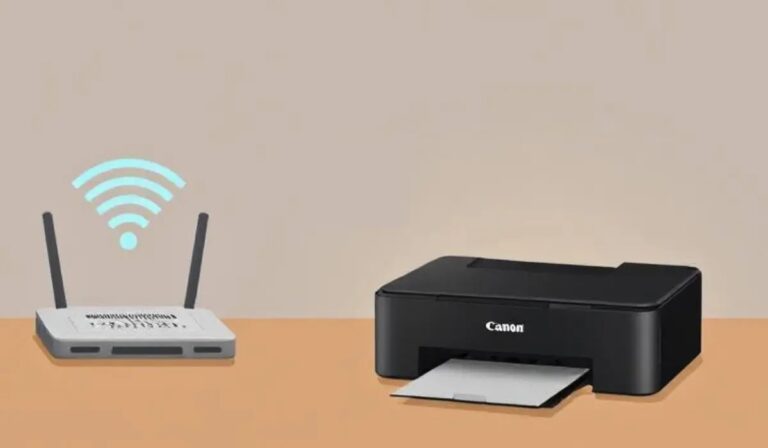
Next, ensure your printer’s firmware and drivers are up to date, as outdated software may lead to communication issues. Try restarting both your printer and connected devices to reset their connections. If you use Wi-Fi, verify a strong, stable signal and consider reconnecting to your network.
Also, check for IP address conflicts or network restrictions that might interfere with data transfer. By systematically addressing these connectivity points, you can often resolve screen glitches caused by communication errors.
How Environmental Factors Can Influence Screen Behavior
Since your printer’s screen is sensitive to its surroundings, various environmental factors can directly impact its behavior. If you notice glitching, consider these influences that might be affecting the display:
- Temperature extremes: Excessive heat or cold can cause the screen to flicker or respond sluggishly.
- Humidity levels: High moisture can lead to condensation inside the printer, disrupting electrical components.
- Electromagnetic interference: Nearby devices like routers, microwaves, or cordless phones may interfere with the screen’s operation.
Steps to Reset Your Epson Printer’s Display Settings
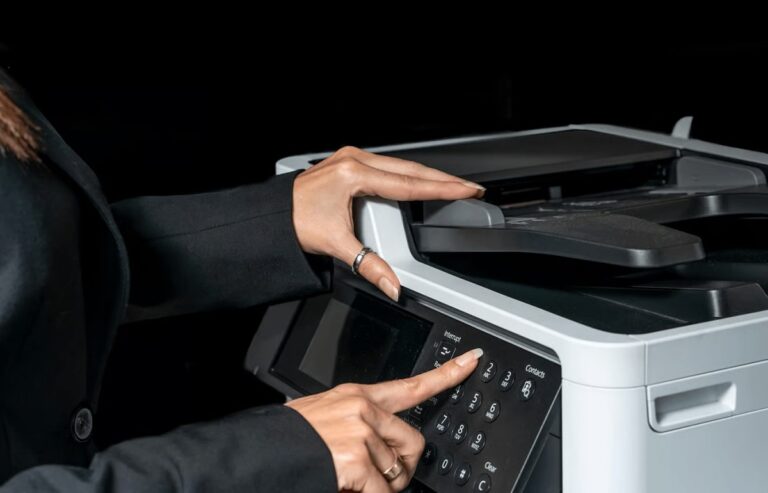
To fix your Epson printer’s screen issues, you’ll need to access the printer menu first. From there, performing a display reset is usually straightforward.
Finally, confirming the reset success guarantees the glitch has been resolved.
Accessing Printer Menu
Before you can reset your Epson printer’s display settings, you’ll need to access the printer menu. This menu is where you’ll find all the options to adjust and troubleshoot your device. Here’s how to get there quickly:
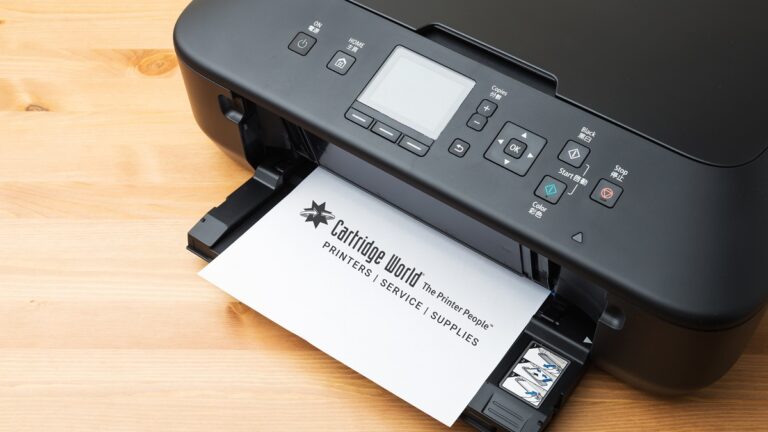
- Press the Home button on your printer’s control panel to open the main screen.
- Use the arrow keys or touchscreen to navigate to the “Setup” or “Settings” option.
- Select “Menu” or “System Settings” to enter the detailed configuration options.
Once you’re in the menu, you can proceed with resetting display settings or exploring other troubleshooting steps. Knowing how to access this menu is essential for managing your printer’s functions and fixing screen glitches effectively.
Performing Display Reset
Although accessing the printer menu is essential, resetting your Epson printer’s display settings directly addresses screen glitches and restores normal function. To start, press the Home button to access the main menu. Navigate to the “Setup” or “Settings” option using the arrow keys, then select “Restore Default Settings” or “Reset.”
Within this menu, look for “Reset Display” or “Display Settings.” Confirm your choice by selecting “Yes” or “OK.” Your printer will then reset the display settings to factory defaults, which often clears up any frozen or flickering screens.
Avoid turning off the printer during this process. Once complete, the screen should operate smoothly, allowing you to continue printing without interruption. If issues persist, further troubleshooting may be needed.
Confirming Reset Success
After resetting your Epson printer’s display settings, you’ll want to make sure the process worked as expected. Verifying the reset success ensures your screen glitching issues are on their way to being resolved. Here’s what you should check:
- The display should power on without flickering or distortion.
- All menu options should appear clearly and respond correctly when you navigate.
- Any previous unusual screen behaviors, like freezing or random glitches, should be gone.
If these checks pass, your reset was successful. If not, try performing the reset again or consider updating the printer’s firmware. Confirming the reset helps avoid further frustration and gets your Epson printer back to smooth operation quickly.
When to Update or Reinstall Printer Drivers
If your printer screen starts glitching or behaves unpredictably, it might be time to update or reinstall the printer drivers. Drivers are essential for communication between your computer and printer, and outdated or corrupted ones can cause screen glitches. Check the manufacturer’s website for the latest driver updates compatible with your printer model and operating system.
If updating doesn’t fix the problem, uninstall the current drivers completely before reinstalling them to ensure no corrupted files remain. Also, make sure your operating system is up to date, as compatibility issues can trigger driver problems. Regularly updating or reinstalling drivers can prevent glitches and improve your printer’s overall performance.
Don’t wait too long, as ignoring driver issues can worsen screen problems over time.
Identifying When Professional Repair Is Needed
When your printer screen glitches persist despite updating or reinstalling drivers, it’s a sign you might need professional repair. You can’t always fix hardware issues on your own, especially if the problem lies within the internal components.
Persistent screen glitches after driver updates often mean it’s time to seek professional printer repair.
Look out for these signs that indicate it’s time to call in an expert:
- Physical damage: Cracks, broken buttons, or loose screen connections.
- Persistent screen flickering: The display continuously flickers or shows distorted images regardless of resets.
- Unresponsive display: The screen doesn’t react to any commands or button presses.
If you notice any of these, trying to fix it yourself could cause more harm. A professional technician has the tools and expertise needed to diagnose and safely repair your Epson printer.
Frequently Asked Questions
Can Screen Glitches Affect Print Quality on My Epson Printer?
Screen glitches usually don’t affect your Epson printer’s actual print quality since they’re mostly display issues.
However, if the glitch signals deeper hardware problems, it might indirectly impact printing. Keep an eye on performance.
Are Screen Glitches Covered Under Epson’s Warranty?
You might be surprised, but yes—screen glitches are generally covered under Epson’s warranty if they stem from hardware defects.
Just make sure your printer’s still within the warranty period and hasn’t been physically damaged.
Does Using Non-Epson Ink Cartridges Cause Screen Issues?
Using non-Epson ink cartridges usually won’t cause screen issues directly, but they can lead to printer malfunctions or errors that might indirectly affect the display.
It’s best to use genuine cartridges to prevent problems and ensure compatibility.
Can Screen Glitches Drain the Printer’s Battery Faster?
Yes, screen glitches can cause your Epson printer to use more power, draining the battery faster since the display might flicker or reset repeatedly.
Fixing the glitch helps improve battery life and overall performance.
Is There a Mobile App to Diagnose Epson Printer Screen Problems?
Yes, Epson offers the Epson iPrint app for mobile devices, which can help you diagnose printer issues, including screen problems.
It lets you check status, perform maintenance, and troubleshoot remotely, making it easier to manage your printer.
Conclusion
You might think a glitchy screen on your Epson printer is just a minor annoyance, but ignoring it could lead to bigger issues down the line. While a quick reset or driver update often fixes the problem, sometimes it’s a sign of deeper hardware troubles you can’t ignore.
Don’t let a small flicker turn into a complete breakdown—taking prompt action now saves you from costly repairs later. Addressing the screen glitching out on your Epson printer early ensures your device stays reliable and functional. Prioritize troubleshooting to avoid further complications and maintain optimal printer performance.