How to Connect HP Printer to Computer
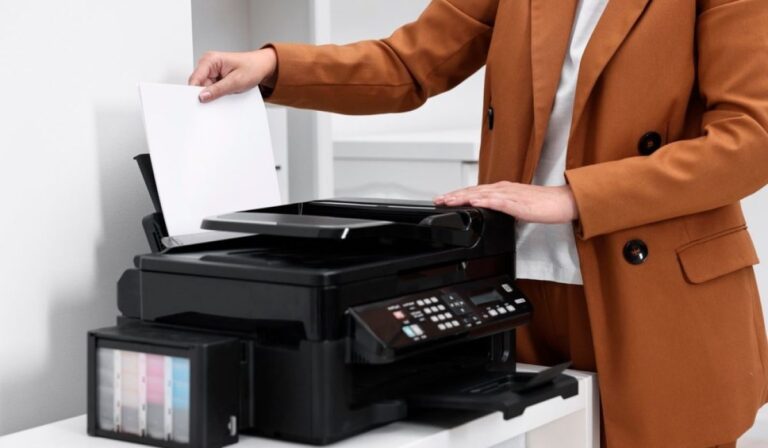
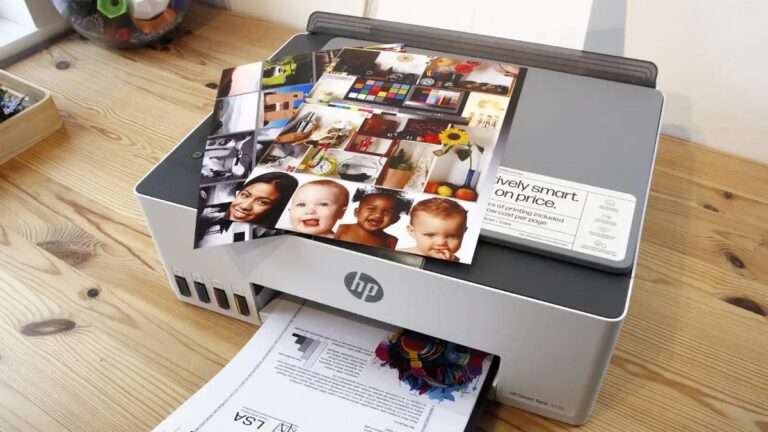
To connect your HP printer to your computer, start by setting up the printer with ink installation and paper loading.
Establishing a connection between your HP printer and computer can be done via USB or wireless methods. Proper setup ensures smooth printing operations.
For a USB connection, turn off the printer before plugging in the cable, then power it on. Your computer should detect the printer automatically and prompt you for installation. This method is straightforward and reliable for direct printing.
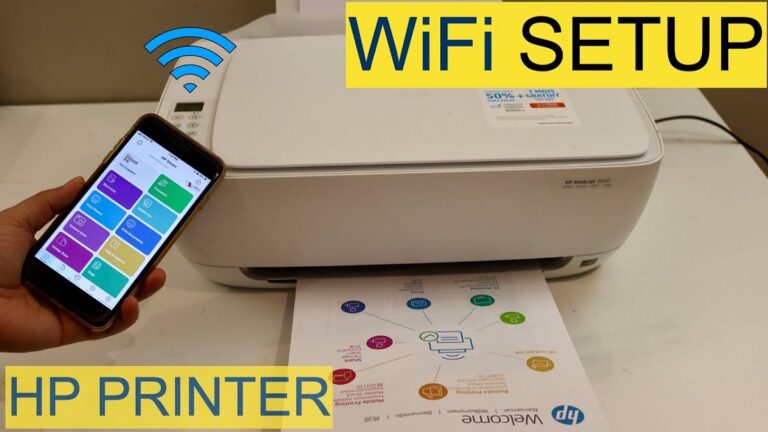
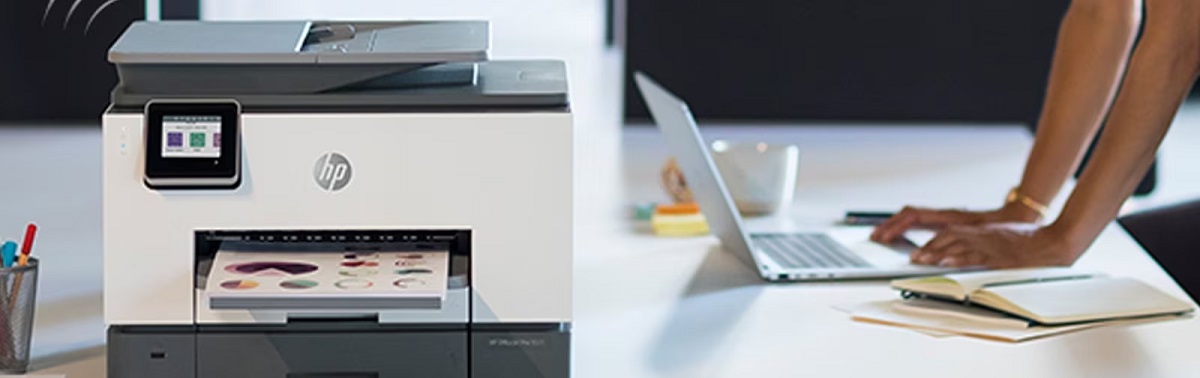
For a wireless connection, use the printer’s setup wizard to join your Wi-Fi network. After connecting, download and install the latest HP drivers and software from the official HP website. This ensures full functionality and access to all printer features.
If you want tips on troubleshooting or advanced setup, keep exploring this guide. It will help you resolve common issues and optimize your printing experience.
Key Takeaways
- Unpack the HP printer, install ink cartridges, load paper, and power it on near your computer.
- For USB connection, turn off printer, connect USB cable to both devices, then power the printer on.
- To connect wirelessly, use the printer’s wireless setup wizard to select your Wi-Fi network and enter the password.
- Download and install the latest HP drivers and software from the official HP website for full functionality.
- Troubleshoot connection issues by checking cables, network settings, restarting devices, and using HP Print and Scan Doctor.
Preparing Your HP Printer for Connection
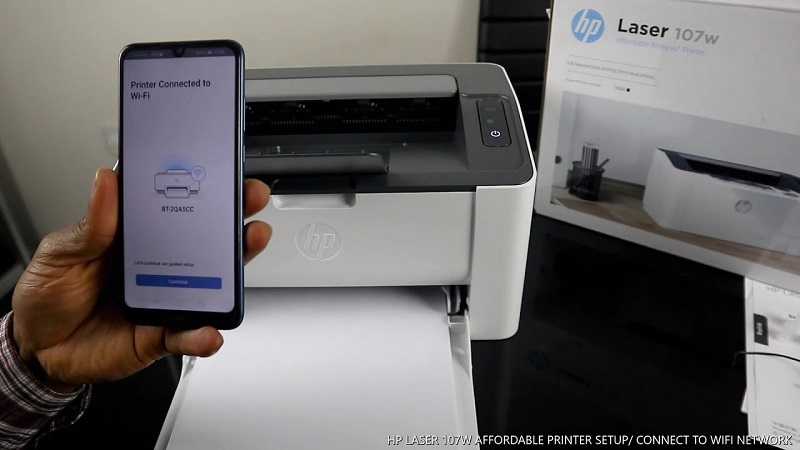
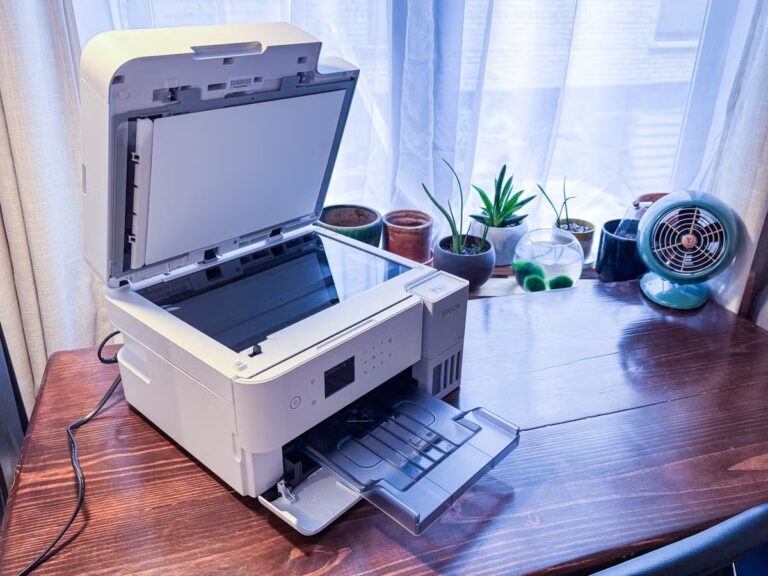
Before you connect your HP printer to your computer, make sure it’s properly set up and powered on. Start by unpacking the printer and removing all protective materials, including tapes and plastic covers. Place the printer on a flat, stable surface near your computer.
Plug it into a power source and press the power button to turn it on. Next, install the ink or toner cartridges as instructed in the printer manual, and load the paper tray with the appropriate paper size. Verify the printer’s display shows it’s ready, without any error messages.
Finally, connect the printer to your Wi-Fi network if it supports wireless printing; this step helps you prepare for a smoother setup later. You’re now ready to proceed with connecting the printer to your computer.
Connecting Your HP Printer via USB Cable
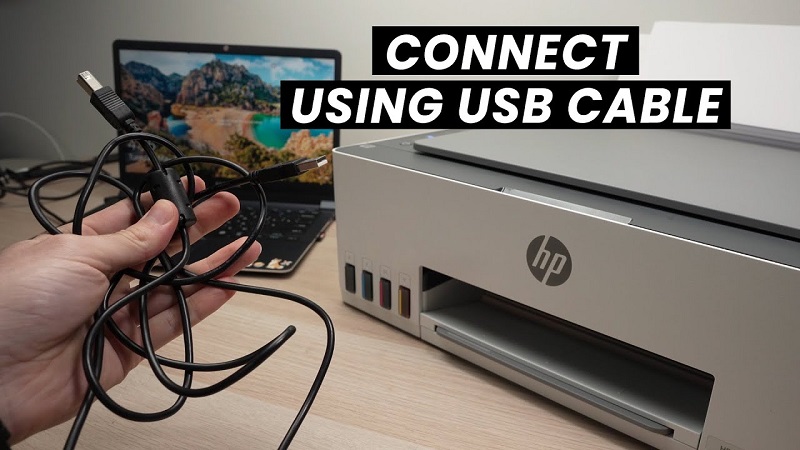
While wireless connections are popular, using a USB cable to connect your HP printer to your computer is often the simplest and most reliable method. First, make sure your printer is turned off. Locate the USB cable that came with your printer; one end should fit the printer’s USB port, and the other fits your computer’s USB port.
Plug the cable into both devices securely. Turn on your printer. Your computer will usually detect the new hardware automatically and either install the necessary drivers or prompt you to download them from HP’s website.
If your system doesn’t recognize the printer right away, open the “Devices and Printers” section in your control panel to add a new device manually. This direct connection guarantees a stable printing experience without network hassles.
Setting Up Your HP Printer on a Wireless Network
If you want to enjoy the convenience of printing without cables, setting up your HP printer on a wireless network is the way to go. First, make sure your printer supports Wi-Fi and is within range of your router. Power it on, then access the control panel to find the wireless setup wizard.
Select your Wi-Fi network and enter the password. Your printer will connect automatically.
Here’s a quick overview:
| Step | Action | Tip |
|---|---|---|
| 1 | Power on the printer | Verify Wi-Fi is enabled |
| 2 | Use wireless setup wizard | Select correct network |
| 3 | Enter Wi-Fi password | Double-check for accuracy |
Once connected, your printer is ready for wireless printing.
Installing HP Printer Drivers and Software
Since your printer is now connected to the network, you’ll need to install the appropriate drivers and software on your computer to guarantee smooth communication and full functionality. Start by visiting HP’s official website and entering your printer model to find the latest drivers. Download the full software package rather than just the drivers, as it often includes useful tools for scanning, maintenance, and updates.
Once downloaded, run the installer and follow the on-screen prompts to complete the setup. Make sure your computer stays connected to the same network as your printer during installation. After installation, you can access printer settings and features via the HP software, making printing and scanning tasks easier and more efficient.
This step assures your printer and computer work seamlessly together.
Troubleshooting Common Connection Issues
After installing the drivers and software, you might still face some connection hiccups between your HP printer and computer. First, double-check that all cables are securely plugged in if you’re using a wired connection. For wireless setups, ensure your printer and computer are on the same Wi-Fi network.
Restarting both devices can often clear temporary glitches. If your printer isn’t showing up, try running the HP Print and Scan Doctor tool to diagnose issues. Also, confirm your firewall or antivirus isn’t blocking the printer’s communication.
Updating your printer’s firmware and your computer’s OS can help resolve compatibility problems. If problems persist, resetting the printer’s network settings and reconnecting it to Wi-Fi can fix stubborn connectivity issues.
Frequently Asked Questions
Can I Connect My HP Printer to Multiple Computers Simultaneously?
Yes, you can connect your HP printer to multiple computers simultaneously if it’s network-enabled.
Just connect it via Wi-Fi or Ethernet, then install the printer on each computer for shared access without any hassle.
How Do I Connect My HP Printer to a Mobile Device?
Want to print on the go? You just need to download the HP Smart app on your mobile device, connect it to the same Wi-Fi as your printer, then follow the app’s prompts to add and print from your HP printer.
What Should I Do if My Printer Won’T Print in Color?
If your printer won’t print in color, check the ink levels, confirm color printing is enabled in settings, update drivers, and verify you’re not using grayscale mode.
Try cleaning the print heads to fix any clogs.
Is It Possible to Connect My HP Printer Using Bluetooth?
Yes, you can connect some HP printers via Bluetooth if they support it. Check your printer’s specifications and enable Bluetooth pairing mode.
Then, pair it with your computer through Bluetooth settings to start printing wirelessly.
How Do I Update the Firmware on My HP Printer?
Before you know it, your HP printer’s firmware can be updated by visiting HP’s official website or using the HP Smart app.
Just connect your printer, check for updates, and follow the on-screen instructions to keep it running smoothly.
Conclusion
Connecting your HP printer to your computer doesn’t have to feel like steering a maze. With the right steps—preparing your printer, choosing USB or wireless setup, installing drivers, and troubleshooting—you’ll have everything running smoothly in no time.
Think of this process as tuning an instrument; once everything’s aligned, your printer will perform flawlessly. So, take it step by step, and soon you’ll be printing with ease and confidence.
By following these clear steps to connect your HP printer to your computer, you can enjoy hassle-free printing and maximize your device’s potential. Whether you prefer a wired or wireless connection, proper setup ensures your HP printer works efficiently with your computer.