How to Add Printer to Iphone
To add a printer to your iPhone, start by ensuring your printer supports AirPrint or has a dedicated app. This is essential for seamless wireless printing from your device.
Connect both your iPhone and printer to the same Wi-Fi network to enable communication between them.
When you want to print a document or photo, select the print option on your iPhone and choose your printer from the available list.
If your printer isn’t AirPrint-enabled, you can use the manufacturer’s app to connect and print instead. This app often provides additional features and settings tailored to your printer model.
If you encounter any issues during setup or printing, don’t worry. There are simple fixes you can try to get everything working smoothly.
Restarting your devices, checking network connections, or updating software can often resolve common problems quickly.
Key Takeaways
- Confirm your printer supports AirPrint or has a compatible manufacturer app for iPhone printing.
- Connect both your iPhone and printer to the same Wi-Fi network for seamless printing communication.
- Use the iPhone’s Print option in apps, then select your AirPrint-enabled printer to add and print wirelessly.
- Download and use the printer manufacturer’s app if AirPrint is unavailable, following app instructions for connection.
- Restart devices and verify network settings if your iPhone fails to detect or connect to the printer.
Check Printer Compatibility With Iphone
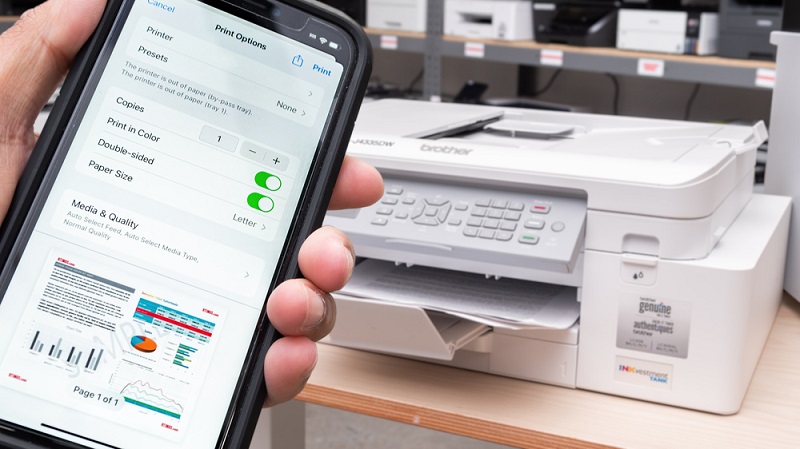
Before you try connecting your printer to your iPhone, you need to make certain the printer is compatible. Most modern printers support AirPrint, Apple’s built-in wireless printing technology, which makes the connection seamless. To check, look for the AirPrint logo on your printer or its packaging.
You can also visit Apple’s official website for a list of AirPrint-enabled printers. If your printer doesn’t support AirPrint, you might need a manufacturer’s app or third-party software to print from your iPhone. Ensure your printer is updated with the latest firmware, as this can improve compatibility.
Connect Your Iphone and Printer to the Same Network
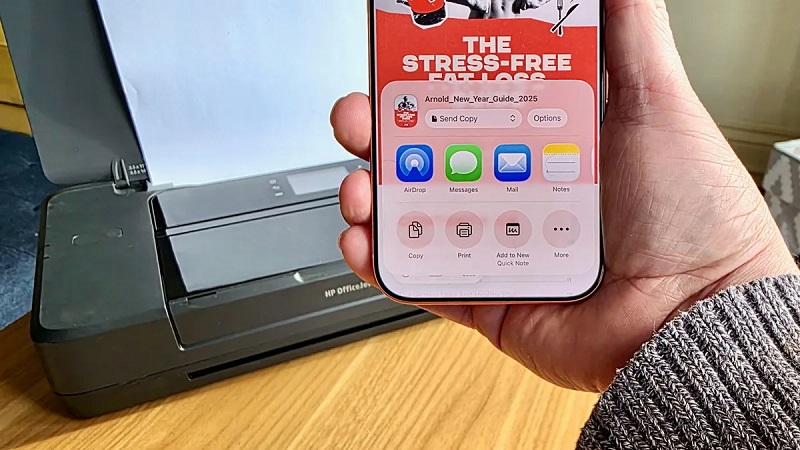
Once you’ve confirmed that your printer works with your iPhone, the next step is to make sure both devices are connected to the same Wi-Fi network. Without this, your iPhone won’t be able to find or communicate with the printer.
Start by checking your iPhone’s Wi-Fi settings under Settings > Wi-Fi and note the network name. Then, on your printer, access the network or Wi-Fi settings—usually through its control panel or touchscreen—and connect it to that exact same network.
If your printer supports Ethernet, ensure the router it’s connected to matches your iPhone’s wireless network. This shared network connection is vital for seamless printing from your iPhone. Once both are connected, your devices will be ready for the next step in adding your printer.
Use AirPrint to Add Your Printer
Since your iPhone and printer are on the same network, you can easily add your printer using AirPrint, Apple’s built-in printing feature. AirPrint lets you print documents, photos, and emails directly from your iPhone without installing extra drivers.
Here’s how to use AirPrint:
- Open the app you want to print from and tap the share icon or menu.
- Select “Print,” then tap “Select Printer” to find your AirPrint-enabled printer.
- Choose your printer, adjust print settings if needed, and tap “Print.”
Your iPhone will communicate wirelessly with the printer, making printing quick and seamless. Just make sure your printer supports AirPrint and both devices remain connected to the same Wi-Fi network for smooth operation.
Add a Printer Using Manufacturer’s App
If your printer doesn’t support AirPrint or you want more control over printing options, you can add it using the manufacturer’s app. First, download the official app from the App Store—brands like HP, Epson, Canon, and Brother all offer their own apps. Once installed, open the app and follow the setup instructions to connect your iPhone to the printer.
Usually, this involves ensuring both devices are on the same Wi-Fi network or connecting via Bluetooth. The app lets you manage printer settings, check ink levels, and select advanced print options that AirPrint might not offer. After setup, you can print documents or photos directly from the app or share files from other apps by selecting the manufacturer’s app in the share menu.
Troubleshoot Common Printer Connection Issues
When your iPhone won’t connect to the printer, it can be frustrating, but most issues have simple fixes. Start by checking your Wi-Fi connection; both devices need to be on the same network.
Next, confirm your printer supports AirPrint or is compatible with the manufacturer’s app you’re using. Finally, restart both your iPhone and printer to clear temporary glitches.
- Verify Wi-Fi is active and both devices share the same network.
- Confirm your printer supports AirPrint or the app’s requirements.
- Restart devices to reset connections and clear errors.
Frequently Asked Questions
Can I Print From My Iphone Using Bluetooth?
You generally can’t print directly via Bluetooth from your iPhone since Apple uses AirPrint over Wi-Fi. However, some printers have their own apps that support Bluetooth printing, so check your printer’s capabilities and app options first.
How Do I Print Double-Sided From My Iphone?
Printing double-sided from your iPhone is like flipping a coin perfectly—just select “Print” in your app, tap “Options,” then toggle “Two-Sided” if your printer supports it.
Otherwise, you’ll manually reinsert pages.
Is It Possible to Print Emails Directly From the Iphone?
Yes, you can print emails directly from your iPhone. Just open the email, tap the share icon, select “Print,” choose your printer, and adjust settings before printing.
It’s quick and convenient for on-the-go tasks.
Can I Add Multiple Printers to My Iphone?
Yes, you can add multiple printers to your iPhone. Just connect each printer to the same Wi-Fi network and select the one you want when printing.
Your iPhone remembers all available printers for easy switching.
How Do I Print Photos in High Resolution From My Iphone?
Right off the bat, make sure your photos are in the highest quality on your iPhone. Then, choose a printer supporting high-res prints, use AirPrint, and adjust print settings—don’t cut corners if you want sharp images!
Conclusion
Adding a printer to your iPhone is like opening a secret passage to effortless printing. By checking compatibility, connecting both devices to the same network, and using AirPrint or your printer’s app, you’ll have everything set in no time.
If hiccups come up, troubleshooting will get you back on track quickly.
With these simple steps, you’ll turn your iPhone into a powerful printing tool, ready whenever you need it. Adding a printer to iPhone is easy and convenient, making it simple to print documents, photos, and more directly from your device.