Why Is My Printer Offline
Your printer might show as offline due to loose cables, network problems, or changes in its IP address disrupting the connection. Outdated or corrupted drivers can also cause communication errors.
Incorrect settings, such as not setting the printer as default or having it in “use offline” mode, might be the culprit.
Power issues and hardware faults sometimes play a role, too.
If you want to fix this quickly, understanding the key causes and simple fixes will help you get back to printing smoothly. Checking connections and printer settings is a good place to start.
Key Takeaways
- Loose or disconnected cables and network interruptions often cause printers to appear offline.
- Outdated or incompatible printer drivers can lead to communication errors and offline status.
- The printer may be set to “Use Printer Offline” mode, disabling proper connectivity.
- Incorrect network settings or IP address changes can disrupt printer communication.
- Hardware issues like paper jams, power supply problems, or faulty components cause offline errors.
Common Connectivity Issues Causing Printer Offline
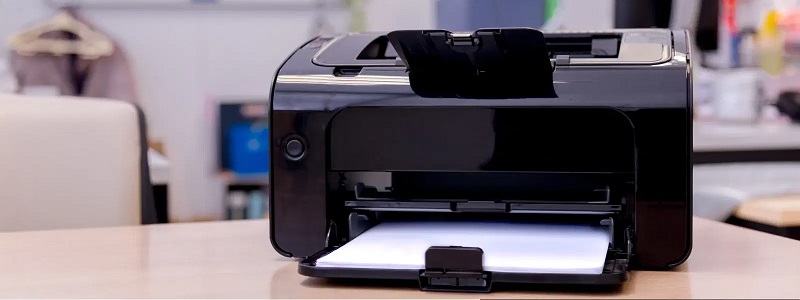
Although printers are designed to connect seamlessly, you might find yours going offline due to common connectivity issues like network interruptions, loose cables, or incorrect settings. First, check if your printer’s power and data cables are securely plugged in. A loose USB or Ethernet cable can easily cause disconnection.
If you’re using Wi-Fi, your printer and computer need to be on the same network. Network interruptions, such as weak Wi-Fi signals or router problems, can disrupt this connection. Additionally, verify that your printer’s IP address hasn’t changed; a mismatch can make your device appear offline.
Finally, ensure your printer is set as the default device in your system settings. Addressing these connectivity basics often resolves offline status quickly and gets your printer back online.
How Printer Drivers Affect Printer Status
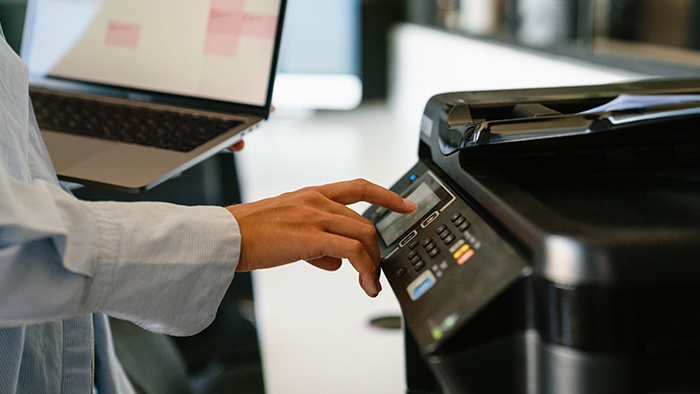
If your printer drivers aren’t compatible with your system, your printer might show as offline. Using outdated drivers can also cause communication errors between your device and printer.
Keeping your drivers maintained helps guarantee your printer stays connected and functional.
Driver Compatibility Issues
When your printer driver isn’t fully compatible with your operating system, your printer may show as offline even when it’s connected properly. This happens because the driver acts as a translator between your computer and the printer. If the driver can’t communicate effectively, your system won’t recognize the printer’s status accurately.
You might see it listed as offline, or your print jobs might get stuck. Compatibility issues often arise after system updates or when using a driver designed for a different OS version. To fix this, check if your printer manufacturer offers a driver specifically for your OS.
Installing the right driver guarantees smooth communication, preventing false offline statuses and improving overall printing reliability.
Outdated Driver Consequences
Why does an outdated printer driver cause your printer to show as offline? When your driver is outdated, it might not communicate properly with your operating system or printer hardware. This communication breakdown can make your computer think the printer isn’t connected or ready, even when it is.
Also, outdated drivers often lack support for recent OS updates or security patches, which can lead to frequent disconnections or errors. If you don’t update your driver, your system may fail to send print jobs correctly, causing the printer to appear offline.
Keeping your drivers current ensures smooth interaction between your computer and printer, reducing errors and improving performance. So, regularly checking for driver updates can prevent offline status issues and keep printing hassle-free.
The Role of Printer Settings in Offline Problems
Although printer settings might seem straightforward, they play a crucial role in whether your printer shows as offline. If your printer is set to “Use Printer Offline” mode, it won’t connect to your computer or network properly, causing offline errors. You should check this setting in the Devices and Printers section of your computer’s Control Panel and disable it if enabled.
Additionally, incorrect port settings can disrupt communication; ensure the printer is assigned the correct port matching its connection type, whether USB or network. Sometimes, default printer settings can also interfere—make sure your printer is set as the default device. Keeping these settings accurate helps maintain a smooth connection, preventing your printer from mistakenly appearing offline when it’s ready to print.
Troubleshooting Network Printer Offline Errors
If your network printer shows as offline, the first step is to check all network connections to guarantee everything’s plugged in and working. You should also try restarting both the printer and your router to reset any communication issues.
These simple actions often fix common offline errors quickly.
Check Network Connections
Before diving into complex fixes, you should first check your network connections when your printer shows as offline. Make sure your printer is properly connected to the same Wi-Fi network as your computer or device. If it’s wired, verify the Ethernet cable is securely plugged into both the printer and the router or switch.
Sometimes cables can loosen or get damaged without you noticing. You can also check your printer’s network settings through its control panel to confirm the IP address matches your network range. Additionally, ascertain your computer’s Wi-Fi or Ethernet connection is active and stable.
If your printer uses a wireless connection, obstacles or distance from the router might cause interruptions, so try moving it closer if possible.
Restart Printer and Router
Since network glitches can cause your printer to go offline unexpectedly, restarting both your printer and router often clears temporary issues and restores connection.
First, turn off your printer and unplug it from the power source. Then, power off your router and wait about 30 seconds to a minute before turning it back on. This pause allows the router to reset its network settings properly.
Once your router is fully back online, plug your printer back in and power it on. After both devices reboot, check if your printer appears online on your computer. This simple step often resolves connectivity hiccups caused by IP conflicts or network disruptions, getting your printer back to working smoothly without needing advanced troubleshooting.
Impact of Power and Hardware Problems on Printer Connectivity
When your printer suddenly goes offline, power and hardware issues are often the main culprits behind connectivity problems. If your printer isn’t receiving consistent power, it may fail to communicate with your computer. Check that the power cable is securely connected and that the outlet is working.
Hardware problems like loose cables, damaged USB cords, or faulty internal components can also disrupt the connection. Even a slightly unplugged cable can cause your printer to appear offline. Additionally, if your printer’s power button or internal power supply is malfunctioning, it won’t turn on properly, making it impossible to connect.
Software Conflicts That Lead to Printer Offline Messages
After checking your printer’s power and hardware, it’s worth looking at software conflicts that can cause it to go offline. Sometimes, outdated or corrupted drivers disrupt communication between your computer and printer. Also, conflicting applications might interfere with the printing process, causing errors.
Finally, network issues such as IP address changes can confuse your device, making it appear offline.
Here are three common software conflicts to consider:
- Driver Problems: Old or corrupted drivers prevent proper printer operation.
- Application Conflicts: Certain programs may block or interfere with print commands.
- Network Configuration: Incorrect IP settings or network changes disrupt connectivity.
Steps to Reconnect and Reset Your Printer Online
Even if your printer shows offline, you can usually bring it back online by reconnecting and resetting it properly. First, check that all cables are securely plugged in—power and USB or Ethernet connections matter. If you’re on Wi-Fi, ensure your printer is connected to the correct network.
Next, turn off your printer, wait 30 seconds, then power it back on to clear any temporary glitches. On your computer, open the Control Panel or Settings, go to Devices and Printers, right-click your printer, and select “Use Printer Online.” If that option isn’t available, try removing and reinstalling the printer driver.
These steps often resolve common connectivity issues, helping your printer respond and communicate correctly with your device.
Frequently Asked Questions
Can Printer Offline Errors Affect Print Quality?
No, printer offline errors don’t affect print quality directly. They just stop your printer from communicating with your computer.
Once you fix the connection, your printouts should look just as good as before.
Do Different Printer Brands Have Unique Offline Issues?
You might feel like your printer’s throwing a full-blown tantrum, but yes, different brands do have their own unique offline quirks.
How Does Printer Firmware Impact Offline Status?
Your printer’s firmware manages communication with your device; outdated or corrupted firmware can cause it to appear offline.
You’ll want to keep it updated to ensure smooth connectivity and avoid unexpected offline issues.
Can Antivirus Software Cause a Printer to Go Offline?
Like a traffic cop redirecting cars, antivirus software can mistakenly block your printer’s connection, causing it to go offline.
You’ll want to check your antivirus settings to make certain it’s not interfering with your printer’s communication.
Is Printer Offline Status Related to Ink or Toner Levels?
No, your printer’s offline status isn’t usually related to ink or toner levels. It’s more about connectivity or software issues.
Low ink might stop printing but won’t make your printer show as offline.
Conclusion
If your printer shows offline, you’re not alone—over 40% of printer issues stem from simple connectivity problems. Understanding how drivers, settings, and hardware affect your printer can save you time and frustration.
By following easy troubleshooting steps, you can quickly get your printer back online and working smoothly. Remember, many offline errors are fixable with just a few adjustments, so don’t give up before trying these solutions!
In conclusion, addressing why your printer is offline involves checking connections, updating drivers, and adjusting settings. Taking these actions will help resolve printer offline issues efficiently and restore proper functionality.