How Do I Install Printer on Mac
To install a printer on your Mac, first confirm it’s compatible with your macOS version. Installing a printer on Mac involves connecting via USB or setting up a wireless connection. Make sure your printer is on the same Wi-Fi network for wireless setup.
Next, open System Preferences, select “Printers & Scanners,” and click the plus (+) button. Add your printer from the list that appears. If drivers are needed, download and install them from the manufacturer’s website.
Once the printer is added, you can set preferences and troubleshoot any issues that arise. Following these steps will help you get your printer working smoothly.
Keep reading for detailed instructions and helpful tips.
Key Takeaways
- Verify your printer is compatible with your macOS version and supports AirPrint for easier setup.
- Connect your printer to the Mac using USB or ensure it’s on the same Wi-Fi network for wireless printing.
- Open System Preferences, go to “Printers & Scanners,” click the plus (+) button, and select your printer to add it.
- Download and install the latest Mac drivers and software from the printer manufacturer’s website for full functionality.
- Troubleshoot by checking connections, restarting devices, updating drivers, or resetting the printing system if the printer is unrecognized.
Check Printer Compatibility With Macos
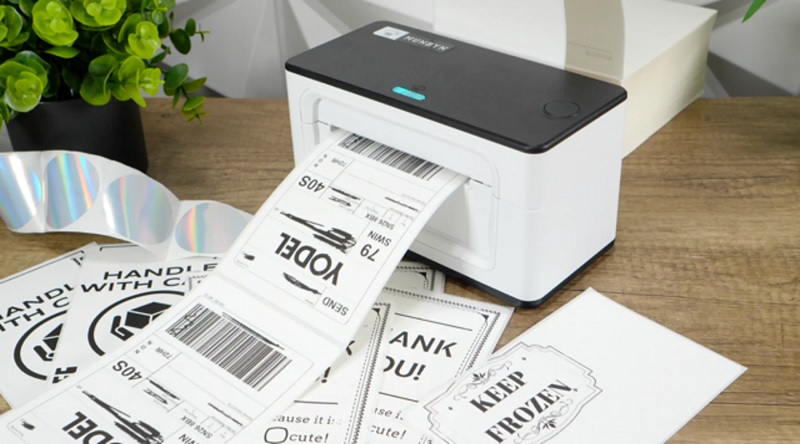
Before you start installing your printer, make sure it’s compatible with your macOS version. You can check this by visiting the manufacturer’s website or Apple’s support page, where they list compatible printers for each macOS release. If your printer isn’t supported, you might run into issues or need third-party drivers.
Keep in mind that newer macOS updates sometimes drop support for older devices. Also, verify whether your printer supports AirPrint, which allows for seamless wireless printing without extra drivers. Checking compatibility beforehand saves you time and frustration, ensuring a smooth setup process.
Connect Your Printer to the Mac
Once you’ve confirmed your printer is compatible, you can connect it to your Mac either via USB or wirelessly. For a wired connection, simply plug the USB cable from your printer into your Mac. If you prefer wireless, verify your printer supports Wi-Fi and is powered on.
Confirm compatibility, then connect your printer to Mac via USB or Wi-Fi for easy setup and printing.
Here’s how to connect:
- For USB, connect the cable and turn on the printer.
- For wireless, make sure your printer is on the same Wi-Fi network as your Mac.
- Check your printer’s display or manual for Wi-Fi setup instructions.
- If your printer supports Bluetooth, enable it and pair with your Mac in Bluetooth settings.
Now your printer is physically connected and ready for setup in your Mac’s system preferences.
Add the Printer via System Preferences
After connecting your printer to your Mac, you’ll need to add it through System Preferences to start printing. Open System Preferences from the Apple menu, then select “Printers & Scanners.”
Click the plus (+) button below the printer list to open the add printer window. Your Mac will search for available printers nearby or connected by USB. Select your printer from the list and click “Add.”
Your printer will now appear in the list, ready for use.
Here’s a simple table to visualize the steps:
| Step | Action | Location |
|---|---|---|
| 1 | Open System Preferences | Apple menu |
| 2 | Select Printers & Scanners | System Preferences window |
| 3 | Click + and Add printer | Printers list |
Install Printer Drivers and Software
While adding your printer to your Mac is essential, installing the correct drivers and software guarantees it works smoothly and gives you access to all its features. Here’s how to get that done:
- Visit the printer manufacturer’s website and locate the support or downloads section.
- Search for your specific printer model to find the latest Mac-compatible drivers and software.
- Download the installer package, then open it and follow the on-screen instructions to complete the installation.
- Restart your Mac if prompted, ensuring the drivers load properly and your printer functions as expected.
Installing these drivers enhances compatibility, enables advanced printing options, and often includes helpful utilities like scanning software or firmware updates.
This step ensures your printer performs at its best with your Mac.
Set Default Printer and Configure Settings
Although your printer is installed and ready to use, setting it as the default guarantees your Mac sends print jobs to the right device without extra steps.
To do this, open System Settings and go to Printers & Scanners. Select your printer from the list, then click the Default Printer dropdown menu and choose your installed device. This way, your Mac won’t ask which printer to use every time.
Next, configure your printer settings by clicking Options & Supplies. Here, you can adjust preferences like paper size, print quality, and duplex printing if supported. These settings help ensure your documents print exactly how you want without needing to change them each time manually.
Setting up defaults saves time and provides a smoother printing experience on your Mac.
Troubleshoot Common Printer Installation Issues
If your Mac isn’t recognizing your printer, the first thing you’ll want to check is the connection—whether it’s wired or wireless. Sometimes, driver conflicts can also cause issues, so make sure your printer software is up to date and compatible.
Let’s go over how to identify and fix these common problems.
Check Printer Connectivity
Before you plunge into printer setup, make sure your Mac can actually communicate with the printer. Connectivity issues are often the root cause of installation headaches. Here’s how to confirm everything’s linked up properly:
- Check cables and power – Ensure the printer is plugged in and turned on. For USB printers, confirm the cable is secure on both ends.
- Verify Wi-Fi connection – If you’re using a wireless printer, make sure it’s connected to the same network as your Mac.
- Ping the printer – Use your Mac’s Terminal to ping the printer’s IP address, ensuring it’s reachable.
- Restart devices – Sometimes, rebooting both your Mac and printer clears temporary glitches.
Doing these steps first saves you time and prevents frustration during installation.
Resolve Driver Conflicts
Once you’ve confirmed your Mac and printer are properly connected, the next step is to tackle driver conflicts that can block installation. Driver issues often arise when outdated or incompatible drivers clash with your system.
To resolve this, update or reinstall your printer drivers using the latest version from the manufacturer’s website or through Mac’s Software Update.
| Problem | Solution |
|---|---|
| Printer not recognized | Reinstall the driver |
| Error messages during printing | Update driver software |
| Printer offline | Reset the printing system |
| Incompatible driver | Download correct driver from manufacturer |
Addressing these issues ensures your printer works seamlessly with your Mac. If problems persist, checking your printer’s support page can provide tailored advice.
Frequently Asked Questions
Can I Print Wirelessly From My Mac Without a Router?
Yes, you can print wirelessly without a router by connecting your Mac directly to a Wi-Fi-enabled printer using Wi-Fi Direct or AirPrint.
Just verify both devices support these features, then follow the printer’s setup instructions.
How Do I Share My Printer With Other Macs on the Network?
You just need to enable printer sharing in System Preferences > Sharing, then check “Printer Sharing.”
Other Macs on your network can now find and use your shared printer through their print dialog or System Preferences.
What Is Airprint and Does My Printer Support It?
AirPrint is Apple’s wireless printing technology that lets you print directly from your Mac or iOS device without installing drivers.
You can check your printer’s manual or Apple’s website to see if it supports AirPrint.
Can I Print Directly From My Mac’s Iphone or Ipad?
You absolutely can print directly from your Mac, iPhone, or iPad—it’s like magic! Just use AirPrint-compatible printers, and you’ll breeze through printing without cables or fuss, making your life infinitely easier and more connected instantly.
How Do I Update Printer Firmware on a Mac?
You’ll need to visit the printer manufacturer’s website or use their Mac app to check for firmware updates. Download and follow their instructions carefully to update your printer’s firmware, ensuring your device runs smoothly.
Conclusion
So, you’ve braved the wild tech jungle and installed your printer on your Mac—congratulations! Now, instead of just printing, you can enjoy the thrilling experience of driver updates, mysterious error messages, and the eternal quest for the perfect paper jam.
But hey, at least you’re officially part of the Mac-Printer Alliance, where patience is a virtue and “It works on Windows” is a forbidden phrase.
Happy printing, brave soul! Remember, mastering how to install printer on Mac is the first step to seamless printing and hassle-free document management.