How to Print Ip Address of Printer
To print your printer’s IP address, start by accessing its control panel—use buttons or the touchscreen to navigate to “Network” or “Settings.” This is the most direct method to find and print the IP address of a printer.
From there, find “Network Status” or “TCP/IP” options and choose “Print Network Configuration” if available.
Alternatively, you can print the IP address via your printer software on your computer. This method is useful if you prefer managing settings through your PC rather than the printer itself.
You can also check your router’s connected devices list for your printer’s IP.
If you want to know more ways to find and print this info, keep exploring the details ahead.
Key Takeaways
- Access the printer’s control panel and navigate to the “Network” or “Wireless Settings” menu to find IP address options.
- Use the printer’s display screen to select “Print Network Configuration” or similar to print a page with the IP address.
- Press designated buttons like “Info” or “Wireless” on the control panel to directly print network details including the IP address.
- Open the printer software on your computer and select “Print Network Configuration” from the printer properties to print network info.
- Log into your router’s admin interface to find connected devices and print or note the printer’s assigned IP address from the list.
Accessing the Printer Control Panel
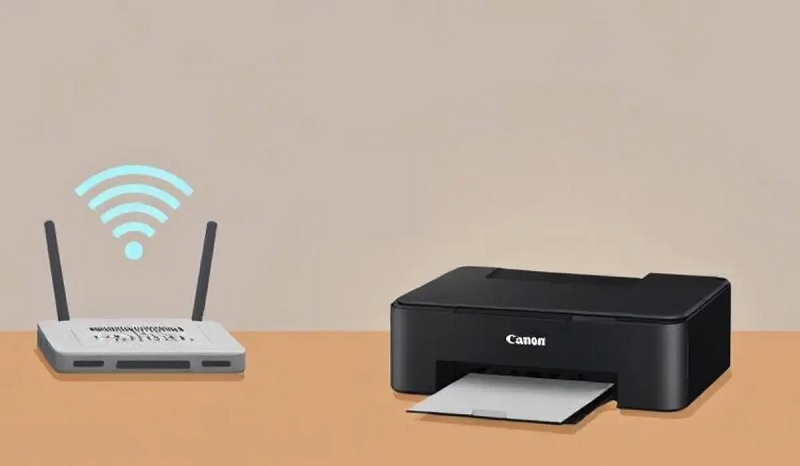
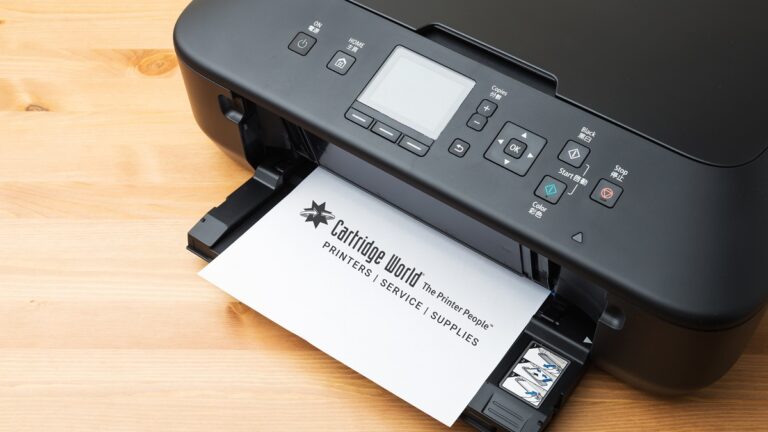
How do you access the printer control panel to begin printing its IP address? First, locate the printer’s physical control panel, usually found on the front or top of the device. It typically includes buttons, a touchscreen, or a combination of both.
Power on the printer if it’s off. If your printer has a touchscreen, tap it to wake the screen. For models with buttons, you might need to press a “Menu,” “Settings,” or “Setup” button to access the control panel options.
Some printers also have a dedicated “Information” or “Network” button that can directly lead you to printing network details. Make sure you’re familiar with your printer’s basic navigation to find the control panel’s main menu without confusion.
Navigating to Network Settings
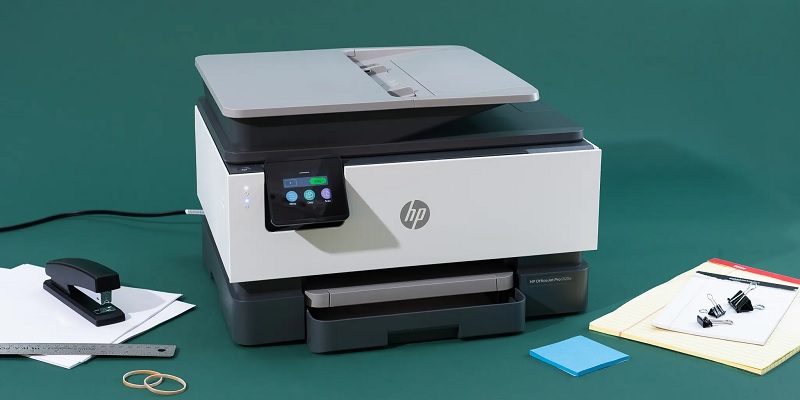
Once you’ve accessed the printer control panel, look for the menu that lets you manage network options. This section is where you’ll find settings related to your printer’s connectivity, including its IP address.
To navigate efficiently, follow these steps:
- Select the “Settings” or “Setup” icon, often represented by a gear or wrench symbol.
- Find and tap on “Network” or “Wireless Settings” to open the network configuration menu.
- Look for “Network Status,” “TCP/IP,” or “IP Address” options within this menu to access network details.
Printing a Network Configuration Page
Before you can find your printer’s IP address, you’ll need to print a network configuration page, which provides detailed information about your printer’s connectivity settings. To do this, start by ensuring your printer is powered on and connected to your network.
Then, locate the printer’s control panel or buttons, often marked with symbols like “Menu,” “Setup,” or “Information.” Press the appropriate button combination—this varies by model, but commonly involves holding down the “Info” or “Wireless” button for a few seconds.
The printer will print a page listing network details such as IP address, subnet mask, and gateway. Keep this page handy, as it contains the exact IP address you need to connect or troubleshoot your printer on the network.
Using the Printer’s Built-in Display Screen
You can find your printer’s IP address directly on its built-in display screen by browsing through the menu options. Start by accessing the settings or network section, where the IP information is usually listed.
This method is quick and doesn’t require printing any pages.
Navigating Printer Menu
Although printer models vary, steering your printer’s built-in display screen to find the IP address usually involves accessing the Settings or Network menu. You’ll often use the arrow keys or touchscreen to navigate through options. Here’s a simple approach:
- Start from the Home screen and select Settings or Setup.
- Look for a section labeled Network, Wireless, or Connectivity.
- Within that, find Network Status or TCP/IP to view the IP address.
Each step might have slightly different names depending on your printer brand, but the concept stays consistent. If you don’t see the IP address immediately, check for submenus like Wireless Settings or Advanced Settings.
Familiarizing yourself with your printer’s menu layout makes the process smoother and helps you quickly access network information when needed.
Finding Network Settings
Where can you locate the network settings on your printer’s display? Usually, you’ll find them within the Settings or Setup menu. Start by tapping the Home button, then look for an option labeled Network, Wireless, or something similar.
Select this option to access your printer’s network configuration. Once inside the network menu, you should see choices like Wi-Fi Status, Network Settings, or TCP/IP. Choose the relevant option to view detailed information, including the IP address.
Some printers also provide a Network Summary or Print Network Configuration page directly from the display. If you can’t find network settings immediately, consult your printer’s manual or on-screen help for guidance specific to your model. This method saves time by letting you check your IP without needing a computer.
Printing IP Address via Printer Software
When you access the printer software installed on your computer, you’ll often find a straightforward way to view or print the printer’s IP address. This method is convenient because you don’t need to interact directly with the printer or network settings.
Here’s how you can do it:
- Open the printer software or control panel on your computer, usually found in the system tray or start menu.
- Navigate to the “Printer Properties” or “Network Settings” section within the software.
- Look for an option like “Print Network Configuration” or “Print Settings Page” to print a page that includes the IP address.
Using the printer software simplifies the process and provides an immediate hard copy of your printer’s network details.
Finding IP Address on Network Router
If you can’t find your printer’s IP address through the software, checking your network router is a reliable alternative. Start by logging into your router’s admin interface. Usually, you can access it by typing the router’s gateway IP—commonly 192.168.1.1 or 192.168.0.1—into your web browser.
Once logged in, look for a section like “Connected Devices,” “Device List,” or “DHCP Clients.” This area displays all devices currently connected to your network. Find your printer’s name or MAC address in the list, and you’ll see its assigned IP address next to it.
If you have trouble identifying the printer, check its MAC address on the printer label and match it in the router’s list. This method helps you locate the IP without relying on printer software.
Troubleshooting IP Address Printing Issues
Although locating your printer’s IP address is straightforward, you might still face issues printing due to IP conflicts or network problems. When your printer won’t print, it’s often because the IP address has changed or there’s a conflict with another device.
To troubleshoot:
- Check IP Consistency: Make sure your printer’s IP matches what’s set on your computer or print server.
- Restart Devices: Power cycle your printer and router to refresh network connections.
- Assign a Static IP: Prevent future conflicts by setting a fixed IP address in the printer’s network settings.
Frequently Asked Questions
Can I Print the IP Address of a Wireless Printer?
Yes, you can print your wireless printer’s IP address. Usually, it’s found on the printer’s network settings menu or by printing a network configuration page directly from your printer’s control panel or embedded web server.
To do this, access the printer’s control panel and navigate to the network settings. From there, you can select the option to print the network configuration page. This page will typically include the IP address along with other network details.
How Do I Find the Printer’s MAC Address?
Finding your printer’s MAC address is a piece of cake—just print a network configuration page from the printer’s control panel or access its web interface; the MAC address will be listed under network settings or hardware information.
Is It Possible to Assign a Static IP to My Printer?
Yes, you can assign a static IP to your printer through its settings or your router’s DHCP reservation. This keeps the printer’s IP consistent, making it easier to manage and connect without IP conflicts.
Assigning a static IP helps avoid issues caused by changing addresses, especially in busy networks. It ensures reliable communication between your devices and the printer.
You can usually set this up in the printer’s network settings menu or by accessing your router’s admin panel. This approach simplifies printing tasks and network troubleshooting.
What Does an IP Address Conflict Mean for My Printer?
Oh joy, your printer’s decided to play “Who’s Got the IP?” An IP address conflict means two devices share the same address, causing chaos.
Can I Print the IP Address Using a Mobile Device?
Yes, you can print the IP address using a mobile device by accessing your printer’s settings through its app or web interface.
Just connect your phone to the same network and follow the printer’s instructions.
Conclusion
Now that you know how to print your printer’s IP address, you’re one step closer to managing your network smoothly. *Interestingly*, over 60% of home users struggle to find their printer’s IP, causing unnecessary tech headaches.
By following these simple steps—whether through the control panel, software, or router—you’ll save time and avoid frustration. Remember, having easy access to your printer’s IP makes troubleshooting and setup way more efficient.
Printing the IP address of your printer is essential for network management. Mastering how to print IP address of printer ensures seamless connectivity and easier printer configuration. Keep these tips handy for quick reference whenever you need to find your printer’s IP.