How to Add Printer to Ipad
To add a printer to your iPad, first make sure your printer supports AirPrint and both devices are connected to the same Wi-Fi network. This is essential for a seamless printing experience from your iPad.
On your iPad, open the app with what you want to print, tap the Share or menu button, then select “Print” and choose your AirPrint-enabled printer.
If your printer isn’t AirPrint-compatible, you can use third-party apps like Printer Pro for easy setup.
Keep exploring, and you’ll discover tips to fix issues and manage print jobs smoothly. This will help you make the most out of your iPad printing capabilities.
Key Takeaways
- Ensure your printer supports AirPrint or install a compatible third-party printing app on your iPad.
- Connect both your iPad and printer to the same Wi-Fi network for seamless communication.
- On your iPad, open the document or photo, tap the Share icon, then select “Print” and choose your printer.
- Use third-party apps like Printer Pro or Canon PRINT for printers without native AirPrint support.
- Restart your devices and verify network settings if the printer does not appear on your iPad.
Understanding AirPrint and Compatible Printers
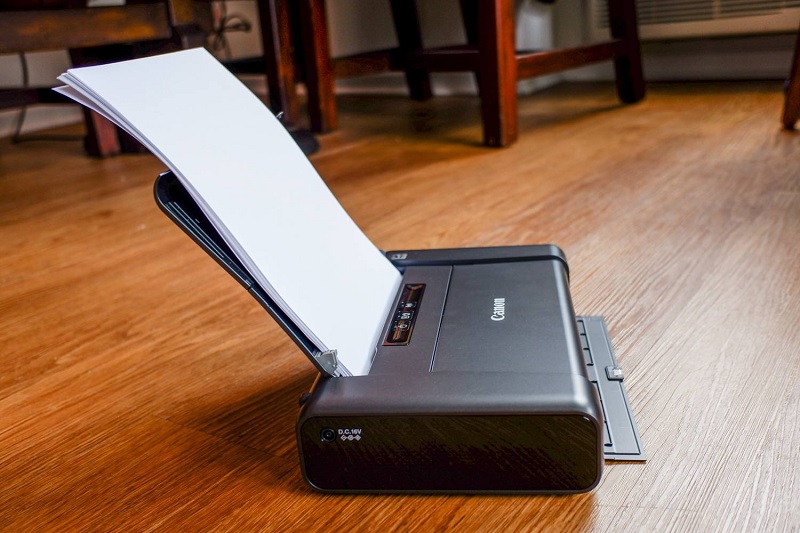
Before you can add a printer to your iPad, it’s important to understand AirPrint, Apple’s built-in printing technology that lets you print directly from your device without installing drivers. AirPrint works seamlessly with many modern printers, allowing you to print documents, photos, emails, and web pages with just a few taps.
However, not all printers support AirPrint, so you’ll need to verify if your printer is compatible. Most major brands like HP, Canon, Epson, and Brother offer AirPrint-enabled models. If your printer supports AirPrint, it means it can communicate wirelessly with your iPad, simplifying the printing process.
Knowing this helps you avoid compatibility issues and ensures a smooth setup when you’re ready to connect your printer.
Connecting Your Printer to the Same Wi-Fi Network
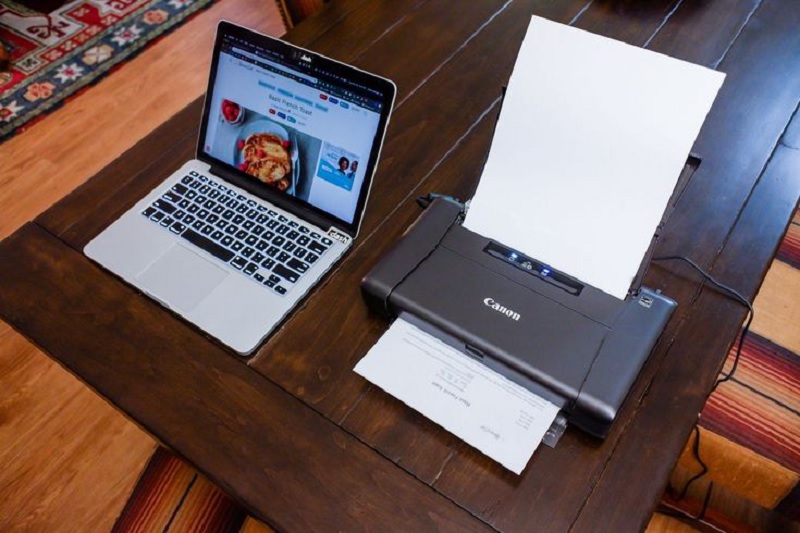
Since your iPad and printer need to communicate wirelessly, you’ll want to make sure both devices are connected to the same Wi-Fi network. Start by turning on your printer and accessing its network settings, usually found on the control panel or touchscreen. Select your home or office Wi-Fi network and enter the password if prompted.
Next, on your iPad, open Settings, tap Wi-Fi, and connect to the exact same network. Double-check that both devices show strong connections. If your printer supports Wi-Fi Direct, disable it to avoid conflicts.
Ensuring both your iPad and printer are on the same network is vital because it allows them to find each other easily. Once connected, you’re ready for the next step: printing from your iPad.
Printing Directly From Your Ipad Using Airprint
When you want to print directly from your iPad, AirPrint makes the process quick and simple. First, verify your iPad and AirPrint-enabled printer are connected to the same Wi-Fi network.
Then, open the app with the document, photo, or webpage you want to print. Next, follow these steps:
1. Tap the Share icon or the menu option and select “Print.” 2. Choose your AirPrint printer from the list that appears. 3. Adjust the print settings, like number of copies or page range, then tap “Print.”
Your iPad sends the job wirelessly, and your printer starts printing without any extra apps or drivers. AirPrint is built into iOS, so you can print effortlessly anytime you need.
Using Third-Party Printing Apps for More Options
If you need more features than AirPrint offers, third-party printing apps can help. Apps like Printer Pro and PrintCentral provide extra options and support for various printers. Setting them up is usually straightforward, but a few tips can make the process smoother.
Popular Printing Apps
Wondering how to get more printing options on your iPad? Using third-party printing apps can really expand what you can do beyond the standard AirPrint capabilities. Here are three popular ones to think about:
- Printer Pro – It supports a wide range of printers and lets you print from almost any app. You can even print attachments, documents, and web pages easily.
- PrintCentral Pro – This app offers advanced features like printing from cloud services, managing print jobs, and scanning documents.
- Canon PRINT Inkjet/SELPHY – Perfect if you have a Canon printer, providing full control over print settings and direct printing.
These apps make printing from your iPad more versatile and convenient, especially if you need features AirPrint doesn’t offer.
App Setup Tips
Although setting up third-party printing apps on your iPad might seem tricky at first, you’ll find the process straightforward once you follow a few simple steps. First, download the app recommended by your printer’s manufacturer or a trusted third-party app like Printer Pro or PrintCentral. After installing, open the app and grant necessary permissions, such as access to your files or photos.
Next, connect your printer by selecting it from the app’s printer list, ensuring both devices are on the same Wi-Fi network. Finally, test the setup by printing a sample document. These apps often provide advanced features like print queues, multiple printer management, and document editing, giving you more control over your printing tasks.
Troubleshooting Common Printing Issues on Ipad
When your iPad won’t print as expected, it’s often due to simple connectivity or compatibility issues that you can quickly fix. Start by checking your Wi-Fi connection; both your iPad and printer must be on the same network. Next, ensure your printer supports AirPrint, as many iPad-compatible printers rely on this feature.
Finally, restart your devices to clear temporary glitches.
- Verify your iPad and printer are connected to the same Wi-Fi network.
- Confirm your printer is AirPrint-compatible or has a dedicated app.
- Restart your iPad and printer to reset connections.
Addressing these steps usually resolves common printing hiccups, letting you print smoothly from your iPad without hassle.
Managing Printer Settings and Print Jobs on Ipad
Once you’ve connected your printer, you can easily access its settings right from your iPad to adjust preferences.
You’ll also be able to monitor the status of your print jobs and make changes as needed.
If something goes wrong, you can quickly pause or cancel prints without hassle.
Accessing Printer Preferences
Since iPads don’t offer a traditional printer preferences panel like computers do, you’ll manage print settings directly through the print dialog or the app you’re using. When you tap the share or options button and select Print, you’ll see a streamlined interface to adjust your print job.
Here’s what you can control:
- Printer Selection: Choose your connected printer from the list.
- Copies & Range: Specify the number of copies and select specific pages.
- Options Settings: Adjust color, double-sided printing, or paper size if your printer supports these features.
These settings let you tailor your printing without extra menus. If you need more advanced controls, you might have to use your printer’s dedicated app, but for most tasks, the iPad’s print dialog is quick and straightforward.
Monitoring Print Job Status
Adjusting print settings on your iPad is straightforward, but keeping track of your print jobs is just as important. Once you send a document to print, you can monitor its status directly from the iPad. To do this, open the App Switcher by swiping up from the bottom and pausing in the middle of the screen, then tap on the Print Center notification if it appears.
Here, you’ll see your active print jobs along with their progress. If you have multiple jobs, you can view each one’s details to confirm they’re printing correctly. Monitoring print job status helps you ensure your documents print smoothly and lets you spot any issues early.
This way, you stay informed without needing to check the printer physically.
Cancelling or Pausing Prints
While your print job is in progress, you might need to cancel or pause it for various reasons. Luckily, managing this on your iPad is straightforward. To do so, follow these steps:
- Open the App Switcher by swiping up from the bottom of the screen and holding, then select the Print Center app if it appears.
- Inside Print Center, you’ll see your active print jobs. Tap the job you want to pause or cancel.
- Choose “Pause Printing” to temporarily stop the job or “Cancel Printing” to abort it entirely.
If Print Center doesn’t appear, your print job might have finished or your printer doesn’t support job management. Using these steps helps you stay in control of your printing process without hassle.
Frequently Asked Questions
Can I Print Wirelessly Without a Wi-Fi Network?
You can print wirelessly without Wi-Fi by using Bluetooth or a direct Wi-Fi connection if your printer supports it. Make sure your printer has these features, then connect your iPad directly to it for printing.
This method bypasses the need for a traditional Wi-Fi network. Ensure your device and printer are compatible with these wireless options. Then you can enjoy convenient printing anywhere.
How Do I Print From My Ipad to a USB Printer?
You can’t print directly from your iPad to a USB printer since iPads lack USB ports. Instead, you’ll need to connect your printer to a computer or use a wireless-enabled printer supporting AirPrint for seamless printing.
If your printer doesn’t support AirPrint, consider using a printing app provided by your printer’s manufacturer. These apps often allow printing via Wi-Fi.
Alternatively, you can transfer your documents to a computer connected to the USB printer and print from there. This indirect method is currently the best option for USB printers.
Is It Possible to Print PDFS Directly From Email Apps?
Yes, you can print PDFs directly from most email apps on your iPad. Just open the PDF, tap the share icon, then select Print.
Make sure your printer supports AirPrint for a smooth experience.
Can I Share a Printer Connected to a Windows PC With My Ipad?
Yes, you can—but it’s a bit tricky. You’ll need to share the printer on your Windows PC and make certain both devices are on the same network.
Then, use AirPrint-compatible apps or third-party solutions to print from your iPad.
How Do I Update My Printer’s Firmware via Ipad?
You can’t usually update your printer’s firmware directly from an iPad. Instead, use your printer’s official app or visit the manufacturer’s website on a computer to download and install firmware updates for your printer.
This process typically requires a computer connection because firmware files are often too large or complex to handle via mobile devices.
Check your printer’s manual or support page for specific instructions and compatible software to ensure a smooth update.
Conclusion
Adding a printer to your iPad doesn’t have to be a wild goose chase. By understanding AirPrint, connecting your devices to the same Wi-Fi, and exploring third-party apps, you’re well on your way to hassle-free printing.
If issues pop up, troubleshooting steps are there to guide you through. With a little patience, managing your print jobs will feel as smooth as a breeze.
In conclusion, learning how to add a printer to iPad ensures a seamless printing experience. Whether using AirPrint or other methods, you can enjoy easy and efficient printing from your device.