Why Is My Printer Not Printing – Definitive Guide
If your printer is not printing, the issue could stem from several common problems. First, check that it’s properly connected and powered on. Make sure the ink or toner isn’t empty and that cartridges are installed correctly.
Confirm your printer driver is up to date and compatible with your system. Also, look at the printer queue for stuck jobs.
Verify your device is on the same network if it’s wireless.
Hardware problems like paper jams can also cause issues. Keep exploring to uncover more detailed solutions. This approach will help you diagnose and fix why your printer is not printing.
Key Takeaways
- Ensure the printer is powered on and properly connected via USB or Wi-Fi to your computer or network.
- Check ink or toner levels and replace cartridges if they are empty or low.
- Verify that the printer driver is compatible, up to date, and correctly installed on your operating system.
- Clear any stuck print jobs in the printer queue and confirm the printer is set as the default device.
- Restart the printer, computer, and network devices to resolve connectivity or hardware issues.
Checking Printer Connections and Power
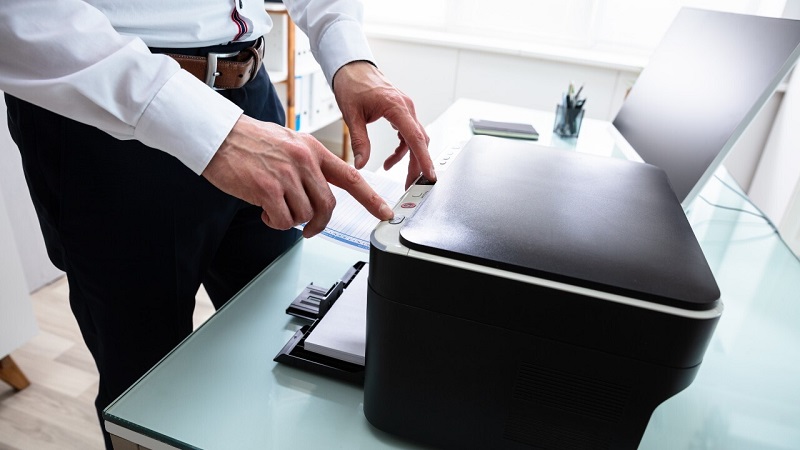
Before diving into complex troubleshooting, make sure your printer is properly connected and powered on. Check that the power cable is securely plugged into both the printer and the electrical outlet. If your printer has a power button, ensure it’s turned on and the indicator lights are active.
Next, verify the connection between your printer and computer. For USB printers, confirm the cable is firmly connected to both devices. If you’re using a wireless printer, ensure it’s connected to the correct Wi-Fi network and that your computer is on the same network.
Restarting both the printer and your computer can refresh the connection. Taking these simple steps can often resolve printing issues without further hassle.
Inspecting Ink or Toner Levels
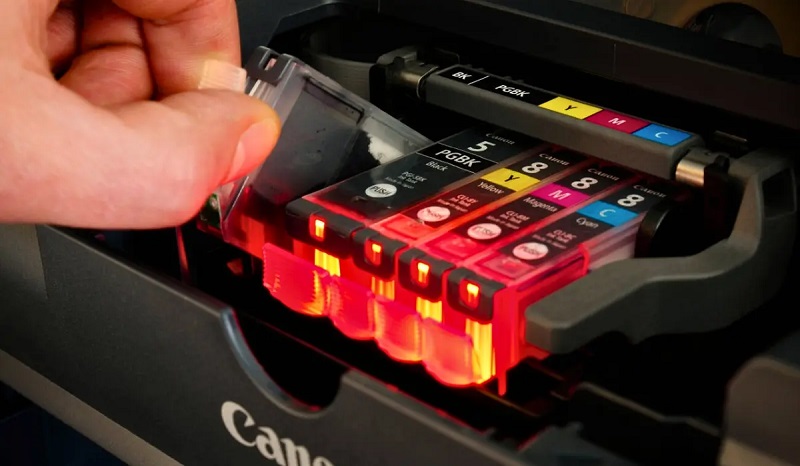
If your printer isn’t printing, the ink or toner levels might be low or empty. You’ll want to check the ink cartridge status or toner level indicators on your printer’s display or software.
Replacing empty cartridges is often the simplest fix to get your printer working again.
Checking Ink Cartridge Status
When your printer isn’t printing, one of the first things you’ll want to check is the ink or toner levels. Low or empty cartridges often cause printing issues. To check, open the printer’s ink cartridge compartment and remove the cartridges carefully.
Inspect them for visible ink levels or damage.
Many printers offer a software utility that shows cartridge status on your computer. This tool helps you monitor ink levels and alerts you when replacements are needed.
| Cartridge Type | Status Indicator | Action Required |
|---|---|---|
| Black | Full/Low/Empty | Replace if Empty |
| Color | Full/Low/Empty | Replace if Empty |
| Photo | Full/Low/Empty | Optional Replacement |
| Toner | Visible Powder Level | Replace if Low |
| All | Error/Not Detected | Reinstall or Replace |
Understanding Toner Level Indicators
Although toner cartridges don’t show ink like traditional cartridges, you can still gauge their levels through specific indicators on your printer or software. Many printers have a built-in display panel that shows toner status, letting you know when levels are getting low. Alternatively, you can check toner levels from your computer by opening the printer management or utility software, which often provides a detailed status.
Some manufacturers also offer apps that monitor toner remotely. Keep in mind that toner level indicators are estimates and might not always be perfectly accurate. Still, paying attention to these alerts helps you avoid unexpected print jobs stopping mid-way.
Replacing Empty Ink Cartridges
Since empty ink or toner cartridges can halt your printing tasks, it’s important to know how to replace them properly. First, check your printer’s display or software to confirm which cartridge is empty. Open the printer’s cartridge access door and wait for the cartridge holder to stop moving.
Gently press down or release the cartridge clip to remove the empty cartridge. Avoid touching the copper contacts or nozzles to prevent damage. Unpack the new cartridge, remove any protective tape, and insert it firmly until it clicks into place.
Close the access door and wait for the printer to recognize the new cartridge. Finally, run a test print to ensure the replacement was successful and your printer is ready to go.
Troubleshooting Printer Driver Issues
If your printer isn’t responding, you should first check if the driver is compatible with your operating system. Sometimes, outdated drivers can cause printing problems, so make sure to update them regularly.
Getting the latest driver version can often fix connection and performance issues.
Driver Compatibility Check
When your printer isn’t printing, one of the first things you’ll want to check is whether the driver installed on your computer is compatible with both your operating system and the printer model. If the driver isn’t designed for your OS version—like Windows 10 versus Windows 11—or doesn’t match your printer’s specific model, it can cause communication issues.
You can verify compatibility by visiting the printer manufacturer’s website and reviewing the driver details. Check if the driver supports your exact printer model and operating system version. Also, make sure you haven’t accidentally installed a generic or outdated driver.
Using incompatible drivers might not only stop printing but also cause error messages. Confirming driver compatibility is a vital troubleshooting step before you move on to other fixes.
Updating Printer Drivers
How do you fix printing problems caused by outdated or corrupted drivers? Start by checking your printer manufacturer’s website for the latest driver updates. Download the correct driver for your printer model and operating system to avoid compatibility issues.
Next, uninstall the current printer driver from your computer to prevent conflicts. After that, install the newly downloaded driver following the provided instructions. Once installed, restart your computer to apply the changes fully.
This often resolves communication errors between your device and printer. Additionally, some manufacturers offer automatic update tools—using these can simplify the process. Keeping your drivers updated guarantees excellent printer performance and reduces errors.
If problems persist, consider contacting support or reinstalling the printer to reset its configuration.
Examining Printer Queue and Settings
Although a printer might seem unresponsive, checking the printer queue and settings can often reveal the root of the problem. First, you’ll want to open the printer queue on your computer to see if any documents are stuck or paused. If you find any, try canceling or restarting them.
Next, verify the printer is set as the default device; otherwise, your print jobs might be sent elsewhere. Third, review the printer’s status for any error messages or offline notifications. Finally, check the print settings to confirm they match your needs—like paper size, color options, and print quality.
Taking these steps can often fix common issues without needing more complex troubleshooting.
Resolving Network and Wireless Problems
If your printer isn’t responding despite correct settings, the issue might lie with your network or wireless connection. First, check that your printer is connected to the same Wi-Fi network as your computer or device. If it’s not, reconnect it through the printer’s control panel or setup software.
Next, restart your router and printer to refresh their connections. You can also try printing a network configuration page from your printer to verify its IP address and connection status. Make sure your firewall or antivirus software isn’t blocking your printer’s communication.
Finally, updating your printer’s firmware and your device’s drivers can resolve compatibility issues. By systematically addressing these network factors, you’ll often restore printing functionality without needing hardware fixes.
Identifying Hardware Malfunctions
When your printer still won’t print after checking network issues, it’s time to look for hardware malfunctions. These problems can be tricky, but focusing on key areas will help you pinpoint the cause.
Here’s what to check:
- Power Supply: Ensure the printer is properly plugged in and turned on. A loose power cable can stop everything.
- Paper Jam: Open the printer and look for stuck paper. Even small scraps can block the rollers.
- Ink or Toner Cartridges: Verify cartridges aren’t empty or improperly installed. Replace if needed.
- Connection Ports: Inspect USB or other cables for damage or looseness. Swap cables if uncertain.
Frequently Asked Questions
How Do I Print Double-Sided Documents?
You can print double-sided by selecting “Duplex Printing” or “Print on Both Sides” in your printer settings.
If your printer doesn’t support it, manually print odd pages first, then reinsert and print even pages.
Can I Print From My Smartphone?
You’re fortunate—yes, you can print from your smartphone! Many printers gracefully accept wireless commands via apps or AirPrint.
Just make certain your device and printer share the same network, and you’re ready to send your masterpiece to paper effortlessly.
What Paper Types Are Compatible With My Printer?
You can use plain, photo, matte, or glossy paper, depending on your printer model.
Check your printer’s manual or manufacturer’s website to see which paper types and weights it supports for ideal printing quality.
How Do I Scan and Print in One Step?
You can usually scan and print in one step by selecting the “Scan to Print” option on your printer’s control panel or using its software on your computer.
Check your printer’s manual for exact steps; it varies by model.
Why Is Print Quality Poor Despite New Ink?
Poor print quality persists despite new ink probably because clogged cartridges cause color confusion, or your printer’s settings might be set too low.
You should clean the nozzles and check resolution settings for sharper, smoother results.
Conclusion
If your printer’s playing hide and seek with your documents, don’t let frustration cloud your day. Think of it as a puzzle—checking connections, ink, and drivers is like finding the missing pieces. Sometimes, a quick reset clears the fog, and other times, a deeper look into settings or hardware is the key.
Keep calm and methodically untangle the web, and soon your printer will be humming smoothly. Understanding why your printer is not printing can save you time and hassle. Whether it’s a connectivity issue, low ink, or driver problems, addressing these common causes will get your printer back on track.
By following these steps, you can resolve most printing problems and enjoy seamless printing again. Remember, patience and a systematic approach are your best tools when dealing with printer issues.