How to Connect Hp Deskjet Printer to Wifi
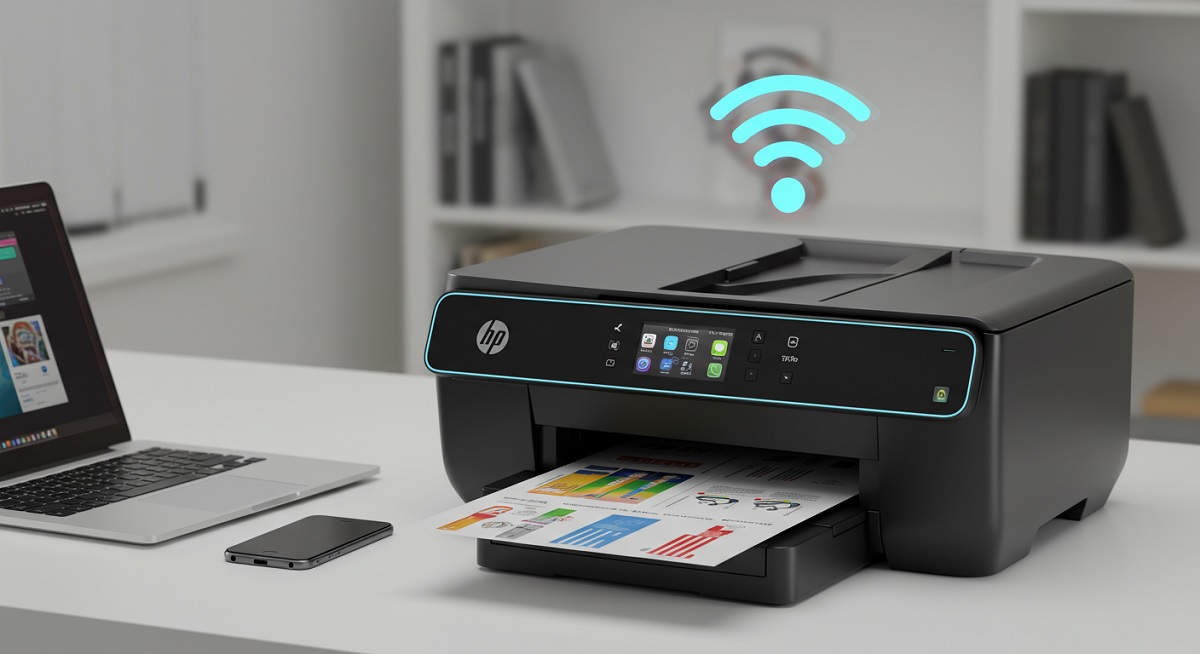
To connect your HP Deskjet printer to WiFi, first confirm it supports wireless connectivity and have your network’s SSID and password ready. Ensuring your printer is wireless-capable is essential for a smooth setup.
Power on the printer and access its control panel. Use the Wireless Setup Wizard to select your network and enter the password.
Alternatively, you can connect via the WPS button by pressing it on both the printer and router.
Next, install the HP Smart app to add and manage your printer easily.
For a smoother setup experience, check the WiFi signal strength and ensure you enter the correct network credentials.
Keep exploring for more setup tips and troubleshooting help.
Key Takeaways
- Turn on the HP Deskjet printer and open the Wireless Setup Wizard from its control panel to select your WiFi network.
- Enter your WiFi password accurately when prompted to connect the printer to your network.
- Alternatively, use the WPS button on both the printer and router to establish a quick wireless connection.
- Download and open the HP Smart app on your device to add and manage your printer on the same WiFi network.
- Restart your printer and router if connection issues occur, and verify the WiFi password and network settings are correct.
Check Printer Compatibility and Prepare Your Network
Before connecting your HP Deskjet printer to WiFi, make sure your printer supports wireless networking. Check the model number on your printer and visit HP’s official website or the user manual to confirm if it has built-in WiFi capabilities. If it doesn’t, you won’t be able to connect wirelessly without additional hardware.
Next, ensure your wireless network is up and running with a strong signal near your printer’s location. Note your WiFi network name (SSID) and password, as you’ll need them later. Also, verify your router uses a compatible frequency band—most HP Deskjet models work best on 2.4 GHz networks.
Preparing your network and confirming compatibility beforehand will save you time and frustration during setup.
Connect Printer to WiFi Using the Control Panel
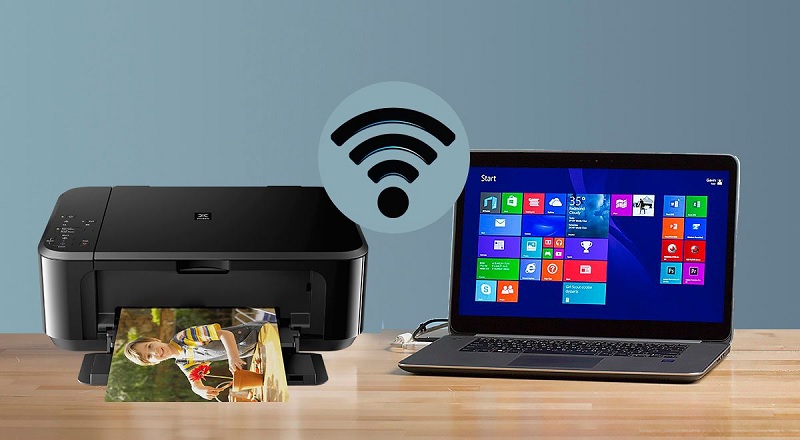
Once you’ve confirmed your printer supports WiFi and your network is ready, you can connect your HP Deskjet directly through its control panel. Begin by turning on the printer and accessing the control panel touchscreen or buttons. Look for the Wireless or Network Setup option and select it.
Then, choose the Wireless Setup Wizard, which will scan for available networks. Find your WiFi network’s name (SSID) from the list and select it. When prompted, enter your WiFi password carefully using the touchscreen keyboard or navigation buttons.
After entering the password, confirm to connect. The printer will attempt to join the network, and once connected, a wireless icon or confirmation message will appear. This method lets you set up your printer’s wireless connection without needing a computer.
Install HP Smart App and Add Your Printer
Now that your printer is connected to WiFi, you’ll want to download the HP Smart app to manage your setup effortlessly.
The app will guide you through adding your printer and connecting it to your network. This process guarantees your printer is ready to use from any device.
Downloading HP Smart
You’ll often find that the easiest way to connect your HP Deskjet printer to WiFi is by using the HP Smart app. To get started, download the app on your smartphone or tablet. Head to the App Store if you’re using iOS or Google Play Store for Android devices.
Search for “HP Smart” and tap “Install” or “Get.” Once installed, open the app and create or sign in to your HP account. This lets you manage your printer settings and monitor ink levels.
After signing in, the app will guide you to add your printer. Make sure your printer is powered on and nearby to guarantee a smooth connection process. Downloading HP Smart streamlines setting up your printer on a WiFi network.
Setting Up Printer
After downloading and signing into the HP Smart app, it’s time to set up your printer by adding it to the app. Here’s how to do it quickly:
- Open the HP Smart app and tap the plus sign (+) to add a new printer.
- Make sure your printer is powered on and in setup mode—usually indicated by a blinking light.
- The app will search for nearby printers; select your HP Deskjet from the list.
- Follow the on-screen instructions to complete the setup, which may include installing updates or drivers.
Once added, your printer will appear on the app’s home screen, ready for printing tasks.
This setup guarantees your HP Deskjet is recognized and managed easily through the HP Smart app.
Connecting to Network
Although you’ve already added your printer to the HP Smart app, connecting it to your Wi-Fi network is essential for wireless printing. First, open the HP Smart app on your smartphone or computer. Make sure your device is connected to the same Wi-Fi network you want your printer to join.
In the app, select your printer, then choose “Wireless Setup” or “Network Setup” from the menu. Follow the on-screen prompts to enter your Wi-Fi network name and password. The printer will attempt to connect to the network; this may take a minute.
Once connected, the app will confirm the successful connection. You’re now ready to print wirelessly from any device on your network using the HP Smart app.
Use WPS Button to Connect Printer to Router
To connect your HP Deskjet printer using WPS, start by locating the WPS button on both your printer and router.
Next, activate the printer’s WPS mode, usually by pressing and holding its WPS button.
Finally, press the WPS button on your router to establish a secure connection between the two devices.
Locate WPS Button
Before you can connect your HP Deskjet printer to your WiFi using WPS, you’ll need to find the WPS button on both your printer and router. Locating these buttons is straightforward if you know where to look.
- On your HP Deskjet printer, the WPS button is usually on the control panel or near the wireless indicator. The button might be labeled “WPS” or have the WPS icon – two arrows forming a circle.
- On your router, check the back or side for a physical WPS button, often labeled or marked with the same icon. If you can’t find it, consult your printer’s and router’s manuals or look for a dedicated wireless setup button that supports WPS.
Once you’ve found both buttons, you’ll be ready to initiate the connection.
Activate Printer WPS Mode
Once you’ve located the WPS buttons on both your printer and router, you can activate the printer’s WPS mode to start the connection process. On your HP Deskjet printer, press and hold the WPS button for about 3 to 5 seconds until the wireless light starts blinking. This indicates the printer is now searching for your router’s signal.
Avoid pressing any other buttons during this time to prevent interruptions. After activating WPS mode on your printer, you’ll have a limited window to press the WPS button on your router to complete the connection. The blinking light on the printer will turn solid once the connection is successful.
If it doesn’t, try restarting both devices and repeat the steps carefully.
Connect Router via WPS
After activating the WPS mode on your HP Deskjet printer, your next step is to press the WPS button on your router. This action allows both devices to communicate and establish a secure wireless connection automatically.
Here’s how to proceed:
- Locate the WPS button on your router; it’s usually labeled “WPS” or has an icon with two arrows forming a circle.
- Press and hold the WPS button for about 2-3 seconds until the WPS indicator light starts blinking.
- Wait for your printer to detect the router and connect, which typically takes under 2 minutes.
- Once connected, the printer’s wireless light will stop blinking and remain solid, confirming a successful Wi-Fi connection.
Now, your HP Deskjet is ready to print wirelessly.
Verify Wireless Connection and Print a Test Page
Although you’ve connected your HP Deskjet printer to your Wi-Fi network, you’ll want to confirm the connection is active and stable. Start by checking the printer’s control panel or touchscreen for a wireless icon or connection status. You can also print a Wireless Network Test report from the printer’s settings menu to see detailed connection info.
Next, ensure your computer or mobile device is on the same Wi-Fi network. To verify everything works perfectly, print a test page. On your printer, navigate to the Setup or Tools menu and select “Print Test Page” or “Print Quality Report.”
If the test page prints clearly, your printer is successfully connected and ready for use. This step confirms the wireless setup is correctly done before you start printing documents.
Troubleshoot Common Wireless Connection Issues
If your HP Deskjet printer isn’t connecting to Wi-Fi as expected, don’t worry—you can usually fix common wireless issues with a few quick checks. First, make certain your printer and router are within range and there are no physical obstructions.
Next, restart both your printer and router to refresh the connection. Third, verify that your printer is connected to the correct Wi-Fi network, especially if there are multiple networks nearby.
Finally, confirm your Wi-Fi password is entered correctly on the printer. If these steps don’t work, consider updating your printer’s firmware or resetting its network settings.
These simple actions often resolve most wireless connection problems, helping your HP Deskjet printer get back online quickly.
Frequently Asked Questions
Can I Connect My HP Deskjet Printer to Multiple Wifi Networks?
You can’t connect your HP Deskjet printer to multiple WiFi networks simultaneously, but you can switch between networks by updating the WiFi settings each time.
Just reconnect it to the new network when needed.
How Do I Update My HP Deskjet Printer’s Firmware?
You can update your HP Deskjet printer’s firmware by visiting the HP Support website or using the HP Smart app. Connect your printer to Wi-Fi, check for updates, and follow on-screen instructions to complete the update.
Is It Possible to Print From My Smartphone Without Wifi?
Yes, you can print from your smartphone without WiFi by using a USB OTG cable or Bluetooth if your printer supports it. Otherwise, offline printing usually requires a direct cable connection or specific apps.
How Do I Secure My Printer From Unauthorized Access?
Think of your printer as a treasure chest—lock it by setting a strong Wi-Fi password, enabling WPA3 encryption, and updating firmware regularly.
Also, disable remote printing features you don’t use to keep intruders out.
Can I Use a USB Cable Instead of Wifi for Printing?
Yes, you can use a USB cable instead of WiFi for printing. Just plug the USB cable into your printer and computer, install necessary drivers if prompted, and you’ll be able to print without relying on a wireless connection.
Conclusion
Connecting your HP DeskJet to WiFi is like planting a seed—once rooted, it opens a world of effortless printing right from your devices.
By following these simple steps, you’re not just linking a printer; you’re weaving a seamless connection that brings your ideas to life.
So, nurture this bond, troubleshoot when needed, and watch your creativity flow wirelessly, turning every page into a proof of your tech-savvy spirit.
In conclusion, connecting your HP DeskJet printer to WiFi ensures smooth, wireless printing from anywhere in your home or office.
With a stable wireless connection, you can enjoy convenience and efficiency, making your HP DeskJet printer a vital part of your digital workflow.