How to Connect Ipad to Printer
To connect your iPad to a printer, first verify your printer supports AirPrint or wireless printing. This is essential for a smooth printing experience from your iPad. Both devices need to be connected to the same Wi-Fi network to communicate effectively.
Next, select “Print” from your iPad’s share menu and choose your printer. Alternatively, you can use the printer’s app for additional features.
Another option is to connect via Wi-Fi Direct, which allows router-free printing.
If needed, you can also connect your iPad to the printer using a USB adapter. This method is useful when wireless options aren’t available.
To get the most from your iPad printing setup, explore these options further and choose what works best for you.
Key Takeaways
- Confirm your printer supports AirPrint or has a compatible manufacturer app for iPad printing.
- Connect your iPad and printer to the same Wi-Fi network for seamless wireless printing.
- Use the iPad’s share menu in any app, tap “Print,” and select your AirPrint-enabled printer.
- Alternatively, download the printer’s app (e.g., HP Smart) to connect and print via Wi-Fi Direct or network.
- For USB printing, use a Lightning or USB-C to USB adapter to connect the printer directly to the iPad.
Check Printer Compatibility With Ipad
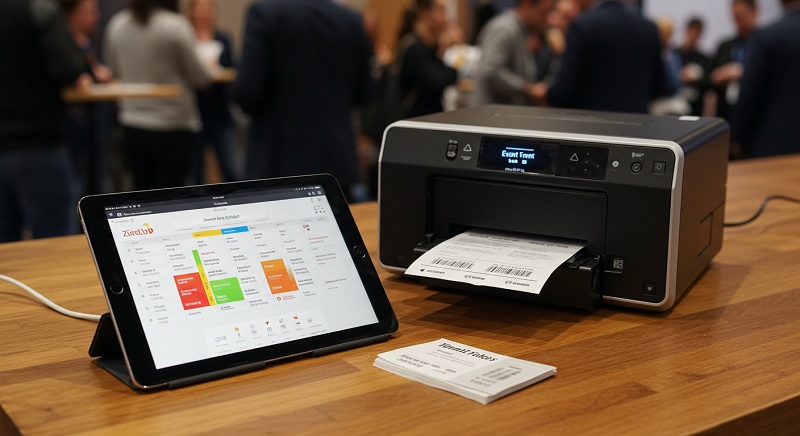
How can you be sure your printer will work with your iPad? First, check if your printer supports AirPrint, Apple’s built-in printing protocol. Most newer models from popular brands like HP, Canon, and Epson include this feature.
You can find this information in the printer’s manual, on the manufacturer’s website, or Apple’s official AirPrint support page. If your printer isn’t AirPrint compatible, don’t worry—you might still connect it using the manufacturer’s app or third-party printing apps, but compatibility varies.
Also, confirm your printer is connected to the same Wi-Fi network as your iPad. Verifying these details upfront saves you from connectivity headaches later. So, a quick compatibility check is essential before you start printing from your iPad.
Connect via AirPrint for Wireless Printing
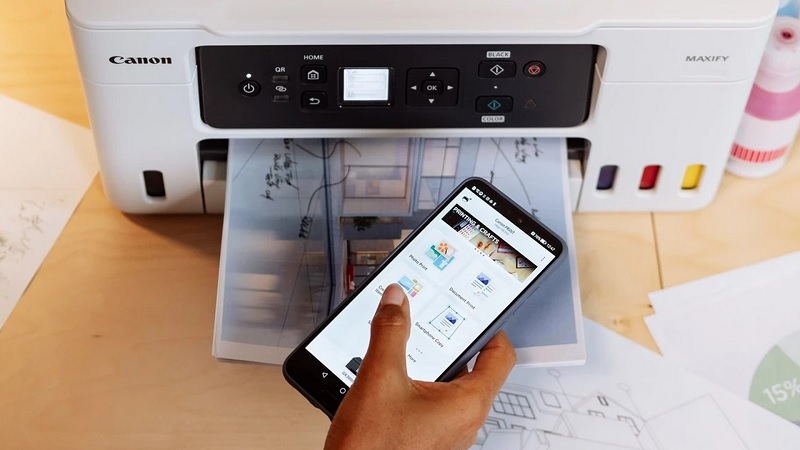
To use AirPrint for wireless printing, first make sure your printer supports it. Then, connect both your iPad and printer to the same Wi-Fi network.
Finally, when you’re in an app, just select the AirPrint option to start printing.
Check Printer Compatibility
Before you try connecting your iPad to a printer, you’ll want to make sure the printer supports AirPrint, Apple’s built-in wireless printing technology. AirPrint lets you print without installing drivers or apps, but not all printers have this feature.
To verify compatibility, you can:
- Visit Apple’s official AirPrint printer list online
- Look for the AirPrint logo on the printer or its packaging
- Check the printer’s user manual or manufacturer website
- Confirm the printer supports wireless networking (Wi-Fi)
- Ensure your printer’s firmware is up to date for AirPrint support
Enable Wi-Fi on Devices
Once you’ve confirmed your printer supports AirPrint and is connected to your Wi-Fi network, you’ll need to make sure both your iPad and printer are connected to the same Wi-Fi.
On your iPad, go to Settings > Wi-Fi, then select your network. For the printer, use its control panel or app to connect to that same Wi-Fi.
This step is essential for wireless printing to work smoothly.
| Device | Action | Tip |
|---|---|---|
| iPad | Settings > Wi-Fi | Choose your Wi-Fi network |
| Printer | Control panel or app | Connect to identical network |
| Both | Confirm connection | Check network name matches |
Once connected, you’re set for AirPrint to detect your printer automatically.
Select AirPrint in Apps
Although your iPad and printer are connected to the same Wi-Fi network, you’ll need to select AirPrint within the app you’re printing from to send your document or photo to the printer.
Here’s how to do it:
- Open the app containing the file or image you want to print.
- Tap the share icon or the menu button, then select “Print.”
- In the Printer Options, tap “Select Printer” and choose your AirPrint-enabled printer.
- Adjust print settings like number of copies, page range, or color options if available.
- Tap “Print” to start the wireless printing process.
Use Printer Manufacturer’s App for Printing
If you want the easiest way to print from your iPad, using your printer manufacturer’s app is usually the best choice. These apps are designed to work seamlessly with your specific printer model, often providing more features than AirPrint alone. To get started, download the app from the App Store—search for your printer brand like HP Smart, Epson iPrint, or Canon PRINT.
Once installed, open the app and follow the setup instructions to connect your printer to the same Wi-Fi network as your iPad. After setup, you can print documents, photos, and even scan directly from the app. Using the manufacturer’s app also lets you manage print settings, check ink levels, and troubleshoot issues, making printing from your iPad straightforward and efficient.
Set Up a Printer Using Wi-Fi Direct
While you might usually connect your printer through a Wi-Fi network, you can also set up your printer using Wi-Fi Direct. This method creates a direct wireless connection between your iPad and the printer without needing a router. To get started, make sure your printer supports Wi-Fi Direct and turn it on.
You can connect your iPad directly to a Wi-Fi Direct printer without using a router for easy printing.
Then, follow these steps:
- On your printer, enable Wi-Fi Direct mode (check the manual if unsure)
- On your iPad, open Settings and go to Wi-Fi
- Find and select your printer’s Wi-Fi Direct network
Enter the password if prompted (often found on the printer’s display or manual). Open the document or photo you want to print, tap Share, then Print, and select your printer.
This setup is perfect for quick, router-free printing.
Print With a USB Cable and Adapter
Connecting your iPad to a printer doesn’t always have to rely on wireless options like Wi-Fi Direct. You can print using a USB cable and the right adapter. Since iPads have a Lightning or USB-C port, you’ll need a compatible adapter—either a Lightning to USB Camera Adapter or a USB-C to USB Adapter, depending on your model.
Start by connecting the adapter to your iPad, then plug the USB cable from your printer into the adapter. Make sure your printer is turned on and supports USB connections. When you tap the share or print icon on your iPad, it should detect the printer automatically.
This method offers a stable, direct connection especially useful when Wi-Fi isn’t available or reliable.
Troubleshooting Common Printing Issues
Although printing from your iPad is usually straightforward, you might run into issues like your printer not showing up or print jobs getting stuck. When this happens, try these quick fixes to get back on track:
- Make sure your iPad and printer are connected to the same Wi-Fi network.
- Restart both your iPad and the printer to refresh connections.
- Check if your printer supports AirPrint, as incompatible models won’t appear.
- Update your iPad’s iOS and the printer’s firmware to the latest versions.
- Clear the print queue by canceling any stuck print jobs on your iPad.
Managing Print Jobs on Your Ipad
You can easily check your active print jobs right from your iPad to stay on top of what’s printing. If you need to pause or cancel a print, you’ve got full control without hassle.
Managing multiple print tasks becomes simple when you know where to find and handle each job.
Viewing Active Print Jobs
When you send a document to print from your iPad, it’s easy to keep track of its progress by viewing active print jobs. To do this, open the App Switcher by double-clicking the Home button or swiping up from the bottom (depending on your iPad model).
Look for the Print Center app, which appears only when a print job is active. Tapping it shows details about your print jobs.
Here’s what you can do when viewing active print jobs:
- See the document name currently printing
- Check the number of pages printed so far
- View the printer’s status (ready, offline, etc.)
- Know if multiple jobs are queued
- Confirm which printer your iPad is using
This helps you stay informed without interrupting your workflow.
Pausing and Canceling Prints
Keeping an eye on your active print jobs lets you know what’s happening, but sometimes you might need to pause or cancel a print.
To do this on your iPad, open the App Switcher by double-clicking the Home button or swiping up from the bottom (depending on your model). Then, tap the print preview to see the print queue.
From here, you can tap “Pause” to temporarily stop the job if you want to make changes or check the printer. If you decide to cancel, simply tap “Cancel Printing” to stop the job entirely.
Managing Multiple Print Tasks
Although handling one print job is straightforward, managing multiple print tasks on your iPad requires a bit more attention to keep everything organized. When you’re printing several documents or photos at once, it’s easy to lose track or accidentally print duplicates.
To stay on top of your tasks, you can:
- Access the print queue by opening the App Switcher and tapping the printer icon.
- View all currently active print jobs and their status.
- Prioritize jobs by pausing less urgent prints.
- Cancel unwanted or duplicate print jobs directly from the queue.
- Restart paused jobs when you’re ready to print again.
Frequently Asked Questions
Can I Print From My Ipad to Multiple Printers Simultaneously?
You can’t print to multiple printers simultaneously from your iPad directly. You’ll need to select each printer individually for each print job or use third-party apps or workflows that support batch printing across multiple printers.
How Do I Print Documents Securely From My Ipad?
You can print securely by using AirPrint with a password-protected Wi-Fi printer or a secure printing app.
Don’t worry about complexity—it’s straightforward, and these methods keep your documents safe from unauthorized access.
Is It Possible to Print Photos Directly From the Ipad’s Gallery?
Yes, you can print photos directly from your iPad’s gallery. Just open the photo, tap the share icon, select “Print,” choose your printer, and tap “Print.”
It’s quick and easy!
Can I Print Double-Sided Pages Using My Ipad?
You’re in luck—yes, you can print double-sided pages from your iPad, provided your printer supports duplex printing.
Just check your print settings before sending the job, and you’re all set for a neat, eco-friendly printout.
How Do I Update My Printer’s Firmware via Ipad?
You can’t usually update your printer’s firmware directly via iPad. Instead, use the printer manufacturer’s app or website on a computer to download updates, then follow their instructions to update your printer’s firmware safely.
Conclusion
Connecting your iPad to a printer might seem a bit tricky at first, but with these simple steps, it’s easier than you think. Whether you’re using AirPrint, a manufacturer’s app, or a direct USB connection, you’ll soon be printing like a pro.
Don’t let minor hiccups discourage you—troubleshooting is just part of the learning curve. Once you get the hang of managing your print jobs, your iPad will become an even more powerful tool.
By following these tips for how to connect iPad to printer, you can enjoy seamless printing anytime. This will enhance your productivity and make printing from your iPad effortless.