What Does Collate Mean on a Printer
When you select collate on a printer, it means your multiple copies print as complete sets in order—page one through the last page, then the next set, and so on. Collate helps you avoid messy stacks of mixed pages and saves you time sorting afterward. It’s especially handy for multi-page documents like reports or presentations.
Using the collate feature ensures that each copy is assembled correctly before printing the next one. This means you receive organized stacks of documents ready to distribute or bind.
If you want to get the most out of collating, understanding how it impacts printing and setup is a great next step.
Key Takeaways
- Collate on a printer means printing complete sets of multi-page documents in the correct order before starting the next copy.
- It helps maintain page sequence, making it ideal for reports, booklets, and presentations.
- Using collate saves time by reducing the need for manual sorting after printing multiple copies.
- Collated printing outputs one full document set at a time, unlike non-collated which prints all copies of each page consecutively.
- The collate option is typically enabled via the print dialog under “Copies” or “Print Settings” before printing.
Understanding the Collate Function
Have you ever wondered why your printer offers a collate option? When you print multiple copies of a multi-page document, collating helps keep each set in the correct order. Instead of printing all copies of page one, then all copies of page two, collate prints one complete set before moving to the next.
This function is especially useful if you’re printing reports, booklets, or presentations where page order matters. By selecting collate, you save yourself the hassle of manually sorting pages afterward. It’s a simple feature but can save time and reduce confusion.
How Collating Affects Printing Output
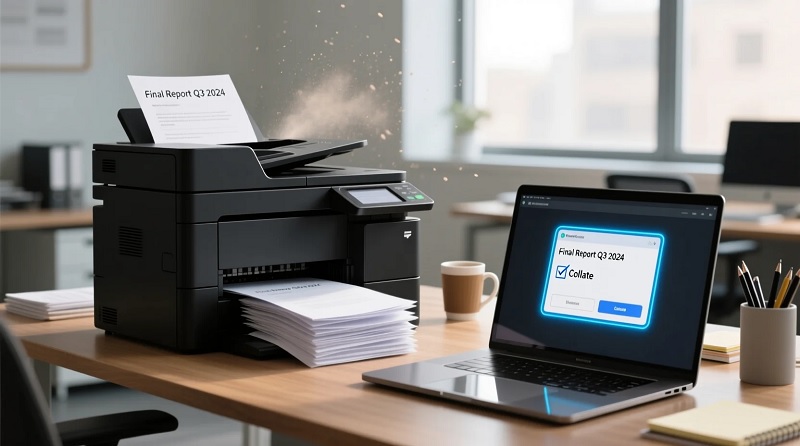
Now that you know how collating keeps your printed pages in order, it’s helpful to understand how it changes the way your printer handles the job. When you choose to collate, your printer prints complete sets one after another, which can take a bit longer but saves you the hassle of sorting.
Without collating, it prints all copies of page one, then page two, and so on, speeding up printing but creating a mess to organize.
| Collated Printing | Non-Collated Printing |
|---|---|
| Pages in order | Pages grouped by page number |
| Easier to distribute | Requires manual sorting |
| Slightly slower | Faster printing |
| Saves time post-printing | More time spent organizing |
Choosing collate impacts your workflow and convenience considerably.
When to Use Collate for Your Documents
Although collating may add a bit of time to your printing, you’ll want to utilize it whenever you’re producing multi-page documents that need to stay in order, such as reports, presentations, or manuals. Collating guarantees each set of pages is grouped sequentially, saving you the hassle of sorting them manually afterward.
You should also consider collating when printing multiple copies of documents for meetings or classes, where handing out complete, organized packets is essential. On the other hand, if you’re printing single-page copies or items that don’t require a specific order, collating isn’t necessary.
Steps to Enable Collate on Different Printers
Wondering how to enable collate on your printer? First, open the document you want to print and press Ctrl+P (or Command+P on Mac) to open the print dialog. Look for the “Copies” or “Print Settings” section.
Most printers offer a checkbox labeled “Collate” or an icon showing stacked pages. Checking this box will print your documents in order, set by set. On Windows, you might find collate options under “Printer Properties” or “Preferences.”
For Mac users, it’s often under the “Layout” or “Finishing” tab. If you’re using a printer app or driver interface, explore the print settings menu to locate collate options. Once selected, confirm your settings and hit “Print.”
Your printer will now output collated sets automatically.
Troubleshooting Common Collate Issues
If your printer isn’t collating as expected, it’s usually due to incorrect settings or driver issues. First, double-check that the collate option is enabled in the print dialog box before printing. Sometimes, default settings revert to uncollated.
Next, ensure you’re using the latest printer driver; outdated drivers can cause unexpected behavior. If you’re printing from a specific application, try printing from another to rule out software glitches. Also, verify that your printer’s firmware is up to date.
If problems persist, restart both your printer and computer to clear temporary errors. Finally, consult your printer’s manual or support site for model-specific troubleshooting steps. Addressing these points should help fix common collate problems efficiently.
Frequently Asked Questions
Can Collate Settings Affect Print Speed?
Yes, collate settings can affect your print speed. When you choose to collate, your printer organizes pages in order, which may slow down printing compared to printing all copies of one page before moving to the next.
Does Collate Use More Printer Ink or Toner?
Do you think sorting pages requires extra ink? Actually, collating doesn’t use more ink or toner since it just arranges pages in order.
It’s all about organization, not the amount of printing you do.
Is Collate Available on All Printer Brands?
No, not all printer brands offer collate as an option. You’ll find it mostly on multifunction and laser printers, but some basic or older models might not support collating.
Check your printer’s settings or manual to be sure.
Can I Collate Double-Sided Print Jobs?
Like a well-choreographed dance, yes, you can collate double-sided print jobs, but it depends on your printer’s capabilities. Check settings carefully, as some models handle double-sided collation smoothly, while others might struggle or lack this feature.
How Does Collate Interact With Duplex Printing?
When you use collate with duplex printing, your printer prints double-sided pages in the correct order for each set.
Conclusion
Imagine holding a perfectly stacked set of documents, each copy neatly ordered without a single page out of place. That’s the magic of using the collate function on your printer. By enabling collate, you save time and avoid the frustration of sorting through jumbled pages.
Next time you print multiple copies, remember to turn on collate. Your future self will thank you for the organized, hassle-free results. Understanding what collate means on a printer can truly enhance your printing experience.