How to Clear Printer Queue
If your print jobs get stuck, learning how to clear the printer queue is essential for smooth printing. You can clear the printer queue by opening the queue on your computer and canceling the pending jobs.
On Windows, restart the Print Spooler service to reset the queue, or use Command Prompt commands for a deeper clear.
Mac users can open the Print Queue from System Preferences and cancel jobs there.
If problems persist or your printer acts up, professional help might be needed. Keep exploring to find the best ways to fix and prevent these issues.
Key Takeaways
- Access the printer queue via Settings or Control Panel, then cancel stuck print jobs individually to clear the queue.
- Restart the Print Spooler service in Windows Services to reset and clear stalled print jobs efficiently.
- Use Command Prompt commands to stop the spooler, delete spooler files, and restart the service for thorough queue clearing.
- On macOS, open System Preferences > Printers & Scanners, select the printer, and cancel jobs in the Print Queue window.
- If print jobs remain stuck after clearing attempts, consider professional help for persistent software, hardware, or connectivity issues.
Understanding Printer Queue Issues
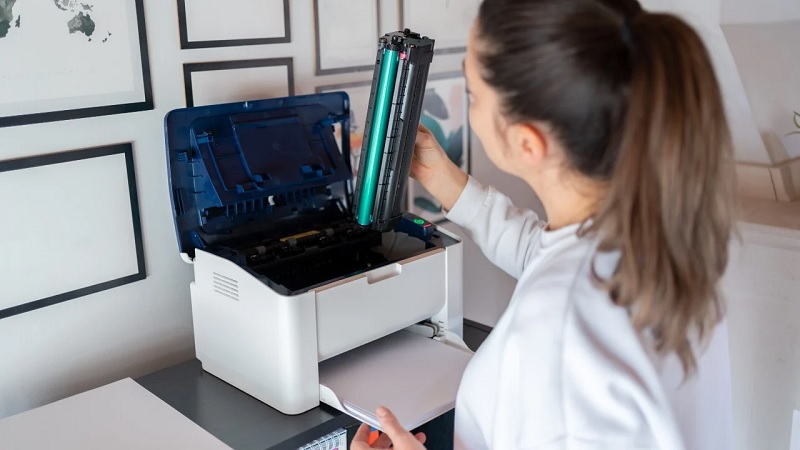
Before you can clear a printer queue, it’s important to understand why print jobs get stuck in the first place. Typically, print jobs get held up due to communication errors between your computer and the printer. Network issues, outdated drivers, or incorrect settings can interfere with the data transfer.
Sometimes, a print job may be corrupted or too large, causing the queue to halt. Additionally, if multiple print jobs are sent simultaneously, the queue can become overwhelmed. Recognizing these causes helps you avoid repeated problems and ensures smoother printing.
Knowing why jobs stall allows you to tackle the issue efficiently rather than just clearing the queue blindly, saving you time and preventing future frustrations. Understanding the root cause is the first step toward effective printer management.
Checking the Printer Status
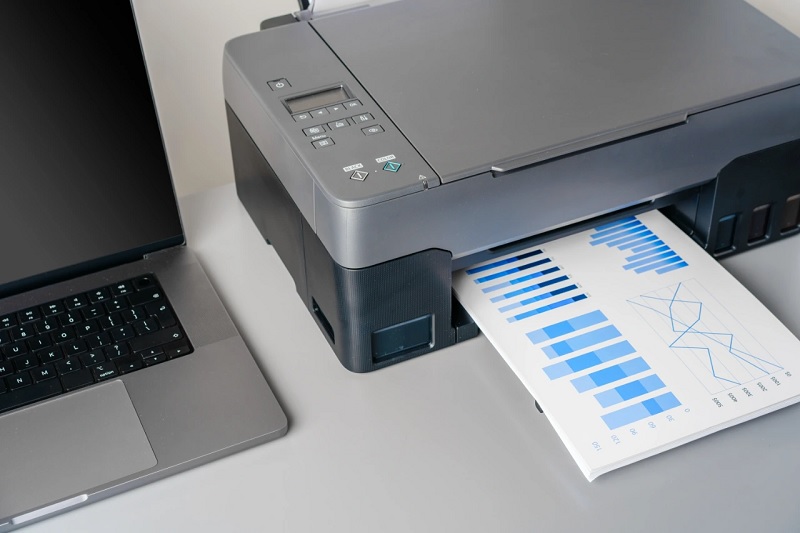
Before clearing your printer queue, you’ll want to check the printer status for any error indicators like paper jams or low ink. Keep an eye on the queue activity to see if documents are stuck or actively printing.
This will help you pinpoint the issue quickly and decide the next steps.
Printer Error Indicators
While you’re trying to clear the printer queue, it’s important to check for any error indicators on your printer. These indicators often appear as blinking lights, error messages on the display screen, or unusual sounds. Pay close attention to symbols like paper jams, low ink warnings, or connectivity issues.
Your printer might also show a red or orange light signaling a problem that needs immediate attention. Don’t ignore these signs—they can prevent your print jobs from processing properly. By identifying the exact error, you can address it directly, whether it’s clearing a jam, replacing ink cartridges, or reconnecting the printer to your network.
Checking these indicators first saves you time and helps clear the queue more effectively.
Queue Activity Monitoring
How can you tell if your printer is actively processing your documents or stuck? Monitoring the queue activity is key to managing print jobs effectively. You can quickly check the printer status on your computer or the printer’s display panel.
Look for signs that show whether the printer is busy or idle. Here’s what to watch for:
- Printer status reading “Printing” or “Processing”
- Blinking or steady lights indicating activity
- Progress bar showing the current job’s completion
- No change in the queue list over time, suggesting a jam
- Error messages or paused status on your print queue window
Canceling Print Jobs in Windows
To cancel print jobs in Windows, you’ll first need to open the printer queue where all active and pending jobs are listed. From there, you can select any print job and stop it immediately to clear the queue.
This quick action helps prevent any unwanted printing and frees up your printer for new tasks.
Accessing Printer Queue
Wondering how you can quickly stop a print job that’s stuck or no longer needed? The first step is accessing your printer queue, where all current print jobs are listed. Here’s how you can do it on Windows:
- Click the Start button and open the Settings app.
- Go to Devices > Printers & scanners.
- Select your printer from the list and click “Open queue.”
- Alternatively, click the printer icon in the taskbar notification area if it’s visible.
- You can also open Control Panel > Devices and Printers, right-click your printer, and choose “See what’s printing.”
Once you’re in the printer queue, you’ll see all active or pending print jobs ready to be managed.
Stopping Active Print Jobs
Even if a print job is already in progress, you can usually stop it before it finishes. To do this, open the printer queue by clicking the printer icon in your system tray or searching for “Printers & scanners” in the Start menu. Once the printer queue window is open, find the active print job, right-click it, and select “Cancel.”
If that doesn’t work immediately, you can try pausing the printer first, then canceling the job. Sometimes, restarting the print spooler service helps clear stubborn jobs. To do this, open the Services app, locate “Print Spooler,” right-click it, and choose “Restart.”
This stops all current jobs and clears the queue. Afterward, resume printing as usual.
Clearing the Printer Queue on Macos
Although macOS usually handles print jobs smoothly, you might occasionally find the printer queue stuck or unresponsive. When that happens, clearing the queue can fix the issue quickly. Here’s how you can do it:
Sometimes the printer queue on macOS gets stuck, but clearing it can quickly resolve the issue.
- Open System Preferences and select Printers & Scanners.
- Choose your printer from the list on the left.
- Click Open Print Queue to see pending jobs.
- Select the print jobs you want to remove and click the X button to cancel them.
- If the queue doesn’t clear, try quitting and reopening the Print Queue window.
This simple process helps you regain control over your printer without restarting your Mac or printer. Keeping an eye on the queue ensures smoother printing and fewer delays.
Restarting the Print Spooler Service
If your printer queue remains stuck after clearing jobs, restarting the print spooler service can often resolve the issue by resetting the system that manages print tasks.
To do this on Windows, open Services from the Start menu, find “Print Spooler,” right-click it, and select Restart. This stops and starts the service, clearing any glitches.
Here’s a quick overview of what restarting the spooler affects:
| Action | Effect | When to Use |
|---|---|---|
| Stop Service | Halts print jobs | Before clearing stuck jobs |
| Start Service | Resumes print jobs | After clearing queue or errors |
| Restart | Resets spooler system | When queue remains unresponsive |
Restarting the spooler is a simple fix that often gets printing back on track.
Using Command Prompt to Clear the Queue
When you need a quick and direct way to clear your printer queue, using the Command Prompt can be a powerful method. It allows you to stop the print spooler, delete stuck print jobs, and restart the service efficiently. Here’s how you can do it:
- Open Command Prompt as an administrator.
- Type `net stop spooler` and press Enter to stop the spooler service.
- Navigate to `C:WindowsSystem32spoolPRINTERS` and delete all files inside to clear the queue.
- Type `net start spooler` and press Enter to restart the spooler service.
- Close the Command Prompt and check if your printer queue is empty.
This approach gives you direct control and often resolves stuck print jobs faster than other methods.
Preventing Future Printer Queue Problems
To avoid printer queue issues from disrupting your work, you’ll want to keep your printer drivers updated and regularly clear out old print jobs. Also, assure your printer’s firmware is current, and restart your device periodically to refresh its system. Avoid sending multiple print jobs simultaneously, which can clog the queue.
| Tip | Why It Helps | How to Do It |
|---|---|---|
| Update Drivers | Fixes bugs and improves speed | Visit printer manufacturer site |
| Clear Old Jobs | Prevents backlog accumulation | Use printer settings or queue |
| Restart Printer | Resets system errors | Turn off/on printer |
| Avoid Multiple Jobs | Reduces queue congestion | Send print jobs one at a time |
Following these steps keeps your printer running smoothly and prevents future queue problems.
When to Seek Professional Help
Even with regular maintenance, printer queue problems can sometimes persist or become too complex to fix on your own. When you face recurring issues or notice unusual printer behavior, it might be time to get professional help. Don’t hesitate to contact a technician if you encounter:
- Frequent paper jams or hardware malfunctions
- Printer not responding despite clearing the queue
- Error messages you can’t resolve
- Network or connectivity problems affecting printing
- Persistent software or driver conflicts
Seeking expert assistance guarantees your printer is properly diagnosed and repaired, saving you time and preventing further damage. Plus, professionals can offer tailored solutions and maintenance tips to keep your printer running smoothly.
Frequently Asked Questions
Can Printer Queue Issues Affect Multiple Devices on a Network?
Yes, printer queue issues can affect multiple devices if they’re sharing the same network printer. You’ll notice delays or errors because the stuck jobs block others, so clearing the queue promptly helps keep printing smooth for everyone.
How Do Printer Drivers Impact the Printing Queue?
Printer drivers control how your print jobs are processed. If they’re outdated or corrupted, they can cause errors or delays in the queue.
Keeping drivers updated guarantees smooth communication and prevents printing issues.
Are There Third-Party Tools to Manage Printer Queues?
Think of your printer queue as a busy highway; yes, there are third-party tools like Print Manager Plus or PaperCut that help you control traffic flow, letting you pause, prioritize, or clear jobs more efficiently than built-in options.
Can Power Surges Cause Printer Queue Corruption?
Yes, power surges can cause printer queue corruption by interrupting communication or corrupting data. You’ll want to use surge protectors to prevent this and regularly clear your queue to avoid persistent issues from corrupted jobs.
Does Clearing the Queue Delete Saved Print Settings?
Clearing the queue won’t sweep away your saved print settings; they’re like your favorite recipe tucked away safely.
You’ll just erase pending jobs, but your preferences stay intact, ready for the next print run.
Conclusion
Clearing your printer queue might feel like battling a never-ending paper jam from a chaotic office tornado, but with these simple steps, you’ll tame the wildest printbacks in no time.
Just imagine your printer finally humming smoothly, like a well-oiled machine, free from the clutches of stuck jobs and endless waiting.
Keep these tricks handy, and you’ll conquer queue chaos like a printing superhero—no cape needed!
Mastering how to clear the printer queue is essential for maintaining seamless printing operations.
With these easy steps, you can quickly resolve printbacks and avoid delays in your workflow.
Stay prepared and keep your printer running efficiently by regularly clearing the printer queue.