What Is the Meaning of Collate in Printer
When you print multiple copies of a multi-page document, collate means your printer arranges each copy in the right page order automatically (like pages 1 to 5 in sequence).
This printer feature saves you time and effort by organizing pages correctly so you don’t have to sort them yourself. Collate ensures neat, ready-to-use sets without any confusion.
This function is especially useful for reports, manuals, or any multi-page prints. It prevents errors and keeps your documents in perfect sequence.
If you want to see how it works or when to use it best, there’s more to discover.
Key Takeaways
- Collate in printing means arranging multiple copies of a document in the correct page order automatically.
- It ensures each set prints pages sequentially before starting the next copy.
- Collated printing saves time by eliminating manual sorting of multi-page documents.
- It is useful when producing reports, booklets, or handouts requiring proper page sequence.
- Uncollated printing prints all copies of one page before moving to the next, unlike collated printing.
Definition of Collate in Printing
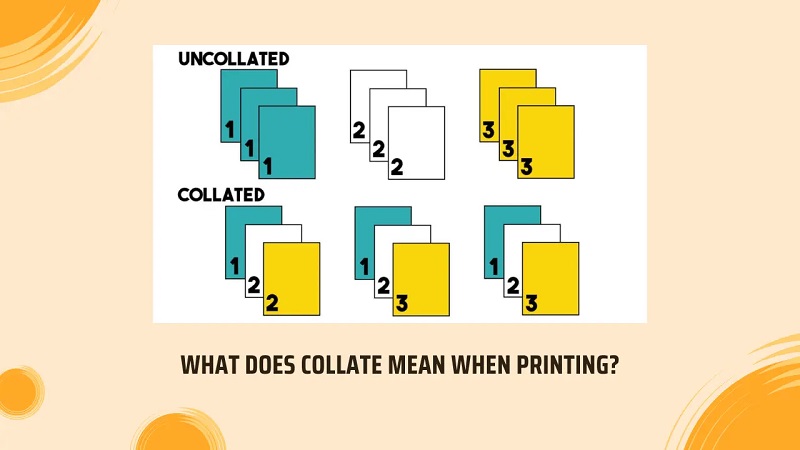
Collate in printing refers to the process of arranging multiple copies of a document in a specific order. When you print several copies, collating guarantees that each set is organized page by page, so the first copy has pages 1, 2, 3, and so on, followed by the second copy in the same sequence.
Without collating, you’d get all copies of page 1 first, then all copies of page 2, which means you’d have to manually sort them afterward. This function is especially useful when you’re dealing with multi-page documents and want to save time during assembly.
How Collate Works in Printers
When you select the collate option on your printer, it automatically organizes the pages of each copy in the correct sequence as they print. Instead of printing all copies of page one, then page two, and so on, the printer prints the entire set one by one.
For example, if you’re printing three copies of a five-page document, the printer outputs pages 1 through 5 in order for copy one, then repeats that sequence for copies two and three. This saves you the hassle of manually sorting the pages afterward.
The collate function works by managing the print job’s page order internally, ensuring each copy is complete and properly arranged before moving on to the next.
Benefits of Using Collate for Printing
Why should you bother using the collate feature for printing? It saves you time by organizing multi-page documents into complete sets automatically. This way, you avoid manually sorting pages, reducing mistakes and frustration.
Collating is especially helpful when printing multiple copies for meetings or classes.
Here’s a quick look at the benefits:
| Benefit | Description | Why It Matters |
|---|---|---|
| Time-saving | Prints pages in order | Less manual sorting |
| Reduced errors | Avoids mixing up pages | Keeps documents intact |
| Convenience | Ready-to-use sets | Simplifies distribution |
| Professionalism | Neat, organized output | Impresses recipients |
Using collate makes your print jobs smoother and more efficient every time.
When to Use Collate in Your Print Jobs
Wondering if you really need to use the collate feature for your print job? You’ll want to choose collate when you’re printing multiple copies of multi-page documents. It helps keep your pages organized and saves you time.
Consider using collate in these situations:
- Printing reports or proposals with several pages
- Creating handouts for meetings or presentations
- Producing booklets or manuals that need page order maintained
- Preparing exam papers or quizzes where sequence matters
Differences Between Collated and Uncollated Printing
How does collated printing differ from uncollated printing? When you choose collated printing, your printer outputs complete sets of documents in order—page 1, page 2, page 3, and so on—before starting the next set. This is perfect if you need multiple copies of multi-page documents arranged correctly.
On the other hand, uncollated printing prints all copies of page 1 first, then all copies of page 2, and so forth. This means you’ll have to manually organize the pages later if you want complete sets. Choosing between collated and uncollated depends on how much time you want to spend sorting your prints versus how your printer processes the job.
Collated saves you effort after printing, while uncollated might be faster for single-page copies.
How to Enable Collate on Different Printer Types
Although the steps can vary depending on your printer model and operating system, enabling collate is usually straightforward.
Here’s how you can do it on different printer types:
- Windows Printers: Open the print dialog, select your printer, then check the “Collate” box under the “Copies” section.
- Mac Printers: In the print dialog, click on “Copies & Pages” and select “Collate” from the dropdown menu.
- Wireless Printers: Access printer settings via the manufacturer’s app or web interface, then enable the collate option.
- All-in-One Printers: Look for the collate setting on the touchscreen control panel or within the print preferences on your computer.
Troubleshooting Common Collate Issues
Enabling collate is usually simple, but you might still run into issues where pages don’t print in the correct order or collate options don’t appear. First, double-check your printer settings to verify collate is enabled. Sometimes, the option might reset after a driver update or software glitch.
If the collate button is greyed out, try updating or reinstalling your printer driver. Also, confirm that your printing software supports collate features since some basic programs don’t. If pages are still out of order, print a test page from a different application to isolate the problem.
Finally, check for firmware updates on your printer, as manufacturers often fix bugs related to collate functions. Restarting your printer and computer can also resolve temporary conflicts.
Frequently Asked Questions
Can Collating Affect Print Speed or Ink Usage?
Yes, collating can slow down your print speed since the printer organizes pages in order. It typically doesn’t affect ink usage much, but complex collated jobs might slightly increase ink consumption due to more frequent page handling.
Is Collate Available on All Printer Brands and Models?
Not all printers support collate; it depends on the brand and model. You’ll usually find it on most modern printers, but some basic or older ones might lack this feature, so always check your printer’s specs first.
How Does Collate Work With Duplex (Double-Sided) Printing?
Sure, because who doesn’t love flipping your masterpiece twice? When you collate with duplex printing, your printer arranges double-sided pages in order, so you won’t end up with a chaotic pile that only a paper tornado could love.
Can I Collate Print Jobs From Multiple Computers?
You generally can’t collate print jobs from multiple computers automatically. Each computer sends separate jobs, so you’d need to manually organize them or use a print server with advanced features to manage multi-computer collating efficiently.
Does Collate Work Differently for Color Versus Black-And-White Prints?
You might find it pleasantly surprising that collate works quite similarly for both color and black-and-white prints. The main difference lies in ink usage, but the way your printer organizes pages remains consistent across types.
Conclusion
Now that you know what collate means in printing, you’ll see how it keeps your documents organized and saves you time. Remember, “a stitch in time saves nine”—using collate can prevent the hassle of sorting pages later.
Whether you’re printing reports or presentations, enabling collate ensures your pages come out in the right order. So, next time you print, don’t forget to hit that collate option for smoother, stress-free results!
Using collate in your printer settings helps streamline your workflow and maintain document order. Collate printing is essential for efficient and organized printing tasks. Always consider collate to enhance your printing experience.