Where Is WPS Pin on Hp Printer
You can find your HP printer’s WPS PIN by checking the network or wireless settings on its control panel—look for options like “Display PIN” or “Show PIN.” This is often the quickest way to locate the WPS PIN on an HP printer.
Alternatively, accessing the Embedded Web Server by entering the printer’s IP address into your browser can help you find the PIN.
Once inside the Embedded Web Server, navigate to the WPS section to view the PIN.
You can also use the HP Smart App to locate the WPS PIN in the printer settings. This app provides a convenient way to manage your printer’s wireless connections.
If the PIN isn’t visible on the control panel or through the web interface, there are other secure ways to connect your printer to the network. These alternative methods will help you establish a secure connection without needing the WPS PIN. You’ll discover these options here.
Key Takeaways
- The WPS PIN can be found on the HP printer’s control panel under the network or wireless menu options.
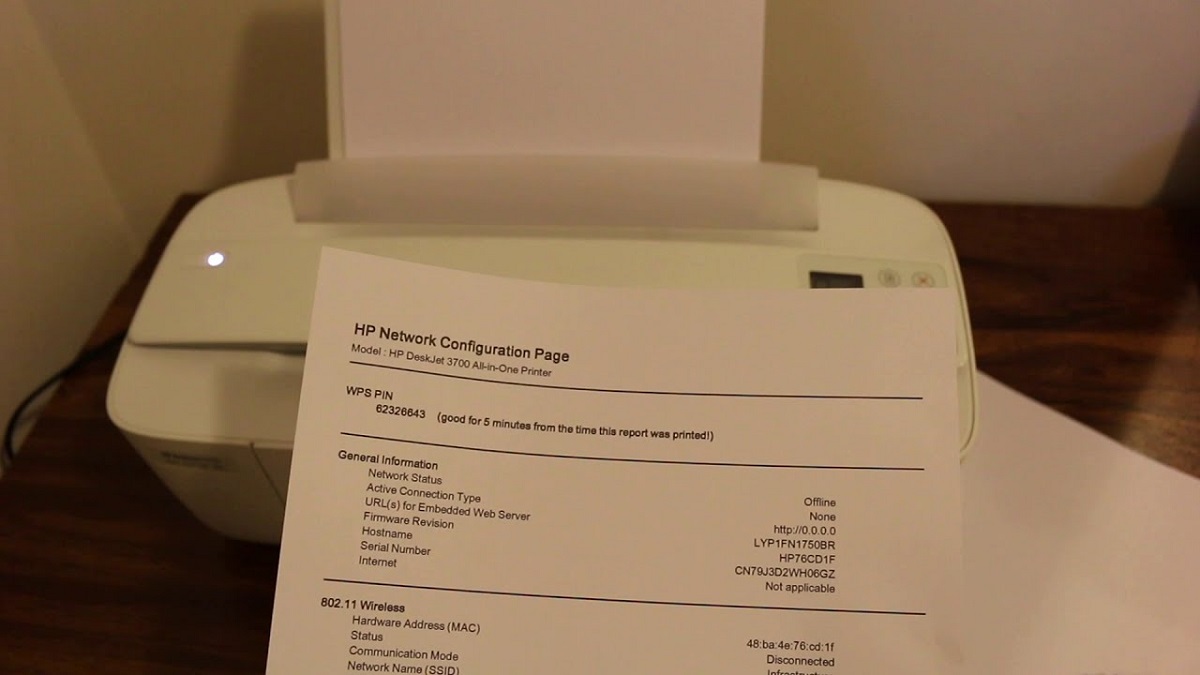
- You can locate the WPS PIN by printing the network configuration page from the printer.
- Access the Embedded Web Server by entering the printer’s IP address in a web browser to view the WPS PIN.
- The HP Smart App shows the WPS PIN in the wireless or network settings for your connected printer.
- If the WPS PIN isn’t displayed, use the WPS push-button method or check for a printed label on the printer.
Understanding WPS and Its Role in Wireless Printing
Although setting up a wireless printer might seem tricky, understanding WPS can simplify the process for you. WPS, or Wi-Fi Protected Setup, allows you to connect your HP printer to your Wi-Fi network quickly without entering a complicated password. When you use WPS, your printer and router communicate securely to establish a connection, saving you time and hassle.
You can usually activate WPS by pressing a button on your router and then on your printer, or by entering a WPS PIN if required. This method guarantees your printer joins the right network without much effort. Knowing how WPS works helps you troubleshoot connection issues and makes wireless printing more accessible, especially if you’re not tech-savvy.
Locating the WPS PIN on Your HP Printer’s Control Panel
To find the WPS PIN on your HP printer, start by steering through the control panel menus. Look for network settings or wireless options on the printer display, which will guide you to the WPS PIN.
Following these on-screen instructions will help you access the code you need for a secure connection.
Control Panel Navigation
When you need to find the WPS PIN on your HP printer, steering the control panel is your first step. The control panel lets you navigate through settings easily to locate network options. Here’s a simple guide to help you:
| Step Number | Action |
|---|---|
| 1 | Turn on your HP printer |
| 2 | Press the Home button |
| 3 | Select the Wireless or Network icon |
| 4 | Choose the Wi-Fi Protected Setup (WPS) option |
| 5 | Tap “Display PIN” or “Show PIN” |
This sequence leads you directly to the WPS PIN without hassle. Just follow the on-screen prompts carefully, and you’ll have the PIN ready in moments.
Printer Display Instructions
Before you can connect your devices using WPS, you’ll need to locate the WPS PIN on your HP printer’s control panel. Start by turning on your printer and accessing its touchscreen or button-operated display. Look for a “Wireless” or “Network” icon, usually represented by a signal or antenna symbol.
Tap or press it to open the wireless settings menu. Within this menu, find an option labeled “Wi-Fi Protected Setup,” “WPS,” or something similar. Selecting this will often display the WPS PIN directly on the screen.
If your printer has a small LCD without a touchscreen, use the arrow keys to navigate through the setup or wireless options until you find the WPS PIN. Make sure to note this PIN exactly for the connection process.
Accessing Network Settings
Although accessing network settings might seem tricky at first, you can easily find the WPS PIN right from your HP printer’s control panel by exploring through its wireless or network menu. Start by turning on your printer and tapping the touchscreen or pressing the physical buttons to open the main menu. Look for options labeled “Wireless,” “Network Settings,” or “Wi-Fi Protected Setup.”
Once you enter this section, you should see an option to display or print the WPS PIN. If your printer has a touchscreen, it might show the PIN directly on the screen. On models without touchscreens, you may need to print a network configuration page to find the WPS PIN.
This PIN is essential for connecting your printer securely to your wireless network.
Accessing the WPS PIN Through the Printer’s Embedded Web Server
Since your HP printer is connected to the network, you can easily access its WPS PIN through the Embedded Web Server (EWS). First, find your printer’s IP address by printing a network configuration page or checking the control panel under network settings.
Next, open a web browser on your computer and enter the IP address in the address bar to open the EWS. Once inside, navigate to the “Network” or “Wireless” section, where you’ll find options related to Wi-Fi setup.
Look for “Wi-Fi Protected Setup” or “WPS” settings, and there you should see the WPS PIN displayed. Note this PIN carefully, as it’s what you’ll use to connect other devices securely without a password.
This method gives you direct access without needing additional software.
Using the HP Smart App to Find the WPS PIN
When you want a quick way to find your printer’s WPS PIN, the HP Smart App makes it simple. Just follow these steps to locate the code effortlessly:
- Open the HP Smart App on your smartphone or tablet.
- Select your HP printer from the list of connected devices.
- Navigate to the “Printer Settings” or “Network Settings” section.
- Look for the “Wireless Setup” or “Wi-Fi Protected Setup (WPS)” option, where the PIN is displayed.
This method saves you from digging through menus on the printer itself and provides a user-friendly interface to manage your device’s wireless connection.
Using the HP Smart App is especially helpful if you prefer operating from your mobile device.
What to Do If the WPS PIN Is Not Displayed
If you can’t find the WPS PIN on your HP printer or in the HP Smart App, don’t worry—you can try alternative methods to connect your device. First, check your printer’s control panel for a WPS push-button option; many HP printers support connecting through a simple button press without needing a PIN.
You can also try restarting your printer and router, then attempt to initiate the WPS connection again, as sometimes the PIN might appear after a reset. Another option is to look for the WPS PIN printed on a label attached to your printer or included in the user manual.
If none of these work, consider connecting your printer via USB or Wi-Fi Direct to complete setup before trying the WPS method again.
Steps to Connect Your HP Printer Using the WPS PIN
After exploring alternatives when the WPS PIN isn’t displayed, you can now move on to connecting your HP printer using the WPS PIN itself. Here’s how to get started:
- Locate the WPS PIN on your printer’s control panel or print a network configuration page to find it.
- On your router, press the WPS button or access its web interface to enter the WPS PIN manually.
- On your printer, select the wireless setup option, then choose WPS PIN entry when prompted.
- Enter the WPS PIN when requested and wait for the printer to connect to your Wi-Fi network.
Following these clear steps will help you establish a secure connection between your HP printer and router using the WPS PIN method quickly and efficiently.
Frequently Asked Questions
Can I Use WPS PIN to Connect Multiple Devices Simultaneously?
You can’t use a WPS PIN to connect multiple devices simultaneously. Each device needs its own WPS connection process, so you’ll have to connect them one at a time using their unique PIN or method.
Is the WPS PIN Secure Against Unauthorized Access?
Think of the WPS PIN like a key to a secret garden—it’s somewhat secure but can be vulnerable if someone guesses or intercepts it. You shouldn’t rely on it alone to keep unauthorized access at bay.
How Often Does the WPS PIN Change on HP Printers?
The WPS PIN on HP printers usually changes each time you initiate a new connection or during a reset.
You won’t see it change automatically over time; you’ll need to generate a new PIN manually for security.
Can I Reset the WPS PIN Without Resetting the Entire Printer?
You can’t reset the WPS PIN separately on most HP printers; it’s generated automatically during each WPS connection attempt. To get a new PIN, just initiate another WPS setup without resetting your entire printer.
Does Using WPS PIN Affect Printer Firmware Updates or Settings?
WPS pins don’t interfere with firmware updates or printer settings. While WPS connects your device easily, your printer’s core functions remain separate, so you won’t risk losing updates or configurations just by using a WPS pin.
Conclusion
Now that you know where to find your HP printer’s WPS PIN—whether on the control panel, through the web server, or the HP Smart app—connecting feels straightforward.
But if the PIN doesn’t show up, don’t panic; sometimes technology loves to keep us guessing.
With a little patience and the right steps, you’ll be printing wirelessly in no time.
It’s the simple magic of tech made easy, even when it seems tricky at first!
Remember, locating the WPS PIN on your HP printer is key to setting up a secure wireless connection quickly and efficiently.