How to Add Printer to Wifi
To add your printer to WiFi, first verify it supports wireless connections. Confirm that your printer is WiFi-enabled to ensure compatibility.
Place it near your router with a strong signal and have your network name and password ready.
You can connect using the WPS button on both devices or directly through the printer’s control panel. Select your WiFi network and enter the password to establish the connection.
Then, install the printer software on your computer and add the printer to your devices.
Keep going to explore detailed setup steps and troubleshoot common issues. This will help ensure a smooth and successful wireless printing experience.
Key Takeaways
- Confirm your printer supports WiFi by checking the specifications or user manual before starting the setup process.
- Place the printer near the router to ensure a strong WiFi signal for a stable connection.
- Use the printer’s control panel to select your WiFi network and enter the password accurately.
- Alternatively, connect using the router’s WPS button if both devices support WPS for a quick setup.
- Download and install the printer’s software on your device, then add the printer over the wireless network.
Checking Printer Compatibility With Wifi
Before you try connecting your printer to WiFi, you’ll want to make sure it’s compatible with your wireless network. Check your printer’s specifications or user manual to see if it supports WiFi connectivity. Most modern printers have built-in WiFi capabilities, but some older models might not.
Look for terms like “wireless,” “WiFi-ready,” or “802.11” in the documentation. Additionally, verify if your printer supports the same WiFi standards as your router, such as 2.4 GHz or 5 GHz bands. If your printer only supports 2.4 GHz, ensure your network offers that frequency.
You can also visit the manufacturer’s website to confirm compatibility and download any necessary drivers or software. Taking these steps will save you time and frustration during setup.
Preparing Your Network for Printer Connection
Since a stable network is essential for a smooth printer connection, you’ll want to guarantee your WiFi is properly set up and running without interruptions. Start by checking your router’s signal strength in the area where you plan to place your printer. If the signal is weak, consider moving the printer closer to the router or using a WiFi range extender.
Make sure your network name (SSID) and password are easily accessible since you’ll need them during setup. Also, confirm your router supports the frequency band compatible with your printer, typically 2.4 GHz. Finally, temporarily disable any firewall or security settings that might block new devices from connecting, but remember to turn them back on after setup.
These steps will help prepare your network for a hassle-free printer connection.
Connecting Your Printer Using WPS Button
When you want a quick and secure way to connect your printer to your WiFi, using the WPS button is a great option. First, verify your router supports WPS and that the feature is enabled. On your printer, locate and press the WPS button—usually found on the control panel or within the network settings menu.
Then, within two minutes, press the WPS button on your router. The devices will communicate and establish a connection automatically, without needing to enter your WiFi password. Wait for the printer’s indicator light or display to confirm a successful connection.
If it doesn’t connect, try repeating the process or consult your printer’s manual. This method is fast, secure, and avoids manual network setup.
Setting Up Printer via Printer Control Panel
You’ll start by accessing the network settings directly on your printer’s control panel. From there, you can select your WiFi network and enter the password to connect.
This method gives you full control without needing a computer.
Accessing Network Settings
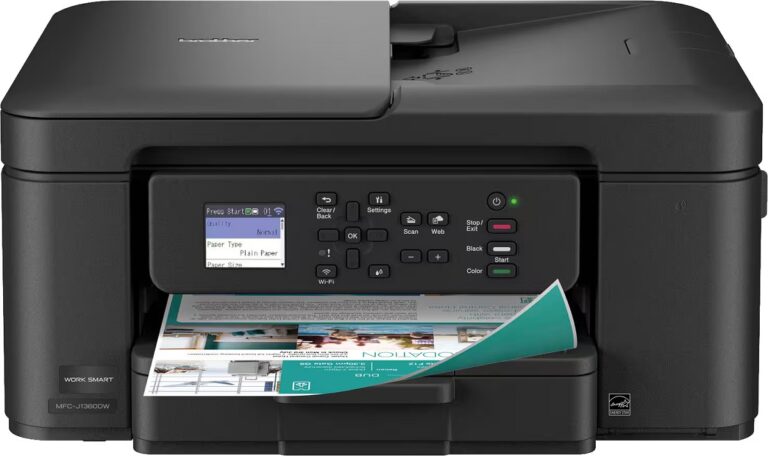
Before you can connect your printer to WiFi, you’ll need to access its network settings through the control panel. Start by turning on your printer and locating the control panel screen. Depending on your model, this might be a touchscreen or physical buttons.
Navigate to the “Settings” or “Setup” menu, then look for options labeled “Network,” “Wireless,” or “WiFi.” Select the network settings option to enter the configuration area. Here, you can view current network information or prepare to add a new connection.
If prompted, you might need to enter an administrator password or confirm changes. Accessing these settings is vital before moving on to connecting your printer to your wireless network. Make sure you don’t exit the menu until you’re ready to proceed.
Connecting to WiFi Network
After accessing your printer’s network settings, it’s time to connect it to your WiFi network. Use the printer’s control panel to browse available wireless networks. Select your WiFi network from the list.
If your network isn’t visible, try updating the list or move the printer closer to your router. Once you select your network, you’ll need to enter the WiFi password. Use the keypad or touchscreen to input it carefully, paying attention to uppercase and lowercase letters.
After entering the password, confirm the connection. The printer will attempt to connect, displaying a confirmation message once successful. If the connection fails, double-check your password and try again.
Connecting your printer this way ensures it’s ready to communicate wirelessly with your devices.
Installing Printer Software on Your Computer
Although connecting your printer to WiFi is a crucial step, installing the correct software on your computer guarantees smooth communication between the devices. Start by visiting the printer manufacturer’s website to download the latest drivers and software compatible with your operating system. Avoid using generic drivers, as they might limit functionality.
Run the installer and follow the on-screen instructions carefully, selecting the wireless connection option when prompted. This software usually includes tools to manage print jobs, check ink levels, and update firmware. If your printer came with a CD, you can use it, but online downloads ensure you have the most recent version.
Once installed, your computer will recognize the printer on the network, allowing you to print seamlessly over WiFi.
Adding the Printer to Multiple Devices
Once your printer is connected to WiFi, you can easily add it to multiple devices in your home or office. You’ll want to manage who has access to avoid any printing conflicts or security issues.
Let’s explore how to connect each device and keep things running smoothly.
Connecting Multiple Devices
If you want to use your printer with multiple devices, you’ll need to add it to each one individually. Start by ensuring each device is connected to the same WiFi network as your printer. On Windows, go to “Settings” > “Devices” > “Printers & scanners,” then click “Add a printer” and select your printer from the list.
On macOS, open “System Preferences” > “Printers & Scanners,” click the “+” button, and choose your printer. For smartphones or tablets, download the printer’s app or use your device’s printing feature, like AirPrint for iOS or Google Cloud Print for Android. Repeat this process for every device you want to connect to your printer, and you’ll be able to print wirelessly from any of them.
Managing Printer Access
After adding your printer to multiple devices, you’ll want to manage who can access it and how. This guarantees security, avoids unauthorized use, and keeps your printing tasks organized.
Start by setting up user permissions directly on the printer or through your network settings. You can also create print queues to prioritize jobs.
Here’s how to effectively manage access:
- Use password protection for printer settings.
- Limit access to trusted devices only.
- Set printing quotas for different users.
- Enable logging to track print jobs.
- Regularly update printer firmware for security patches.
Troubleshooting Common WiFi Printer Issues
While setting up a WiFi printer is usually straightforward, you might run into connection problems or printing errors that can be frustrating. First, make certain your printer is connected to the correct WiFi network and that the signal is strong. Restarting both your printer and router often resolves minor glitches.
Check that your computer and printer are on the same network; mismatched networks can block communication. If your printer isn’t responding, verify that it’s set as the default printer on your device. Updating printer drivers and firmware can fix compatibility issues.
Finally, temporarily disable firewalls or antivirus software to see if they’re blocking printer access. If problems persist, consult your printer’s manual or manufacturer support for model-specific solutions.
Frequently Asked Questions
Can I Print From My Smartphone Without Installing Software?
Yes, you can print from your smartphone without installing software if your printer supports wireless printing protocols like AirPrint or Google Cloud Print.
Just connect both devices to the same Wi-Fi network and select your printer in the print menu.
How Do I Secure My Wifi Printer From Unauthorized Access?
You should change the printer’s default password, enable WPA3 or WPA2 encryption on your Wi-Fi, and disable unused network services.
Keep the printer firmware updated to protect it from unauthorized access effectively.
What Is the Difference Between 2.4 GHZ and 5 GHZ Wifi for Printers?
You’ll find 2.4 GHz covers longer distances but offers slower speeds, while 5 GHz provides faster speeds with shorter range.
Surprisingly, 2.4 GHz supports more devices simultaneously, making it better for crowded networks.
Can I Use a USB Cable After Connecting My Printer to Wifi?
Yes, you can use a USB cable even after connecting your printer to WiFi. It gives you a direct, stable connection option if you prefer or face wireless issues, letting you switch easily between wired and wireless printing.
How Do I Update My Printer’s Firmware Over Wifi?
Imagine Sarah updating her HP printer’s firmware wirelessly through its touchscreen menu.
You just connect your printer to WiFi, access the settings or support menu, and select “Firmware Update.”
Then, download and install the latest version.
Conclusion
Now that you’ve connected your printer to WiFi, imagine it as the ultimate wizard, effortlessly teleporting your documents through invisible waves right from your fingertips. No more tangled cables or frantic searches for USB ports—your printer is now a silent, speedy partner in your digital universe.
With just a few clicks, you’ve released a printing powerhouse that turns your home or office into a futuristic command center. Printing has never felt this magical! Adding your printer to WiFi not only simplifies your workflow but also enhances productivity, making your printing experience seamless and efficient.