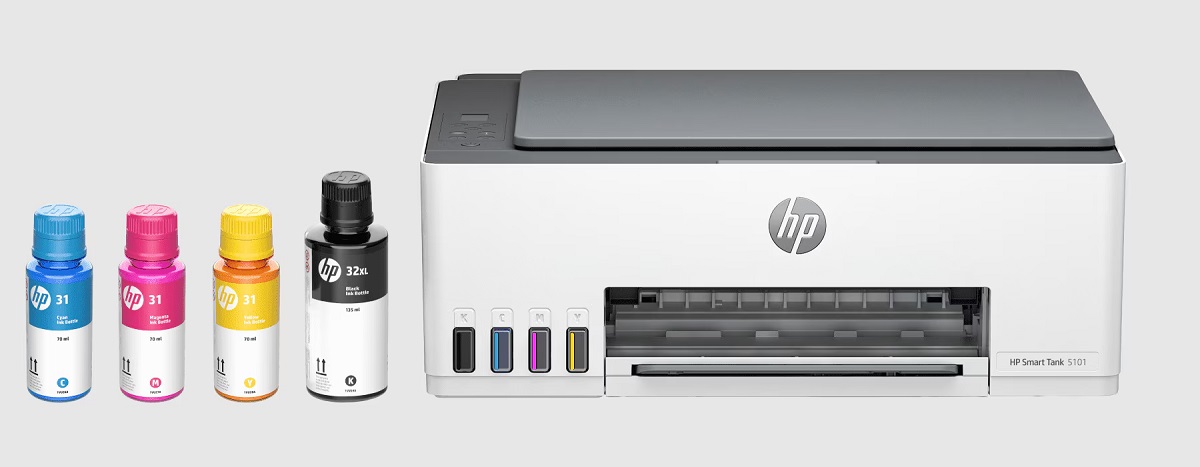
How to Check Ink Levels on Hp Printer
You can check ink levels on your HP printer easily using its control panel by browsing to the ink or supplies menu. Monitoring ink levels on HP printers helps ensure you never run out of ink unexpectedly.
On your Windows PC, open the HP software or printer properties to view ink status, while Mac users can find supply levels in System Preferences under Printers & Scanners.
The HP Smart app also lets you monitor ink remotely. Ink level icons and alerts help you know when it’s time to replace cartridges.
Keep going to explore more tips and troubleshooting.
Key Takeaways
- Check ink levels directly on the HP printer control panel under the “Ink” or “Supplies” menu.
- Use HP Printer Software on Windows to view estimated ink levels via “Printer Toolbox” or “Ink Management.”
- On Mac, open “Printers & Scanners” in System Preferences, select the printer, and check the “Supply Levels” tab.
- Utilize the HP Smart app on your mobile device to remotely monitor real-time ink levels and receive alerts.
- Pay attention to ink level icons and alerts on the printer or software indicating low or empty cartridges.
Using the HP Printer Control Panel

Although checking ink levels can be done through your computer, using the HP printer control panel is often quicker and more straightforward. To start, locate the control panel on your HP printer, usually a small touchscreen or a set of buttons with a display. Navigate to the “Ink” or “Supplies” menu—this option varies by model but is typically easy to find.
Once there, you’ll see the remaining ink levels displayed as bars or percentages for each cartridge. If your printer has color-coded indicators, it makes identifying low cartridges easier. Keep in mind, some models allow you to print a supplies status report directly from the control panel.
This method lets you check ink levels without needing to connect to a computer or install software.
Checking Ink Levels on Windows PCs
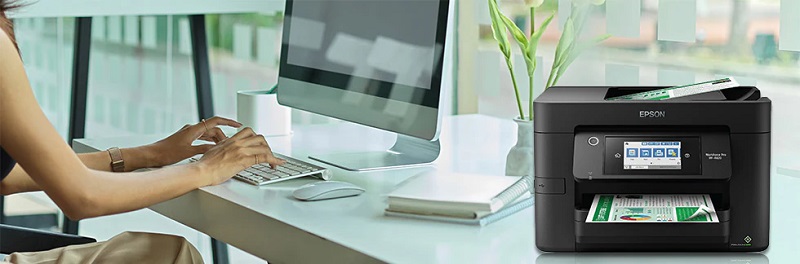
If you’re using a Windows PC, you can check your HP printer’s ink levels through the HP Printer Software installed on your computer.
You can also access ink status by browsing to the printer settings via the Control Panel or Settings menu.
Both methods give you a quick way to monitor your ink without leaving your desk.
Using HP Printer Software
When you want to check your HP printer’s ink levels on a Windows PC, using the HP printer software is one of the simplest methods. This software usually installs automatically with your printer drivers. To check ink levels, follow these steps:
- Open the HP printer software from your Start menu or desktop shortcut.
- Look for a section labeled “Estimated Ink Levels” or “Ink Management.” This tab displays the current status of your cartridges.
- If you don’t see ink levels, click on “Printer Toolbox” or “Maintenance” to find detailed ink information.
Using the HP printer software gives you a quick, accurate view of your ink status without needing to print a test page or access Windows printer settings.
Accessing Windows Printer Settings
Besides using the HP printer software, you can also check your ink levels directly through Windows printer settings. To do this, first open the Control Panel on your PC and select “Devices and Printers.” Find your HP printer from the list, right-click it, and choose “Properties” or “Printer Preferences.”
Look for a tab or section labeled “Maintenance,” “Services,” or something similar. Here, you should see an option to view ink or toner levels. If your printer supports it, the ink status will display clearly.
Keep in mind that not all HP printers provide ink level information through Windows settings, so this method might not work for every model. Still, it’s a quick way to check without opening extra software.
Monitoring Ink Levels on Mac Computers
Although managing printer settings can sometimes feel tricky, checking ink levels on your Mac is straightforward. To monitor your HP printer’s ink levels, you’ll want to access the printer settings through your Mac’s system preferences.
- Click the Apple menu and select “System Preferences.”
- Choose “Printers & Scanners” and select your HP printer from the list.
- Click “Options & Supplies,” then go to the “Supply Levels” tab to view the current ink status.
This method gives you a quick glance at your ink levels without installing additional software. Just make sure your printer is connected and turned on, so your Mac can retrieve the latest ink information.
This way, you’ll avoid surprises mid-print.
Using the HP Smart App to View Ink Status
If you’ve checked your ink levels on your Mac, you might want an easier way to keep tabs on them from anywhere. The HP Smart app is a great tool for this. First, download and install the app on your smartphone or tablet.
Once installed, connect it to your HP printer by following the on-screen instructions. After setup, open the app and select your printer from the home screen. You’ll see the ink levels displayed clearly, showing how much ink remains in each cartridge.
The app updates this info in real-time, so you can monitor ink status remotely. This way, you’ll know when it’s time to replace cartridges without needing to be near your printer. It makes managing ink hassle-free and convenient.
Understanding Ink Level Indicators and Alerts
You’ll notice different ink level icons that show how much ink is left in your cartridges. Your printer’s display will also alert you when ink is running low or needs replacement.
Plus, you can customize software notifications to stay updated without constantly checking manually.
Ink Level Icon Meaning
When you see ink level icons on your HP printer, they give you quick insights into your cartridge status so you can avoid unexpected print failures. These icons use simple visuals to help you understand your ink supply at a glance.
Here’s what the common icons mean:
- Full or Nearly Full Ink Drop: Your cartridge has plenty of ink, so you can print without worry.
- Half-Filled Ink Drop: Ink is running low; consider preparing a replacement soon.
- Empty or Flashing Ink Drop: Ink is critically low or empty, and you’ll need to replace the cartridge to continue printing.
Printer Display Alerts
Beyond the basic ink level icons, your HP printer’s display provides detailed alerts that help you monitor ink status more closely. These alerts notify you when ink is low, cartridges need replacement, or if there’s an issue affecting print quality.
Understanding these messages guarantees you can act promptly to avoid interruptions.
| Alert Type | Meaning | Suggested Action |
|---|---|---|
| Low Ink Warning | Ink cartridge is running low | Prepare to replace soon |
| Replace Cartridge | Cartridge is empty or faulty | Replace immediately |
| Ink System Error | Problem with ink delivery | Check cartridge or contact support |
Software Notification Settings
How can you stay informed about your HP printer’s ink levels without constantly checking the display? The answer lies in the software notification settings. HP printers often come with software that runs on your computer, providing real-time updates and alerts about ink levels.
To make the most of these notifications, follow these steps:
- Install HP Printer Software: Ensure you have the latest HP software installed, which includes the HP Smart app or HP Printer Assistant.
- Enable Ink Level Notifications: Open the software and navigate to the settings or preferences tab. Turn on alerts for low or critical ink levels.
- Customize Alerts: Choose how you want to receive notifications—pop-ups, emails, or desktop alerts—so you never run out unexpectedly.
This way, you stay informed effortlessly.
Troubleshooting Ink Level Detection Issues
If your HP printer isn’t showing accurate ink levels, it could be due to several common issues like outdated drivers, improper cartridge installation, or software glitches. First, make sure your printer drivers and software are up to date by visiting HP’s official website or using the HP Smart app.
Next, check that the cartridges are seated correctly; remove and reinstall them if necessary. Also, clean the cartridge contacts gently with a lint-free cloth to ensure proper communication. Sometimes, restarting the printer and your computer can resolve detection errors.
If problems persist, run the HP Print and Scan Doctor tool for automated troubleshooting. Finally, avoid using refilled or non-HP cartridges, as they may not report ink levels accurately. Following these steps should help fix most ink level detection issues.
Frequently Asked Questions
Can I Refill HP Ink Cartridges Instead of Buying New Ones?
Yes, you can refill HP ink cartridges, but it’s tricky and might cause leaks or poor print quality. Using original cartridges guarantees reliability, but refilling can save money if you’re careful and follow proper instructions.
Refilling requires precision and the right materials to avoid damaging the cartridge or printer. It’s a cost-effective option for those willing to take the risk. Always ensure you use compatible ink to maintain print quality.
How Accurate Are HP Printer Ink Level Readings?
You can’t always take HP ink level readings at face value; they give a good ballpark but might not be spot-on.
It’s wise to keep spare cartridges handy, just in case you run dry unexpectedly.
Does Using Third-Party Ink Affect Ink Level Monitoring?
Yes, using third-party ink can affect ink level monitoring because HP printers may not recognize non-original cartridges properly. You might see inaccurate readings or no ink level updates at all when using third-party ink.
This happens because the printer’s firmware is designed to communicate with original HP cartridges. Non-original cartridges may lack the necessary chips or sensors for accurate monitoring.
As a result, the printer might not display the correct ink levels or could show warnings even if the cartridge still has ink. Using third-party ink can therefore lead to less reliable ink level information.
Can I Check Ink Levels Without a Connected Computer or App?
You can’t always see ink levels without a connected device; some HP printers have built-in displays showing ink status, but many rely on apps or computers.
It’s like trying to read a book in the dark.
How Do I Reset Ink Level Warnings After Cartridge Replacement?
You’ll usually reset ink level warnings by removing and reinserting the cartridge or using your printer’s control panel menu to clear alerts. Sometimes, powering off and on the printer also helps reset the warnings.
If these steps don’t work, check your printer’s manual or software for a specific reset option. Some models require you to press and hold a button combination to clear the ink level warnings.
Regularly updating your printer’s firmware can also prevent false ink alerts. This keeps the printer’s monitoring system accurate after cartridge replacement.
Conclusion
Checking your HP printer’s ink levels is as simple as glancing at a dashboard while driving—you get real-time updates to keep things running smoothly. Whether you use the control panel, your computer, or the HP Smart app, staying on top of ink status helps avoid unexpected printing stops.
If you run into issues, troubleshooting steps are there to guide you. Keeping an eye on ink levels guarantees your printing experience stays seamless and stress-free. Regularly checking ink levels on your HP printer ensures you’re never caught off guard.
By monitoring ink levels on HP printer, you can maintain optimal print quality and avoid interruptions. This simple habit enhances your overall printing experience.