How to Connect Phone to Printer
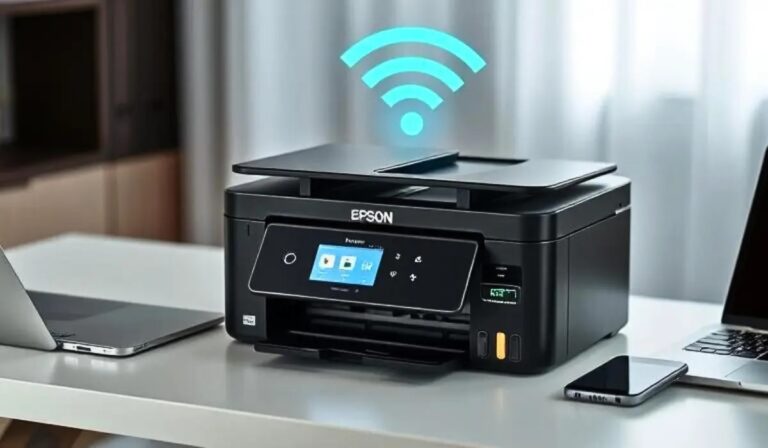
To connect your phone to a printer, first make sure your printer supports your phone’s operating system and is on the same Wi-Fi network, or use Bluetooth if supported.
Connecting your phone to a printer can also be done via a USB cable if your printer allows. Using the printer’s dedicated app often simplifies setup and offers extra features.
Once connected, select the printer when printing from your phone’s apps. Keep your devices updated and close for a smooth print experience.
There’s more to learn about optimizing and troubleshooting for best results.
Key Takeaways
- Verify your printer supports your phone’s operating system and ensure both devices are on the same Wi-Fi network or paired via Bluetooth.
- Use the printer’s dedicated mobile app or built-in protocols like AirPrint or Mopria for seamless connection and control.
- Enable wireless setup on the printer, connect it to your Wi-Fi, then connect your phone to the same network for easy printing.
- Open the document or image on your phone, select the print option, choose your printer, and adjust settings before printing.
- Restart devices and disable VPNs or firewalls temporarily if connection issues arise, and keep apps and firmware up to date.
Check Printer Compatibility With Your Phone
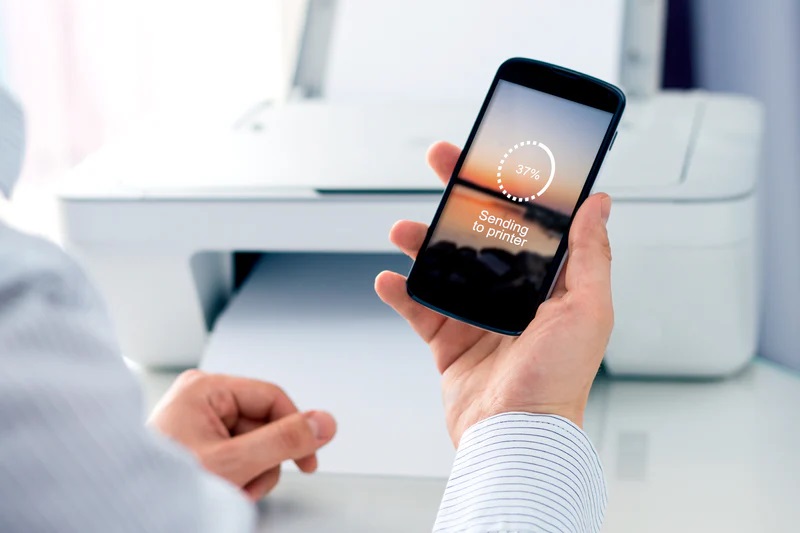
Before you try connecting your phone to a printer, make sure the printer supports your device’s operating system. Not all printers are compatible with every phone, so checking this first saves you time and frustration. Look for compatibility details in the printer’s manual or on the manufacturer’s website.
You’ll want to confirm if it works with iOS, Android, or both. Also, check if your phone requires a specific app to communicate with the printer. Some printers need proprietary apps, while others support standard protocols like AirPrint or Mopria.
Verifying this guarantees a smooth connection without extra hassle. Don’t forget to check the printer’s connectivity options, such as USB or Bluetooth, if Wi-Fi isn’t involved. This step is vital before moving forward.
Connect via Wi-Fi Network
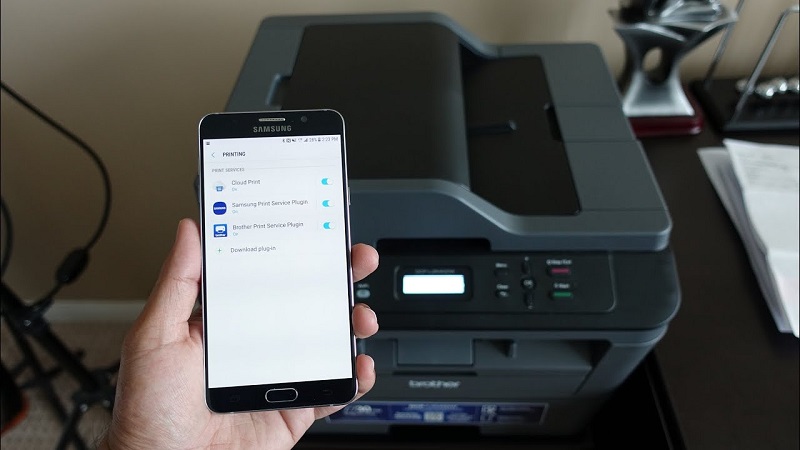
First, make sure your printer’s Wi-Fi is turned on and ready to connect. Then, connect your phone to the same Wi-Fi network as the printer. Once both devices are linked, you can easily print your documents wirelessly.
Enable Printer Wi-Fi
While setting up your printer, you’ll need to enable its Wi-Fi connection to link it to your wireless network. Start by turning on your printer and locating the Wi-Fi or network settings on its control panel or touchscreen. Look for options like “Wireless Setup Wizard” or “Wi-Fi Setup.”
Select these to scan for available networks. When you see your home Wi-Fi network, choose it and enter your password using the printer’s keypad or touchscreen. Once connected, the printer’s Wi-Fi indicator should light up, confirming a successful connection.
This wireless setup allows your printer to communicate with devices on the same network, including your phone, so you can print documents or photos without cables. Make sure your printer stays within range of your router for a stable connection.
Connect Phone to Network
Once your printer is connected to your Wi-Fi, you’ll need to connect your phone to the same network to enable seamless printing. Start by opening your phone’s settings and selecting Wi-Fi. Look for your home or office network name in the list of available networks.
Tap it and enter the password if prompted. Make sure your phone confirms it’s connected. Staying on the same network guarantees your phone can communicate directly with the printer without any issues.
If you’re using a public or guest network, printing might not work due to network restrictions. Double-check your connection by browsing the internet or streaming a video. When your phone is connected to the same Wi-Fi as your printer, you’re set to proceed with printing tasks smoothly.
Print Document Wirelessly
How do you print a document wirelessly after connecting your phone to the same Wi-Fi as your printer? First, open the document or image you want to print. Then, tap the share or options icon and select “Print.”
Choose your printer from the list of available devices. Adjust print settings like number of copies or color preferences, then hit “Print.” Your document will be sent directly to the printer via your Wi-Fi network.
| Step | Action |
|---|---|
| 1 | Connect phone & printer to Wi-Fi |
| 2 | Open document or image |
| 3 | Select “Print” option |
| 4 | Choose your printer |
| 5 | Adjust settings & print |
This method avoids cables and simplifies printing from any app.
Use Bluetooth for Printer Connection
To connect your phone to a printer via Bluetooth, start by turning on Bluetooth on both devices. Next, put your printer in pairing mode so your phone can detect it.
Once your phone finds the printer, simply select it to complete the pairing process.
Enabling Bluetooth on Devices
Why would you want to enable Bluetooth on your devices? It’s the easiest way to connect your phone to a printer wirelessly, eliminating cables and making printing more convenient.
To enable Bluetooth, simply access the settings on your phone or tablet, find Bluetooth, and toggle it on. Make sure your printer’s Bluetooth is active, too.
Here’s a quick comparison to understand Bluetooth enabling:
| Device Type | How to Enable Bluetooth | Typical Location in Settings |
|---|---|---|
| Android Phone | Settings > Connections > Bluetooth | Quick Settings or Connections |
| iPhone | Settings > Bluetooth | Settings |
| Windows PC | Settings > Devices > Bluetooth | System Settings |
| macOS | System Preferences > Bluetooth | System Preferences |
Enabling Bluetooth is your first step before pairing with the printer.
Pairing Phone With Printer
Once your Bluetooth is enabled on both your phone and printer, you’ll need to pair the devices so they can communicate securely. Start by opening your phone’s Bluetooth settings and scanning for available devices. Look for your printer’s name in the list and tap it to initiate pairing.
Your printer might display a code or prompt you to confirm the connection—just follow the on-screen instructions. If a PIN is requested, enter the code shown on your printer or use a default like “0000” or “1234.” After successful pairing, your phone will remember the printer, so you won’t need to pair again unless you reset one of the devices.
Now, you’re ready to send print jobs wirelessly via Bluetooth without any hassle.
Print Using a USB Cable
Keep these tips in mind:
- Use a high-quality USB cable to avoid connection issues.
- Make sure your printer supports USB printing from mobile devices.
- Enable USB debugging if your phone requires it.
- Install any necessary drivers or system updates.
Utilize Printer Manufacturer Apps
If connecting your phone to a printer via USB feels limiting or complicated, using the printer manufacturer’s app can facilitate the process. Most major printer brands like HP, Epson, Canon, and Brother offer free apps designed to connect your phone wirelessly to their printers. Simply download the app from your phone’s app store, ensure your phone and printer are on the same Wi-Fi network, and follow the app’s setup instructions.
These apps often provide additional features like scanning, managing print jobs, and checking ink levels. Using the manufacturer’s app ensures compatibility and can make printing documents, photos, or emails directly from your phone faster and easier without dealing with cables or complicated settings.
Print Through Cloud Services
Although connecting directly to your printer works well, printing through cloud services offers even greater flexibility. With cloud printing, you can send documents or photos to your printer from anywhere, as long as both devices are online. This method is especially handy if you’re away from home or managing multiple printers.
To get started, you’ll typically need to:
To get started, set up a cloud printing account, connect your printer, and link your phone via the app.
- Set up a cloud printing account, like Google Cloud Print or your printer’s proprietary cloud service
- Connect your printer to the internet via Wi-Fi or Ethernet
- Link your phone to the cloud service using its app or a compatible printing app
- Select the cloud printer when you print from your phone’s menu
This approach simplifies remote printing and supports various file types seamlessly.
Troubleshoot Common Connectivity Issues
While cloud printing offers convenience, you might still encounter connectivity hiccups when linking your phone to a printer. First, make sure both devices are on the same Wi-Fi network; mismatched networks are a common culprit. If your phone can’t find the printer, restart both devices and try again.
Check that your printer’s firmware and your phone’s operating system are up to date to avoid compatibility issues. Sometimes, the printer’s IP address changes—reconnect or re-add the printer in your phone’s settings. Also, disable any VPNs or firewalls temporarily, as they can block communication.
If Bluetooth is your connection method, ensure it’s enabled and paired correctly. Following these steps usually clears up most connectivity problems quickly and easily.
Tips for Optimizing Mobile Printing Experience
To get the best results when printing from your phone, you’ll want to adjust a few settings and follow some simple practices. Start by guaranteeing your printer firmware and mobile app are up to date, which helps avoid compatibility issues. Choose the right print quality based on your needs—draft mode saves ink, while high quality is better for photos.
Always preview your document before printing to catch errors or formatting problems. Finally, connect your devices to a strong, stable Wi-Fi network to prevent interruptions.
Preview documents carefully and ensure a strong Wi-Fi connection to avoid printing errors and interruptions.
- Use the printer’s dedicated mobile app for more control and features.
- Adjust paper size and orientation to match your document.
- Turn off power-saving modes on your phone to avoid disrupted connections.
- Keep your phone’s storage clear to ensure smooth app performance.
Frequently Asked Questions
Can I Print Photos Directly From My Phone’s Gallery App?
Yes, you can print photos directly from your phone’s gallery app if your printer supports wireless printing or is connected via USB.
Just select the photo, tap the share or print option, and choose your printer.
How Do I Print Double-Sided Pages From My Phone?
Printing double-sided pages from your phone is as easy as pie—just select “duplex” or “two-sided” printing in your printer settings before you hit print.
If unavailable, manually flip the pages when prompted.
Is It Possible to Print Documents Without Internet Access?
Yes, you can print without internet by connecting your phone directly to the printer via USB or Bluetooth. Just make certain your printer supports these connections, and you’ll be able to print documents without needing Wi-Fi or data.
Can I Print From Multiple Phones to One Printer Simultaneously?
Yes, you can print from multiple phones to one printer at the same time if your printer supports wireless connections and multiple device access.
Just make certain all phones are connected to the same network or use compatible printing apps.
What File Formats Are Supported for Mobile Printing?
You can usually print common file formats like PDFs, JPEGs, PNGs, and Microsoft Office files. Some printers also support others, but it depends on your printer’s app or mobile OS capabilities.
Check your printer’s specs!
Conclusion
Now that you know how to connect your phone to a printer—whether through Wi-Fi, Bluetooth, USB, or apps—you’re all set to print on the go.
Imagine Sarah, who quickly printed her boarding pass using a cloud service before rushing to the airport.
By following these simple steps and troubleshooting tips, you’ll save time and avoid frustration.
This makes mobile printing smooth and hassle-free every time you need it.
Using your phone to print documents or photos has never been easier with these connection methods.
Stay connected and enjoy the convenience of printing directly from your mobile device anytime.