How to Find Out Ink Levels in Hp Printer
To find your HP printer’s ink levels, start by checking directly on the printer’s control panel. Look for options like “Ink Levels” or “Maintenance” to get a quick overview. This is a straightforward way to monitor ink status without needing additional devices.
On your computer, you can use the HP Smart app for Windows or HP Utility for Mac. These programs provide detailed ink status and help you manage your printer efficiently. They offer a user-friendly interface to keep track of your ink levels easily.
Additionally, the HP Print and Scan Doctor tool can diagnose issues and display ink levels. You can also access the printer’s Embedded Web Server by entering its IP address in a browser for a remote view of ink status.
Keep an eye on alerts from your printer or software to avoid surprises. Regular checks ensure you never run out of ink unexpectedly. There are also handy tips available to help keep those ink readings accurate and reliable over time.
Key Takeaways
- Check ink levels directly on the printer’s control panel under options like “Ink Levels” or “Maintenance.”
- Use the HP Smart app on Windows to view ink levels and receive low ink notifications.
- On Mac, open HP Utility, select your printer, and check the “Ink Levels” or “Supply Levels” section.
- Run HP Print and Scan Doctor to diagnose the printer and display current ink levels.
- Access the printer’s Embedded Web Server by entering its IP address in a browser to see detailed ink information.
Checking Ink Levels Using HP Printer Control Panel
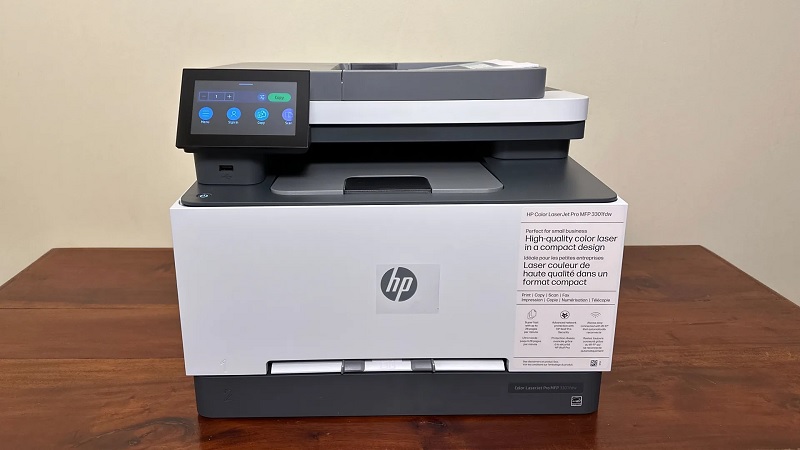
Although it might seem tricky at first, checking ink levels directly on your HP printer’s control panel is quick and straightforward. Start by turning on your printer and accessing the home screen. Look for an option labeled “Ink Levels,” “Ink Status,” or something similar.
Depending on your model, you may need to tap “Setup” or “Maintenance” first. Once you find the ink status menu, the display will show the approximate remaining ink for each cartridge. This helps you know when it’s time to replace or reorder ink.
If you have a color printer, you’ll see separate levels for black and color cartridges. Checking ink this way doesn’t require a computer, so it’s handy when you’re near the printer itself.
Viewing Ink Status on Windows via HP Smart App
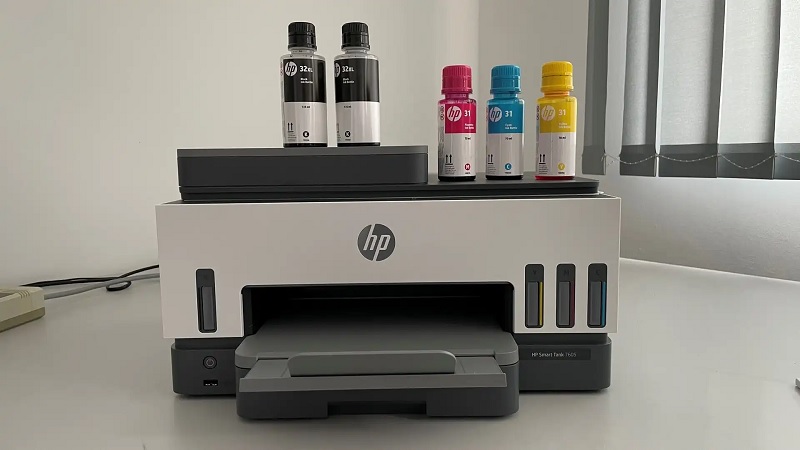
When you connect your HP printer to your Windows computer, you can easily check ink levels using the HP Smart app. Just open the app, select your printer, and the ink status will be clearly displayed on the home screen. It shows both color and black ink levels, so you’ll know when it’s time to replace cartridges.
Here’s a quick look at what the app displays:
| Ink Type | Status | Action Needed |
|---|---|---|
| Black | 45% full | None |
| Cyan | 60% full | None |
| Magenta | 55% full | None |
| Yellow | 50% full | None |
The app also notifies you if ink is running low, helping you avoid surprises.
Monitoring Ink Levels on Mac With HP Utility
If you’ve connected your HP printer to a Mac, you can easily monitor ink levels using the HP Utility software. First, open the HP Utility app, which is typically found in the Applications folder under HP or by searching with Spotlight. Once launched, select your printer from the list.
From the main menu, click on “Ink Levels” or “Supply Levels” to view the current status of each cartridge. This tool provides a clear visual of how much ink remains, helping you avoid unexpected print interruptions. If you don’t see your printer, verify it’s properly connected and powered on.
Monitoring ink this way gives you quick, reliable updates without needing to print a test page or check manually.
Using HP Print and Scan Doctor for Ink Information
Besides using the HP Utility on your Mac, you can also check your ink levels with HP Print and Scan Doctor. This free tool from HP helps diagnose printer issues and shows your ink or toner status.
First, download and install HP Print and Scan Doctor from HP’s official website. Open the program and select your printer from the list. Click “Fix Printing” and wait while it analyzes your device.
Once the scan completes, you’ll see a summary of your printer’s status, including estimated ink levels. If your ink is low, the tool will notify you so you can replace cartridges promptly.
This utility is straightforward, making it easier to maintain your printer without steering through complex menus.
Accessing Ink Levels Through the Printer’s Embedded Web Server
Although it might seem technical at first, accessing ink levels through your printer’s Embedded Web Server (EWS) is a straightforward way to monitor your ink status remotely. First, find your printer’s IP address from the control panel or network settings. Then, enter that IP into a web browser on the same network.
The EWS interface will load, displaying detailed ink levels under the “Supplies” or “Estimated Ink Levels” tab.
Here’s a quick view of what to expect:
| Ink Cartridge | Color | Approximate Level |
|---|---|---|
| Cartridge 1 | Black | 75% |
| Cartridge 2 | Tri-color | 50% |
This method is handy when you want quick ink info without installing extra software.
Checking Ink Status on Mobile Devices With HP Smart App
A convenient way to keep track of your printer’s ink levels is by using the HP Smart app on your mobile device. This app gives you real-time updates and lets you manage your printer remotely with ease.
Here’s how to check ink status using the app:
- Download and install the HP Smart app from your device’s app store.
- Open the app and connect it to your HP printer via Wi-Fi.
- Tap on your printer’s icon to open the dashboard.
- Look for the ink or toner status section to see current levels and get alerts for low ink.
Using the HP Smart app saves you time and helps you avoid running out of ink unexpectedly.
Understanding Ink Level Indicators and Alerts
Once you’ve got the HP Smart app set up to monitor your ink, it helps to understand the indicators and alerts your printer uses. Your printer typically shows ink levels through color-coded icons or bars, letting you know if ink is full, low, or critically low. When ink runs low, you’ll usually see a warning message or a blinking light on the control panel.
Some models also send notifications directly to your device via the app or email. These alerts give you enough time to prepare replacement cartridges before print quality suffers or the printer stops working. Paying attention to these signals guarantees you won’t get caught off guard and can maintain smooth printing without interruptions.
Tips for Maintaining Accurate Ink Level Readings
Because ink level readings can sometimes be off, it’s important to take steps that help you maintain their accuracy. Keeping your printer’s ink status reliable guarantees you’re never caught off guard by a sudden ink shortage. Here are some tips to help you:
- Regularly update your printer’s firmware to improve ink level detection.
- Use genuine HP ink cartridges, as third-party ones may not report levels correctly.
- Avoid refilling cartridges multiple times, which can confuse the sensor.
- Clean the cartridge contacts carefully to maintain proper communication between cartridge and printer.
Following these steps will help you trust the ink level readings and keep your printing running smoothly without unexpected interruptions.
Frequently Asked Questions
Can I Use Third-Party Apps to Check HP Ink Levels?
You can use third-party apps to check HP ink levels, but they might not be as accurate or reliable as HP’s official software.
It’s best to stick with HP tools to avoid compatibility issues or incorrect readings.
How Often Should I Check Ink Levels for Optimal Printing?
You should check your ink levels about once a week or before big print jobs; it’s better to catch low ink early than to run dry mid-print, like a car running out of gas on a long trip.
Do HP Ink Cartridges Expire or Lose Ink Over Time?
Yes, HP ink cartridges can expire and lose ink over time, especially if unused. You’ll want to check the expiration date and store cartridges properly to maintain quality.
Proper storage helps avoid clogged printheads or faded prints.
Can Low Ink Levels Affect Print Quality Before Warnings Appear?
You might not notice it at first, but yes, low ink levels can sneakily degrade print quality before any warning pops up. Colors fade, lines blur—so keep an eye on your cartridges to avoid surprises.
Is It Possible to Refill HP Ink Cartridges Without Errors?
Yes, you can refill HP ink cartridges, but you might still get error messages. To avoid them, use compatible refilling kits or reset the cartridge chip carefully.
Otherwise, your printer may not recognize the refilled cartridge.
Conclusion
Now that you know how to check your HP printer’s ink levels—from the control panel to apps and web servers—you can keep your printing smooth and worry-free.
Imagine your printer as a trusty artist’s brush, ready to paint every page vividly. By staying on top of those ink indicators and alerts, you’ll avoid unexpected fades and smudges, ensuring each printout is as crisp and clear as a fresh canvas.
Keep your colors flowing by regularly monitoring HP printer ink levels. This simple step helps maintain print quality and extends the life of your device. Stay informed and enjoy vibrant, flawless prints every time.