How to Find Printer Ip Address
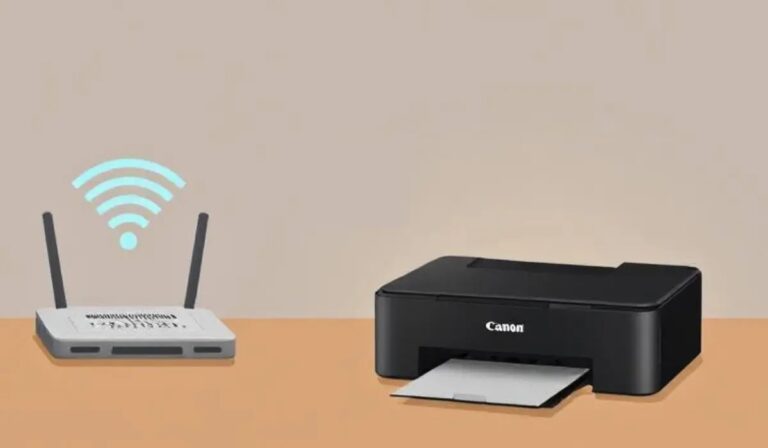
You can find your printer’s IP address easily by checking its display panel or through your computer settings. Knowing how to find printer IP address is essential for troubleshooting and network setup.
This guide will help you locate your printer’s IP quickly and hassle-free.
If your printer has a screen, access the network settings directly on the display panel to view the IP address.
For printers without a screen, print a network configuration page, which typically lists the IP address.
On your computer, you can check the printer properties on Windows or go to System Preferences on a Mac to find the IP address.
Another method is to log into your router’s interface to see all connected devices, including your printer.
You can also use mobile apps designed to scan your network and display connected device IPs.
Keep following these simple, step-by-step instructions to easily locate your printer’s IP address and ensure smooth printing operations.
Key Takeaways
- Check the printer’s built-in display panel under “Network” or “Wireless Settings” for the IP address.
- Print a network configuration page from the printer’s menu to view the IP address.
- On Windows or Mac, access printer properties or preferences to find the IP in network or ports settings.
- Log into your router’s web interface to view connected devices and locate the printer’s IP address.
- Use manufacturer-specific or general network scanner apps on a mobile device connected to the same Wi-Fi.
Check Printer Display Panel
Before diving into more complex methods, check your printer’s display panel first. Many modern printers show the IP address directly on their screen, making it the quickest way to find it. Start by browsing through the menu using the buttons or touchscreen.
Look for sections labeled “Network,” “Wireless Settings,” or “Wi-Fi.” Within these menus, you’ll often find “IP Address” or “Network Status.” If you see a string of numbers separated by periods, that’s your IP address.
If your printer supports touchscreen navigation, you might find this info under “Settings” or “Connectivity.” Remember, the exact menu names vary by model, but it’s usually straightforward. Checking the display panel saves you time and avoids needing a connected computer.
Print a Network Configuration Page
If you can’t find your printer’s IP address on the display panel, printing a network configuration page is a reliable next step. This page provides detailed info about your printer’s network settings, including its IP address. To print it, check your printer’s manual or menu options; most printers have a “Reports” or “Network” section where you can select “Print Network Configuration” or “Wireless Network Test.”
Once the page prints, look for the section labeled “IPv4 Address,” “IP Address,” or similar. That number is your printer’s IP. Having this info helps you manage your printer settings or connect it to your computer.
If you’re unsure about menu navigation, the manual or manufacturer’s website will have model-specific instructions for printing this page.
Find Printer IP on Windows
When you need to find your printer’s IP address on a Windows computer, you can quickly get it through the Settings or Control Panel. First, open Settings, go to “Devices,” then “Printers & scanners.” Select your printer, click “Manage,” and choose “Printer properties.”
Under the “Ports” tab, find the IP listed next to your selected port. Alternatively, open Control Panel, go to “Devices and Printers,” right-click your printer, and select “Properties” to locate the IP.
| Method | Location | Steps Summary |
|---|---|---|
| Settings | Devices & Printers | Select printer > Manage > Properties |
| Control Panel | Devices and Printers | Right-click printer > Properties |
| Printer Display | Printer Menu Screen | Check network or info settings |
Locate Printer IP on Mac
Although Macs handle printer settings a bit differently than Windows, you can still find your printer’s IP address quickly through the System Preferences. First, click the Apple menu and select “System Preferences.” Then, choose “Printers & Scanners.”
From the list of printers on the left, select the one you want. Click the “Options & Supplies” button, then go to the “General” tab. Here, you’ll see the printer’s IP address listed under “Location” or “URL.”
If it’s not obvious, check the “Supply Info” or “Utility” tabs for network details. This method works for most network printers connected via Wi-Fi or Ethernet. Knowing your printer’s IP address can help you troubleshoot or configure advanced settings easily on your Mac.
Use Router’s Web Interface
You can find your printer’s IP address by logging into your router’s web interface.
Once inside, look for a section that lists connected devices or DHCP clients.
There, you should be able to identify your printer and see its assigned IP address.
Access Router Settings
Before locating your printer’s IP address, you’ll need to access your router’s settings through its web interface. Start by finding your router’s IP address, usually something like 192.168.1.1 or 192.168.0.1. You can check this on your computer by opening Command Prompt (Windows) or Terminal (Mac) and typing “ipconfig” or “ifconfig,” then look for the “Default Gateway.”
Next, open a web browser and enter the router’s IP address into the address bar. You’ll be prompted to log in—if you haven’t changed it, the default username and password are often “admin” and “password.” Once logged in, you’ll have access to your router’s settings, where you can manage connected devices and find information about your network.
Locate Connected Devices
Once you’ve accessed your router’s web interface, locating connected devices is straightforward. You’ll want to find the section that lists all devices currently connected to your network. This list helps you spot your printer among other gadgets.
Here’s how to proceed:
- Navigate to the tab or menu labeled “Connected Devices,” “Attached Devices,” or something similar.
- Review the device names, MAC addresses, and IP addresses displayed.
- Look for a name matching your printer’s brand or model, which indicates your printer’s presence on the network.
Identify Printer IP
How can you pinpoint your printer’s IP address through your router’s web interface? First, log into your router by entering its IP address into your web browser—usually something like 192.168.1.1 or 192.168.0.1. Use your admin username and password to access the settings.
Once logged in, look for a section labeled “Connected Devices,” “Device List,” or “DHCP Clients.” This area displays all devices currently connected to your network. Find your printer in the list—often identified by its name or MAC address.
Next to it, you should see the assigned IP address. Note it down for future reference. If you don’t recognize the printer’s name, check your printer’s network settings for its MAC address and match it on the router to avoid confusion.
Discover Printer IP With Mobile Apps
You can easily find your printer’s IP address using popular mobile apps designed by printer manufacturers. Just download the app, connect it to your printer, and follow the setup steps.
Once connected, the app will display your printer’s IP address right on your phone.
Popular Printer Apps
Wondering how to quickly find your printer’s IP address without digging through menus or manuals? Popular printer apps make this task a breeze. These apps connect to your network and instantly display your printer’s details, including its IP address.
Here are three apps you might find handy:
- HP Smart – Ideal for HP printers, it scans your network and lists connected devices with their IPs.
- Canon PRINT Inkjet/SELPHY – Perfect for Canon users, it helps locate your printer’s IP and manage print jobs.
- Epson iPrint – Works seamlessly for Epson printers, showing network info and printer status.
Using these apps saves time and eliminates guesswork, so you can easily access your printer’s IP address right from your phone.
App Setup Steps
Getting started with these printer apps is straightforward and only takes a few steps. First, download the official app for your printer brand from your device’s app store. Once installed, open the app and verify your mobile device is connected to the same Wi-Fi network as your printer.
The app will usually prompt you to add a new printer; select this option. It will then scan the network to detect available printers automatically. After your printer appears, select it, and the app will display detailed information, including the IP address.
If the app requires, you might need to grant permissions for network access. Following these steps lets you quickly discover your printer’s IP without digging through menus or printer settings.
Locating IP Address
How can you quickly find your printer’s IP address using mobile apps? First, download your printer manufacturer’s official app or a reliable third-party network scanner.
Once installed, follow these steps:
- Connect to Your Network: Make sure your mobile device is on the same Wi-Fi as your printer.
- Open the App: Launch the app and navigate to the device discovery or printer settings section.
- Locate Printer IP: The app will list connected devices; select your printer to view its IP address.
Using mobile apps simplifies the process, letting you avoid printer menus or computer settings. This quick method guarantees you get the exact IP address for troubleshooting or setup without extra hassle.
Frequently Asked Questions
How Do I Change My Printer’s IP Address?
You’ll need to access your printer’s settings, usually via its control panel or web interface. Find the network or IP settings, then enter the new IP address you want.
Save changes and restart the printer to apply.
Can I Assign a Static IP to My Printer?
You can assign a static IP to your printer, which can reduce network conflicts by 80%.
Just access your printer’s settings or router interface, then manually input the desired IP address to keep it consistent and reliable.
What if My Printer IP Address Keeps Changing?
If your printer’s IP keeps changing, you should assign a static IP or reserve one via your router’s DHCP settings. This prevents connection issues and guarantees your devices always find the printer at the same address.
How Do I Find My Printer’s MAC Address?
The ball’s in your court: to find your printer’s MAC address, check its network settings menu or print a configuration page from the printer itself.
You can also find it on your router’s connected devices list.
Why Is My Printer Not Connecting to the Network?
Your printer might not be connecting due to incorrect Wi-Fi credentials, network issues, or IP conflicts. Make sure it’s on the right network, restart your router and printer, and check for firmware updates to fix connection problems.
Conclusion
Now that you know how to find your printer’s IP address through various methods, you might wonder—does your printer always stick to the same IP?
Actually, many printers use dynamic IPs that can change over time, which might explain occasional connection issues.
By regularly checking your printer’s IP using these steps, you’ll stay one step ahead and keep your printing smooth.
So, next time your printer acts up, you’ll know exactly where to look.
Remember, finding your printer’s IP address is key to troubleshooting and maintaining a stable connection.