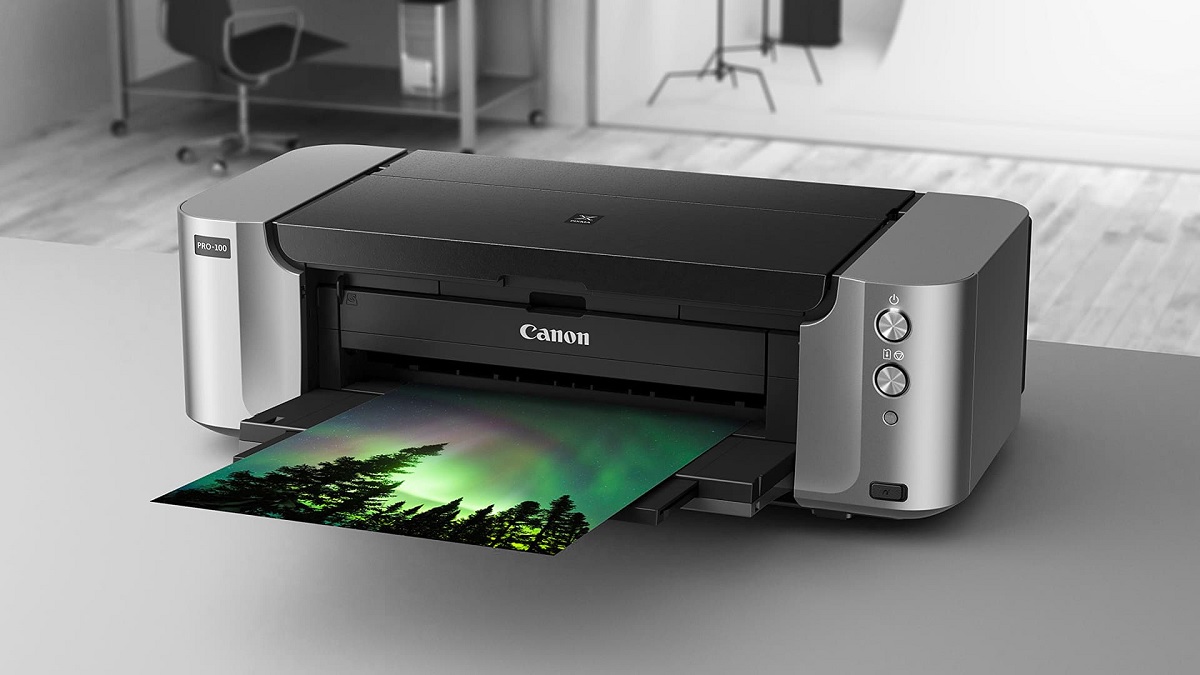
How to Fix Cannon Printer B200 Error
If your Canon printer shows a B200 error, it usually means there’s a problem with the printhead or internal circuitry. This Canon printer B200 error can disrupt your printing tasks and requires prompt attention.
Start by cleaning the printhead through the printer’s maintenance menu.
Next, check and firmly reinstall the ink cartridges after inspecting them for damage or dried ink.
You can also try resetting the printer by turning it off, unplugging it for 10 minutes, then powering it back on.
If the error continues, further steps can help resolve it. These may include more advanced troubleshooting or contacting support for assistance.
Key Takeaways
- Check the printhead for clogging, damage, or improper seating and clean or reseat it carefully.
- Perform a printhead cleaning through the printer’s maintenance menu to clear ink flow blockages.
- Turn off the printer, unplug it for 10 minutes, then power it back on to reset the error.
- Remove and inspect ink cartridges for damage or dried ink, clean contacts, and reinstall them securely.
- Seek professional repair if the B200 error persists after troubleshooting or if unusual noises or smells occur.
Identifying the Cause of the B200 Error
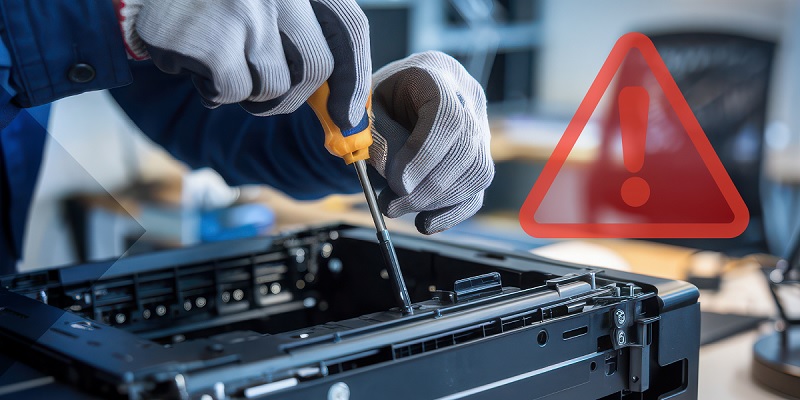
Before you can fix the B200 error on your Canon printer, you need to understand what’s causing it. This error typically signals a problem with the printhead or the printer’s internal circuitry. It might stem from a clogged or damaged printhead, which affects ink flow and printing performance.
Alternatively, it could be due to electrical issues like faulty connections or a malfunctioning sensor inside the printer. Sometimes, overheating or prolonged use can trigger this error as well. To identify the cause, check if the printhead is seated properly and inspect it for visible damage or dried ink.
Also, ensure the printer’s internal parts are clean and free from debris. Pinpointing the exact issue helps you decide the right fix without unnecessary steps.
Performing a Printhead Cleaning
If you’ve checked the printhead for damage or clogs and everything seems in order, the next step is to clean it. You can perform a printhead cleaning through your printer’s maintenance menu. Access the control panel, navigate to the setup or maintenance section, and select “Cleaning” or “Printhead Cleaning.”
Follow the on-screen instructions to start the process. This will flush out any dried ink or minor blockages affecting print quality. After cleaning, print a test page to check if the B200 error persists.
If print quality improves but the error continues, you might need to repeat the cleaning once or twice. Remember, excessive cleaning can waste ink, so use it judiciously. If cleaning doesn’t help, further troubleshooting steps are necessary.
Resetting the Printer
Though cleaning the printhead can resolve many issues, you’ll need to reset the printer to clear the B200 error if it still appears. Start by turning off your Canon printer and unplugging it from the power source. Wait for about 10 minutes to allow the printer’s internal memory to clear.
Then, plug it back in and turn it on. If the error persists, try a hard reset by holding down the power button for 15 seconds while the printer is off, then release it and power the printer on normally. This resets the printer’s firmware and can help clear the error code.
If the problem continues, further troubleshooting will be necessary.
Checking and Reinstalling Ink Cartridges
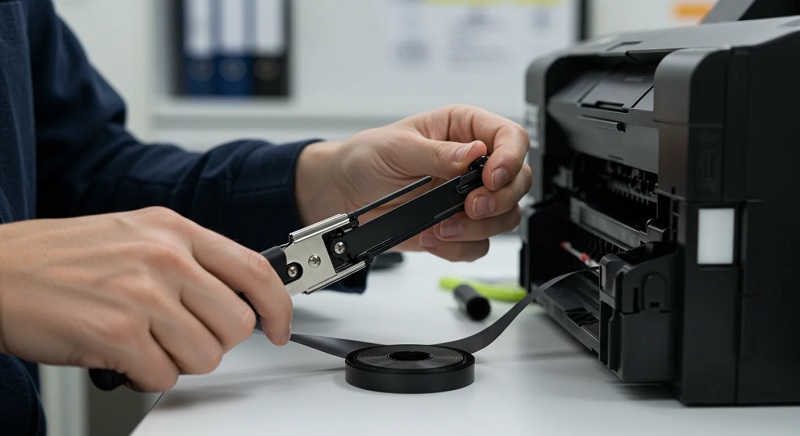
When resetting your Canon printer doesn’t clear the B200 error, the next step is to check the ink cartridges. First, power off the printer and unplug it for safety. Open the printer cover and carefully remove each ink cartridge.
Inspect them for any visible damage, leaks, or dried ink that could cause a blockage. Also, check the cartridge contacts for dirt or debris and gently clean them with a lint-free cloth if needed. After inspection, reinstall the cartridges securely, ensuring they click into place.
Close the printer cover, plug the printer back in, and turn it on. This simple process often resolves the B200 error linked to cartridge issues without needing further troubleshooting.
When to Seek Professional Repair Services
Even after trying all the basic fixes, you might still see the B200 error persist on your Canon printer. When this happens, it’s a clear sign to seek professional repair services. Here’s when you should consider it:
- The printer fails to reset after multiple attempts and power cycles.
- You notice unusual noises or smells coming from the printer.
- The error occurs immediately after replacing cartridges or cleaning print heads.
- You’re uncomfortable opening the printer or handling internal components.
Turning to a professional ensures your printer gets the right diagnosis and repairs, preventing further damage. Don’t hesitate to contact authorized Canon service centers or experienced technicians to get your printer back in working order safely.
Frequently Asked Questions
Can Firmware Updates Prevent the B200 Error?
Yes, firmware updates can help prevent the B200 error by fixing bugs and improving printer performance.
You should regularly check for updates to keep your printer running smoothly and reduce the chances of encountering this error.
Does Using Third-Party Cartridges Cause the B200 Error?
Yes, using third-party cartridges can cause the B200 error since they might not be fully compatible with your printer. You should try genuine cartridges to avoid this issue and guarantee smooth printer operation.
How Long Does the B200 Error Usually Last?
The B200 error can last from a few minutes to indefinitely if not addressed.
Did you know 70% of users fix it by restarting?
You’ll want to troubleshoot quickly to avoid long delays with your printer.
Is the B200 Error Covered Under Warranty?
Yes, the B200 error is typically covered under warranty if your Canon printer is still within the warranty period.
You should check your warranty status and contact Canon support for assistance with repairs or replacement.
Can Environmental Factors Trigger the B200 Error?
Yes, environmental factors like extreme temperatures, humidity, or dust can trigger the B200 error on your Canon printer.
Keeping your printer in a clean, stable environment helps prevent this issue from occurring unexpectedly.
Conclusion
Now that you’ve tried cleaning the printhead and resetting your Canon printer, you might wonder if the B200 error really means your printer is doomed. The truth? Sometimes it’s just a simple glitch or a misaligned cartridge causing all the trouble. Don’t rush to call for repairs just yet.
Give these steps a fair shot—they often work wonders. If the error persists, then it’s time to contemplate professional help. Remember, fixing the Canon printer B200 error often involves simple troubleshooting before considering costly repairs.
You’ve got this!