How to Lookup Printer IP Address
To find your printer’s IP address, start by checking its display panel under network settings or print a network configuration page. Knowing the printer IP address is essential for network setup and troubleshooting.
You can also locate it on Windows by going to Settings > Devices > Printers & scanners, selecting your printer, and checking the Ports tab.
On a Mac, navigate to System Preferences > Printers & Scanners to see your printer’s IP information.
Alternatively, check your router’s device list for connected devices, which often includes the printer’s IP address.
You can also run the command “arp -a” in Command Prompt or Terminal to display all IP addresses connected to your network.
Exploring these methods will help you manage or change your printer’s IP address, ensuring smoother and more reliable printing performance.
Understanding how to look up your printer’s IP address is a key step in maintaining your networked printing setup.
Key Takeaways
- Check the printer’s display panel under Network or Wireless Settings for the IP address without needing a computer.
- On Windows, open Settings > Devices > Printers & scanners, select the printer, then view IP under Manage > Printer properties > Ports tab.
- On macOS, go to System Preferences > Printers & Scanners, select the printer, then find the IP in Options & Supplies or print a network config page.
- Access your router’s admin page, look under Connected Devices or DHCP Client List to find the printer’s assigned IP address.
- Use Command Prompt (Windows) or Terminal (macOS) with “arp -a” command to discover IP addresses of devices including network printers.
Understanding the Importance of Your Printer’s IP Address
Although it might seem technical, knowing your printer’s IP address is essential for efficient network printing. When your printer is connected to a network, the IP address acts as its unique identifier, allowing your computer or device to find and communicate with it directly. Without this address, you might struggle to set up printing or troubleshoot connectivity issues.
It guarantees that your print jobs are sent to the correct device, especially in environments with multiple printers. Additionally, understanding the IP address helps you manage printer settings remotely, update firmware, or monitor usage through network tools. By having this information handy, you save time and avoid confusion, making your overall printing experience smoother and more reliable.
Checking the Printer’s IP Address via Printer Display Panel
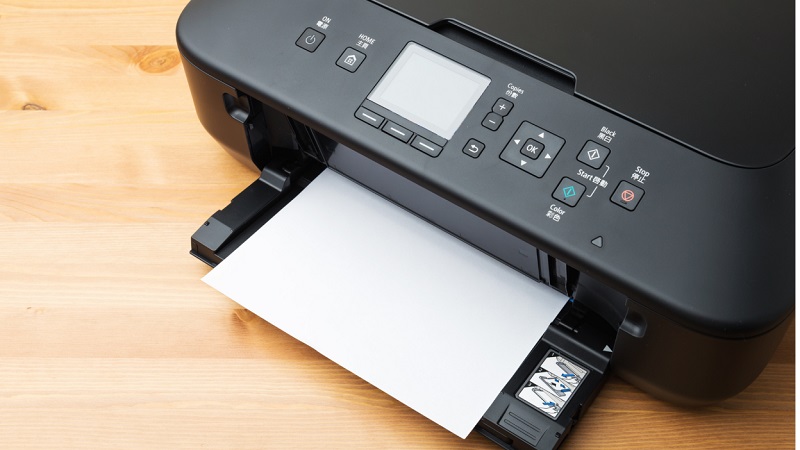
You can easily find your printer’s IP address right on its display panel. Just navigate through the menu to the Network Settings or Wireless Settings option.
From there, you’ll see the current IP address assigned to your printer.
Navigating Printer Menu
When you need to find your printer’s IP address quickly, browsing its menu via the display panel is often the fastest method. Start by waking the printer and locating the menu or settings button on the control panel. Use the navigation arrows or touchscreen to access “Network” or “Wireless” settings.
Within this section, look for options like “Network Status,” “TCP/IP,” or “Wi-Fi Status.” Selecting one of these will typically display the IP address assigned to your printer. If you don’t see the IP right away, check under submenus such as “Details” or “Advanced.”
Once found, note the IP address for future use. This method keeps you from needing a computer and works well for most modern printers with built-in displays.
Finding Network Settings
Locating your printer’s network settings through its display panel usually takes just a few steps. First, power on your printer and access the main menu on the display screen. Look for an option labeled “Settings,” “Setup,” or “Network.”
Once inside, find the “Network Settings” or “Wireless Settings” section. Here, you should see details like your printer’s IP address, subnet mask, and gateway. The IP address is often listed under “TCP/IP” or “IP Address.”
If you don’t see it immediately, try exploring “Network Status” or “Wi-Fi Status.” Note down the IP address displayed. This method is quick and doesn’t require a computer, making it handy if you want to confirm your printer’s network information directly from the device.
Finding the IP Address Using Windows Settings
You can find your printer’s IP address directly through Windows settings by accessing the printer properties. Start by opening the Devices and Printers section, then navigate to your printer’s network settings.
This method is quick and doesn’t require you to touch the printer itself.
Accessing Printer Properties
Although it might seem tricky at first, accessing your printer’s properties through Windows settings is a straightforward way to find its IP address.
Here’s how you can do it:
- Open the Start menu and go to Settings > Devices > Printers & scanners. Select your printer from the list.
- Click on Manage, then choose Printer properties (not just “Properties”).
- In the Printer Properties window, switch to the Ports tab. Look for the checked port, which often shows the IP address next to it.
This method works because the port your printer uses usually identifies its network location.
Once you spot the IP, you can use it to connect or troubleshoot your printer.
Navigating Network Settings
When you need to find your printer’s IP address quickly, Windows offers a simple way through its network settings. First, open the Start menu and select Settings, then go to Devices. Click on Printers & scanners, and choose your printer from the list.
Next, select Manage, then click on Printer properties. In the properties window, navigate to the Ports tab, where you’ll see a list of ports with checkboxes. Look for the port with your printer’s name—its IP address will be displayed in the Port column.
Alternatively, you can open Control Panel, go to Network and Internet, and then Network and Sharing Center to see connected devices and their IPs. This method lets you quickly identify your printer’s IP without extra software.
Locating the Printer IP on Macos Devices
If you need to find the IP address of your printer on a Mac, the process is straightforward and can be done through the System Preferences or the printer’s built-in settings. Here’s how you can quickly locate it:
- Open System Preferences and click on “Printers & Scanners.” Select your printer from the list, then click “Options & Supplies.” In the new window, look for the “Location” or “General” tab where the IP address is often displayed.
- Alternatively, click “Print Test Page” if available; some printers print their IP on the test page.
- On your printer’s control panel, navigate to network settings to view the current IP address.
This way, you can easily confirm your printer’s IP on macOS.
Using the Printer’s Embedded Web Server to Find the IP
Since many modern printers come with an embedded web server, you can easily find the IP address by accessing this feature through your web browser.
First, print a network configuration page from your printer’s control panel; it usually lists the printer’s current IP. Then, type that IP into your browser’s address bar to open the embedded web server interface.
Here, you’ll find detailed network settings and status.
| Step | Action |
|---|---|
| 1 | Print network configuration page |
| 2 | Locate IP address on the printed page |
| 3 | Enter IP into your web browser |
| 4 | Access embedded web server interface |
| 5 | View detailed network settings and status |
Retrieving the IP Address From Your Router’s Admin Page
Although some printers display their IP address directly, you can also find it by logging into your router’s admin page. This method is handy if your printer’s screen doesn’t show the info or if you want to see all devices connected to your network.
Here’s how to do it:
- Open a web browser and enter your router’s IP address (usually 192.168.1.1 or 192.168.0.1).
- Log in using your router’s username and password (check the router label or manual if you don’t know these).
- Navigate to the “Connected Devices” or “DHCP Client List” section to find your printer’s name and its assigned IP address.
This lets you quickly identify your printer’s IP without accessing the printer itself.
Using Command Prompt or Terminal to Discover Printer IP
When you want a quick way to find your printer’s IP address without traversing menus or router settings, using the Command Prompt on Windows or Terminal on macOS can be a straightforward solution. On Windows, open Command Prompt and type “arp -a” to display all devices connected to your network with their IP addresses. Look for your printer’s MAC address or name in the list.
On macOS, open Terminal and enter “arp -a” to achieve the same. If you’re unsure of your printer’s MAC address, you can print a network configuration page directly from the printer, which typically includes it. This method is especially handy if your printer is networked via Ethernet or Wi-Fi and lets you pinpoint its IP address quickly without extra tools.
Tips for Managing and Changing Your Printer’s IP Address
Once you’ve identified your printer’s IP address using the Command Prompt or Terminal, managing or changing that address becomes much simpler. Keeping control over your printer’s IP helps avoid conflicts and ensures smooth network printing.
Here are three tips to manage and change your printer’s IP address effectively:
- Access the Printer’s Web Interface: Enter the current IP into your browser to reach settings. Here, you can assign a static IP to prevent alterations.
- Use Your Router’s DHCP Settings: Reserve an IP address for your printer to keep it consistent within your network.
- Update Devices After Changes: After changing the printer’s IP, update the printer settings on all connected devices to maintain connectivity.
Following these steps keeps your printer reachable and your network stable.
Frequently Asked Questions
Can I Print Wirelessly Without Knowing the Printer’s IP Address?
Yes, you can print wirelessly without knowing the printer’s IP address by using features like Wi-Fi Direct, AirPrint, or printer software that automatically detects your printer on the network.
These options make setup easier for you. They allow devices to connect directly or find printers without manual IP configuration. This simplifies the printing process significantly.
How Do I Find the Printer’s MAC Address Instead of the IP?
To find your printer’s MAC address, you’ll want to check its network settings menu or print a network configuration page.
It’s like finding a needle in a haystack—MAC’s usually listed clearly in those details.
What if My Printer’s IP Address Changes Frequently?
If your printer’s IP changes often, you can assign it a static IP through your router’s settings or printer menu. This keeps the address fixed, preventing connection issues and making it easier for you to locate the printer consistently.
Can I Assign a Static IP to My Printer via the Printer Itself?
Yes, you can usually assign a static IP directly on the printer through its control panel or web interface. Just access network settings, choose manual IP, and enter your desired address to prevent frequent changes.
How Do I Find the IP Address of a Printer Shared Over a Network?
Imagine your printer and computer chatting over the network; you can find the printer’s IP by checking the printer’s network settings menu, printing a configuration page, or looking at the shared printer properties on your computer’s control panel.
Conclusion
Finding your printer’s IP address is like uncovering a secret path to seamless printing. Whether you navigate through your device’s settings, your router’s admin page, or even the printer’s own display, you’re revealing communication between your gadgets.
Keep these methods handy, and you’ll never be lost in the digital maze. With a little know-how, managing and changing your printer’s IP becomes as easy as a breeze. This knowledge ensures your workflow stays smooth and stress-free.
By mastering how to lookup printer IP address, you can troubleshoot, configure, and maintain your printer efficiently. Always having your printer’s IP address on hand simplifies network management and enhances connectivity.