How to Print Double Sided on a Printer
To print double-sided on a printer, first check if your printer supports automatic duplex printing. Look for a “Print on Both Sides” option in the print settings. If this feature is available, simply enable it before printing.
If your printer does not support automatic duplex, you can manually print double-sided. Start by printing all the odd pages first. Then, flip the paper and print the even pages on the reverse side.
Make sure to adjust binding options like “Long Edge” or “Short Edge” to ensure proper orientation. With practice, you’ll get the hang of perfect double-sided printing every time.
Key Takeaways
- Verify if your printer supports automatic duplex printing by checking the manual or settings menu.
- Enable “Print on Both Sides” or “Duplex Printing” in the print dialog before printing.
- For manual duplex, print all odd pages first, flip the pages, then print all even pages.
- Choose the correct binding option, like “Long Edge” or “Short Edge,” for proper page orientation.
- Update printer drivers and perform test prints to ensure smooth double-sided printing.
Checking if Your Printer Supports Duplex Printing
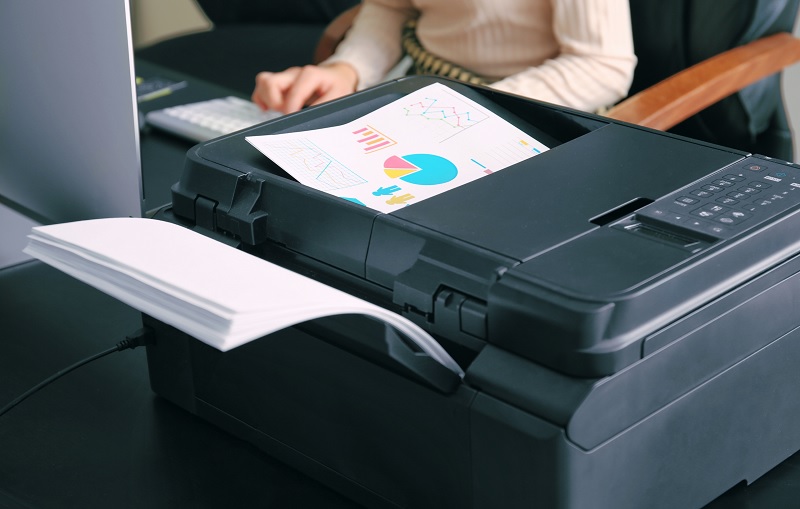
Before you try printing double sided, you’ll want to make sure your printer actually supports duplex printing. Not all printers have this feature, so it’s important to check. You can start by looking at your printer’s manual or specifications online—search for terms like “duplex,” “double-sided printing,” or “automatic two-sided printing.”
Another quick way is to check your printer’s control panel or settings menu; some models list duplex options there. If you don’t see anything, your printer might only support manual duplex, meaning you’ll have to flip the pages yourself.
Also, on your computer, when you select your printer in the print dialog, look for a “Print on both sides” checkbox. If it’s missing, your printer likely doesn’t support automatic duplex printing.
Setting Up Automatic Double-Sided Printing
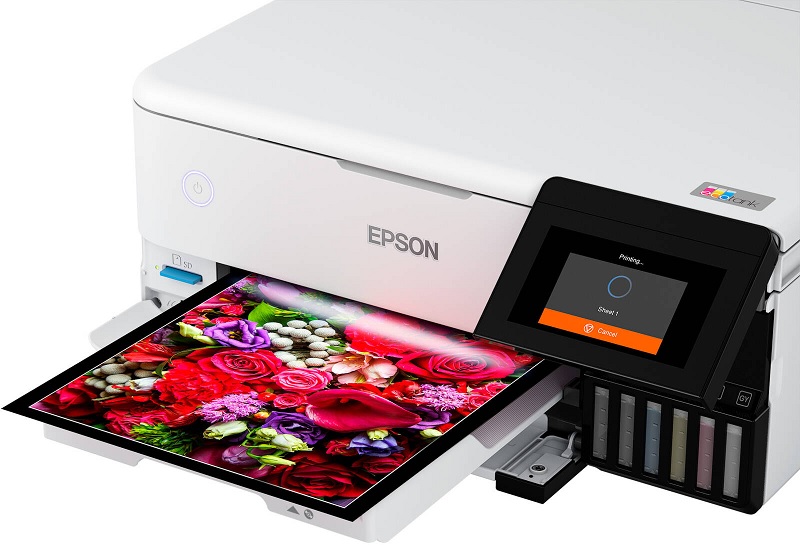
Once you’ve confirmed your printer supports automatic duplex printing, setting it up is straightforward. You’ll want to adjust the settings on your computer before printing. Here’s what to do:
- Open the document and select “Print” from the File menu.
- In the print dialog box, look for the “Print on Both Sides” or “Duplex Printing” option and enable it.
- Choose the appropriate binding option, like “Long Edge” or “Short Edge,” depending on how you want the pages to flip.
After these steps, your printer will handle the double-sided printing automatically. Make sure your printer drivers are up to date to avoid any compatibility issues. This setup saves time and reduces paper use, making your printing process more efficient.
How to Manually Print on Both Sides
If your printer doesn’t support automatic duplex printing, you can still print double-sided by manually flipping the pages. Start by printing all the odd-numbered pages first. In your print dialog box, select the option to print only odd pages.
Once the odd pages are printed, take the stack, flip it carefully, and reinsert it into the paper tray. Then, choose to print only the even-numbered pages. Make sure you understand how your printer feeds paper to avoid printing on the wrong side or upside down.
It might take a test run to get it right, but once you do, manual double-sided printing becomes straightforward and saves paper without needing special hardware. Just handle the paper gently to keep the order intact.
Adjusting Printer Settings for Double-Sided Printing
Printing double-sided manually works well, but adjusting your printer settings can make the process much simpler if your device supports it.
To enable automatic duplex printing, you’ll want to access your printer’s properties before you print. Here’s what to do:
- Open the print dialog from your document and select your printer.
- Click on “Printer Properties” or “Preferences” to find the duplex or double-sided printing option.
- Choose “Print on Both Sides” or “Duplex Printing” and select the appropriate binding option (long edge or short edge).
Once set, your printer will handle flipping pages automatically, saving you time and effort. Just confirm your printer supports duplex printing to avoid any surprises.
Troubleshooting Common Double-Sided Printing Issues
Although double-sided printing can save paper and time, you might run into issues like pages printing out of order, blank backs, or misaligned text. First, check your printer settings to verify duplex printing is enabled correctly. If pages are upside down or reversed, adjust the “Flip on Long Edge” or “Flip on Short Edge” option.
Blank backs often mean the printer ran out of ink or the paper tray isn’t feeding properly—make sure the ink cartridges have enough ink and the paper is loaded correctly. For misaligned text, clean the print heads and run a printer calibration if available. If problems persist, updating your printer drivers or restarting your printer and computer often resolves glitches.
Following these steps will help you troubleshoot most double-sided printing hiccups.
Frequently Asked Questions
Can I Double-Side Print on Any Type of Paper?
You can double-side print on most paper types, but avoid very thin or glossy sheets to prevent smudging or jams.
Always check your printer’s specs and test a small batch to guarantee good quality results.
Does Double-Sided Printing Save Ink or Toner?
Double-sided printing doesn’t exactly save ink or toner; it’s like using both sides of a coin—you’re just maximizing paper use.
You’ll cut paper costs, but ink consumption remains about the same, so your cartridges last no longer.
How Does Double-Sided Printing Affect Print Speed?
Double-sided printing usually slows your print speed since the printer must flip the paper or print on both sides, causing a brief pause.
However, the time difference varies depending on your printer model and settings.
Can I Double-Side Print From a Smartphone or Tablet?
Yes, you can double-side print from your smartphone or tablet if your printer supports duplex printing and is connected via Wi-Fi or Bluetooth. Just select the duplex option in the print settings before printing your document or photo.
Is Double-Sided Printing More Environmentally Friendly?
Yes, double-sided printing is more environmentally friendly because it cuts paper use in half, saving trees and reducing waste.
You’ll also lower energy consumption involved in paper production and disposal, making your printing greener overall.
Conclusion
So, now that you’re basically a double-sided printing wizard, remember: if your printer doesn’t support duplex printing, don’t panic—just embrace the ancient art of manual page flipping. Because who needs convenience when you can have the joy of paper jams and awkwardly reloading pages, right?
But seriously, with a little patience and these tips, you’ll save paper, impress your eco-conscious friends, and maybe even avoid your boss’s glare. Happy printing!
By mastering how to print double sided on a printer, you not only reduce paper waste but also become more efficient and environmentally responsible. Whether using automatic duplex printing or manual methods, these skills are invaluable in today’s office and home settings. Keep these double-sided printing tips handy for your next print job!