How to Reset Hp Printer
To reset your HP printer, start with a soft reset by turning it off, unplugging it for 60 seconds, then plugging it back in and powering it on to fix minor glitches. Resetting an HP printer can resolve many common issues quickly and easily.
This simple process often restores normal function without needing further intervention.
For more persistent problems, perform a hard reset by unplugging the printer, holding the power button for 15 seconds, then reconnecting power to restore factory settings. This method clears deeper errors and resets the device to its original state.
You can also reset network settings from the printer’s setup menu to fix connection problems. This is especially useful if your printer is having trouble connecting to Wi-Fi.
Keep following for detailed steps and troubleshooting tips tailored to your model.
Key Takeaways
- Perform a soft reset by turning off the printer, unplugging it for 60 seconds, then reconnecting and powering it back on.
- For a hard reset, unplug the printer, hold the power button for 15 seconds, then reconnect power and turn it on to restore factory defaults.
- Reset network settings via the printer’s control panel by selecting “Restore Network Defaults” or “Reset Network Settings” to fix connection issues.
- Use the printer’s Setup or Settings menu to access reset options, including restoring defaults or resetting specific functions.
- After any reset, reconnect to Wi-Fi, update drivers, and verify printer settings to ensure proper operation.
Understanding Different Types of HP Printer Resets
Before you reset your HP printer, it’s important to comprehend that there are several types of resets, each serving a different purpose. You’ll encounter soft resets, which simply restart the printer’s internal software without affecting your settings. Then, there are hard resets that restore factory defaults, erasing all personalized configurations like network settings.
You might also come across a semi-full reset, which clears error messages but keeps your preferences intact. Knowing the difference helps you choose the right reset for your situation. For example, a soft reset is ideal for minor glitches, while a hard reset is better for persistent issues or if you’re preparing to sell the printer.
Understanding these types ensures you don’t accidentally lose important data or settings when fixing your HP printer.
Performing a Soft Reset on Your HP Printer
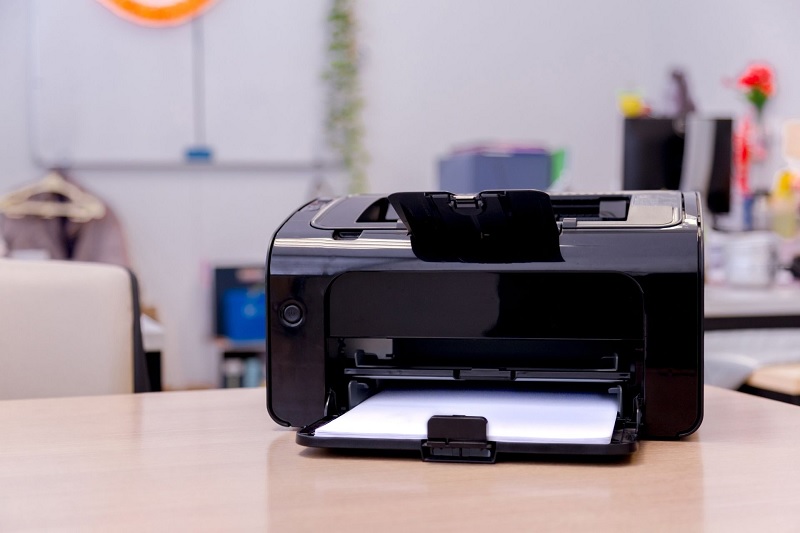
To perform a soft reset on your HP printer, you’ll start by power cycling it—turning it off, waiting a few seconds, then turning it back on.
You can also reset settings through the control panel for a quick refresh. This process helps resolve minor issues without affecting your saved settings.
Power Cycle Steps
Wondering how to quickly fix minor glitches with your HP printer? Power cycling is a simple step you can take to refresh your printer’s system. Start by turning off your printer completely.
Then, unplug the power cord from both the printer and the wall outlet. Wait for about 60 seconds to let any residual power drain from the device. After that, plug the power cord back into the wall outlet and connect it to your printer.
Turn your printer back on and allow it to fully reboot. This process clears temporary errors and resets network connections without affecting your settings or print jobs. Power cycling is often the first troubleshooting step you should try before moving on to more advanced resets.
Control Panel Reset
If power cycling didn’t solve your printer’s issues, performing a control panel reset can help clear more persistent errors. To do this, first make sure your printer is turned on. Then, locate the control panel buttons—usually the Home, Back, and Cancel keys.
Press and hold the Cancel button for about 10 seconds until the printer restarts or the display changes. This process resets the control panel settings without affecting your network or print jobs.
If your model has a touchscreen, you might need to access the Setup or Settings menu, find the “Restore Defaults” or “Reset” option, and confirm the reset. This soft reset refreshes the control panel software, often resolving glitches or frozen screens, so you can get back to printing smoothly.
Benefits of Soft Reset
Why should you consider performing a soft reset on your HP printer? A soft reset resolves minor glitches without erasing your settings or data, making it a quick, hassle-free fix. It helps clear error messages, unfreeze the printer, and improve print quality without the need for complex troubleshooting.
Here’s a quick look at the benefits:
| Benefit | Description |
|---|---|
| Quick Fix | Resolves common errors instantly. |
| No Data Loss | Keeps your settings intact. |
| Easy to Perform | Simple steps, no technical skill needed. |
How to Hard Reset Your HP Printer
Although it might seem technical, performing a hard reset on your HP printer is a straightforward process that can resolve many common issues. First, turn off the printer and unplug the power cord from the electrical outlet. Wait for about 60 seconds to allow the printer to fully power down and clear its memory.
Next, press and hold the power button for around 15 seconds to discharge any residual power. After that, plug the power cord back in and turn the printer on. This process restores the printer’s default settings and clears temporary glitches that might be causing problems.
Resetting Network Settings on HP Printers
If your HP printer is having trouble connecting to the network, you’ll need to reset its network settings. Start by accessing the Network Settings menu on your printer’s control panel, then perform a network reset.
After that, you can reconnect your printer to your Wi-Fi to get it back online.
Accessing Network Settings Menu
Wondering how to reset your HP printer’s network settings? First, you’ll need to access the Network Settings menu on your printer’s control panel. Start by turning on your printer and browsing to the Home screen.
Look for the “Setup” or “Settings” icon, usually represented by a gear symbol, and tap it. From there, find the “Network” or “Wireless” option and select it. This menu lets you view and adjust all network-related settings.
Depending on your printer model, you might see options like “Wireless Setup Wizard,” “Network Configuration,” or “Restore Network Defaults.” Accessing this menu is essential before making changes or resetting network settings, ensuring you’re in the right place to manage your printer’s connectivity.
Performing Network Reset
How do you perform a network reset on your HP printer? It’s simpler than you think and can solve many connectivity issues. First, access the printer’s control panel and navigate to the Network Settings menu.
From there, look for an option labeled “Restore Network Defaults” or “Reset Network Settings.” Selecting this will clear all current network configurations, including Wi-Fi passwords and IP addresses.
Keep in mind that a network reset:
- Frees you from frustrating connection errors
- Gives your printer a fresh start on your network
- Helps resolve stubborn wireless issues quickly
- Is a quick fix before deeper troubleshooting
After the reset, you’ll need to set up your network connection again, but it’s a small step to get your printer back online hassle-free.
Reconnecting to Wi-Fi
Once your HP printer’s network settings have been reset, you’ll need to reconnect it to your Wi-Fi to restore printing capabilities. Start by accessing the printer’s control panel and browsing through the wireless or network settings menu. Select the Wi-Fi setup wizard or similar option to search for available networks.
Choose your Wi-Fi network from the list and enter the password when prompted. Make sure you input the password correctly to avoid connection issues. After connecting, your printer may print a network configuration page to confirm the connection.
Finally, check your computer or mobile device to verify the printer is recognized on the network. This step completes your printer’s reconnection and gets you ready to print wirelessly again.
Factory Reset Procedures for Popular HP Printer Models
Although each HP printer model may have its own specific steps, you’ll find that most factory reset procedures follow a similar pattern involving the control panel or a combination of buttons. For example, on many HP DeskJet or Envy models, holding down the Cancel and Wireless buttons simultaneously for several seconds triggers a reset. LaserJet printers often require steering through the setup menu to find the “Restore Defaults” option.
Here’s what you can expect:
- A sense of relief as your printer clears persistent errors.
- The satisfaction of starting fresh without lingering glitches.
- Empowerment from handling the reset yourself.
- Confidence that your printer is ready for smooth operation again.
Following model-specific instructions ensures you reset correctly without risking damage.
Troubleshooting Common Issues After Resetting
Even after a successful reset, you might encounter some hiccups with your HP printer. Don’t worry; these common issues usually have straightforward fixes. Check your connections, verify drivers are updated, and confirm print settings.
Here’s a quick troubleshooting guide:
| Issue | Solution |
|---|---|
| Printer not found | Reconnect USB/Wi-Fi and restart printer |
| Print jobs stuck | Clear print queue from your computer |
| Poor print quality | Run print head cleaning via printer menu |
| Error messages persist | Update or reinstall printer drivers |
Tips to Prevent Future Printer Errors and Resets
To keep your HP printer running smoothly and reduce the need for resets, you should regularly perform simple maintenance tasks and stay proactive with updates. Neglecting these can lead to frustrating errors that interrupt your workflow. Taking a little time now preserves you headaches later.
Regular maintenance and timely updates keep your HP printer running smoothly and prevent frustrating errors.
Here are some tips to help you avoid future printer issues:
- Keep your printer clean to prevent dust buildup that can cause jams or print quality problems.
- Update printer drivers and firmware regularly to fix bugs and improve performance.
- Use genuine HP ink and paper to ensure compatibility and prevent clogs or damage.
- Avoid forcing paper through the printer to reduce the risk of jams or hardware damage.
Following these tips will help you enjoy hassle-free printing every day.
Frequently Asked Questions
Can I Reset My HP Printer Using a Mobile App?
Yes, you can reset your HP printer using the HP Smart app on your mobile device. Just open the app, connect to your printer, and access settings to perform a factory reset or troubleshoot issues quickly.
Does Resetting Delete My Saved Print Jobs?
Resetting your printer won’t delete saved print jobs, won’t erase your settings, and won’t clear your queued documents.
However, it might clear temporary data, so it’s wise to double-check before you reset.
How Do I Reset Printer Ink Levels or Cartridges?
You can reset ink levels by removing and reinstalling cartridges or using HP’s printer software to perform a cartridge reset. Sometimes, replacing cartridges with genuine HP ones also helps the printer recognize new ink levels.
Can Resetting Fix Paper Jam Errors?
Think of your printer as a stubborn river blocked by fallen branches—resetting is like clearing debris, sometimes freeing the flow.
Is It Safe to Reset My HP Printer During a Print Job?
It’s not safe to reset your HP printer during a print job because you might lose your progress or cause a paper jam.
It’s better to wait until the printer finishes or cancels the current task before resetting.
Conclusion
Resetting your HP printer can solve up to 80% of common issues, making it a handy skill to have. Whether you’re doing a soft reset, hard reset, or factory reset, knowing the right method saves you time and frustration.
Remember, after resetting, troubleshooting helps keep things running smoothly. With these tips, you’ll prevent future errors and keep your printer working like new. You’ve got this—happy printing!
By following these steps to reset your HP printer, you ensure it stays in optimal condition. Regularly resetting and maintaining your device can avoid many common problems. So, don’t hesitate to reset your HP printer whenever needed to enjoy hassle-free printing.