How to Restart Hp Printer
To restart your HP printer effectively, follow these simple steps to ensure a smooth process and avoid any issues.
First, locate and press the power button to turn off the printer safely, ensuring no active print jobs are running.
Unplug the power cord from the outlet and wait about 2 to 5 minutes to let the printer fully reset. This waiting period helps clear any temporary errors or glitches.
Then, reconnect the power cord, power the printer back on, and check that it’s ready or online.
Try a test print to confirm all’s working smoothly.
If you want, you can explore more detailed steps to troubleshoot and optimize your printer’s performance.
Key Takeaways
- Locate the power button on your HP printer, usually on the front or top, and ensure the device has no active print jobs before restarting.
- Power off the printer by holding the power button until it shuts down completely, then unplug the power cord from the outlet.
- Wait 2 to 5 minutes unplugged to allow the printer’s internal memory to reset fully and clear any errors.
- Reconnect the power cord firmly and press the power button to turn the printer back on, waiting for it to reach a ready state.
- Perform a test print from the printer’s control panel or computer settings to confirm successful restart and proper printer functionality.
Identify the Power Button on Your HP Printer
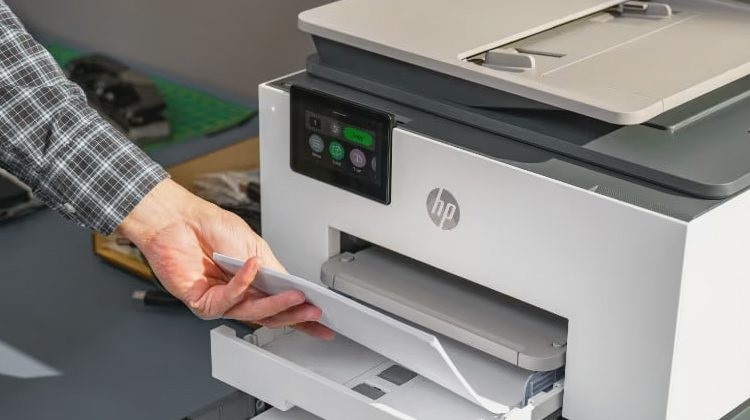
Located usually on the front or top of your HP printer, the power button controls turning the device on and off. You’ll often find it marked with a circle containing a vertical line or a simple power symbol. It’s typically a small, round, or rectangular button that stands out from other buttons due to its distinct icon.
Depending on your printer model, the button might be flush with the surface or slightly raised for easier access. If you’re unsure, look for a button near the display panel or on the right side of the printer. Identifying this button is essential before you restart your printer, as it’s the primary control for powering the device, ensuring you manage it correctly during troubleshooting or regular use.
Power Off the Printer Safely
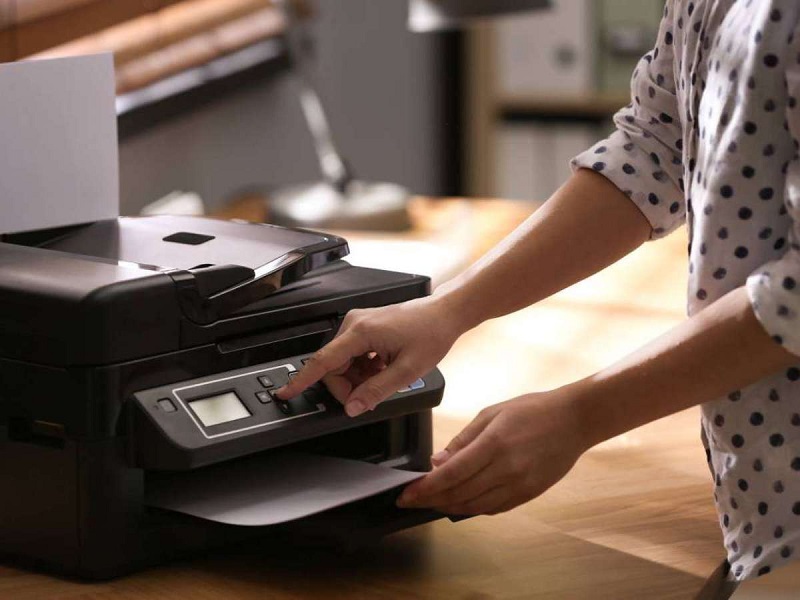
Before you power off your HP printer, make sure it’s not in the middle of a print job to avoid damaging documents or the device. Check the printer’s display panel or status lights to confirm it’s idle. Once you’re sure it’s ready, press the power button you previously identified.
Hold it briefly until the printer begins to shut down—this prevents abrupt power loss that could corrupt internal memory or firmware. Wait patiently for all lights to turn off, signaling a complete shutdown. Avoid pressing the power button repeatedly or forcing it off, as this may cause hardware issues.
Powering off the printer safely guarantees it’s ready for a smooth restart and helps maintain its longevity and performance.
Unplug the Printer From the Power Source
Next, find the power cord connected to your HP printer and unplug it safely from the outlet. Make sure you handle the cord gently to avoid any damage.
Wait for about 30 seconds before plugging it back in to allow the printer to fully reset.
Locate Power Cord
If you want to safely restart your HP printer, you’ll need to unplug it from the power source first. To do this, start by locating the power cord connected to your printer. Usually, it’s a thick, black or gray cable attached to the back of the printer.
Follow this cord to where it plugs into the wall outlet or power strip. Make sure you identify the correct cord, especially if you have several devices nearby. Once you’ve found the power cord, you can prepare to disconnect it safely.
Knowing exactly where the power cord is helps avoid accidentally disconnecting other devices or causing disruptions. This step is essential before you proceed with restarting your printer to ensure it powers down properly.
Disconnect Safely
Once you’ve located the power cord, the next step is to unplug your printer safely from the power source. First, make sure your hands are dry to avoid any electrical hazards. Grip the plug firmly—never pull on the cord itself, as this can damage the wiring.
Gently pull the plug straight out of the outlet without twisting or yanking. If your printer uses a power strip or surge protector, switch it off before unplugging. Avoid unplugging your printer during active printing or firmware updates to prevent data loss or hardware issues.
Disconnecting properly guarantees your printer’s internal components aren’t damaged and sets the stage for a smooth restart process. Taking these precautions helps keep both you and your printer safe.
Wait Before Replugging
Although you’ve unplugged your printer, you should wait at least 30 seconds before plugging it back in. This brief pause allows any residual power to drain completely, ensuring the device fully resets. If you plug it back in too quickly, the printer might not reboot properly, which can cause errors or prevent it from initializing.
During this time, take a moment to check for any visible issues like paper jams or loose cables. After waiting, reconnect the power cord firmly to the outlet and the printer. Then, turn the printer back on using its power button.
This simple waiting step is vital for a successful restart and can often resolve minor glitches without further troubleshooting.
Wait for a Few Minutes Before Restarting
After unplugging your HP printer, it’s important to wait a few minutes before plugging it back in. This pause allows the printer’s internal memory to clear and resets its system properly.
Waiting around 2 to 5 minutes is usually sufficient to guarantee a full reset.
Importance of Waiting
Why should you wait a few minutes before restarting your HP printer? Waiting allows the internal components to fully power down and reset. This pause helps clear temporary errors and prevents hardware damage caused by abrupt restarts.
It also gives the printer’s memory time to clear, improving the chances of a smooth reboot. Skipping this wait might lead to persistent glitches or longer downtime.
| Step | What Happens | Why It Matters |
|---|---|---|
| Power off | Printer shuts down | Stops all ongoing processes |
| Wait | Components cool down | Prevents hardware stress |
| Memory clears | Temporary data erased | Avoids error carryover |
| Power on | System boots fresh | Ensures correct startup |
| Ready | Printer operational | Ready for new tasks |
Ideal Waiting Duration
Understanding the importance of waiting sets the stage for knowing exactly how long you should pause before restarting your HP printer. Typically, waiting for about two to three minutes is ideal. This short break allows the printer’s internal components and memory to fully reset, clearing any errors or jams that may have occurred.
If you restart too quickly, the printer might not have enough time to properly shut down, which can cause the same issues to persist. During this pause, power completely off the device and unplug it if possible, ensuring no residual power remains. After waiting, plug it back in and power it on.
This simple step can often resolve minor glitches and improve your printer’s performance without the need for additional troubleshooting.
Reconnect the Printer to the Power Source
Before you can fully restart your HP printer, you’ll need to reconnect it to the power source securely. First, locate the power cable and check it for any visible damage. Plug one end firmly into the printer’s power port, ensuring it fits snugly.
Next, connect the other end to a reliable electrical outlet—preferably one that isn’t controlled by a switch or prone to power fluctuations. If you’re using a power strip or surge protector, make sure it’s turned on and functioning correctly. Avoid loose connections, as they can cause interruptions or prevent the printer from powering up properly.
Once the cable is securely connected at both ends, you’re ready to move on to the next step in restarting your HP printer.
Power On the Printer Properly
How do you guarantee your HP printer powers on correctly? First, verify the power cable is securely plugged into both the printer and the electrical outlet. Avoid using power strips or extension cords that might cause inconsistent power flow.
Next, locate the power button, usually marked with a circle and a vertical line. Press and hold it for a second or two until the printer starts up. You’ll typically see lights blink or hear the printer’s internal mechanisms activating.
If nothing happens, double-check the power connection and try again. Don’t rush this step; powering on properly prevents hardware issues and ensures the printer completes its startup routine. Once powered on, wait until the printer stops blinking and shows a ready status before proceeding with any tasks.
Check Printer Status and Connection
Once your printer is powered on, you’ll want to check its status and connection to make certain everything’s set up correctly. Look at the printer’s display panel for any error messages or warning lights that could indicate issues. If your printer is connected via USB, ensure the cable is firmly plugged into both the printer and your computer.
For wireless printers, verify that the Wi-Fi indicator is on and that it’s connected to the correct network. You can also check your computer’s printer settings to see if the device shows up as “Ready” or “Online.” If you notice any connectivity problems, try unplugging and reconnecting the cables or restarting your router to resolve network issues before proceeding.
Test Print to Confirm Successful Restart
Although you’ve restarted your HP printer, you’ll want to confirm it’s working properly by performing a test print. This guarantees the restart resolved any glitches and the printer is ready for your tasks.
To do this, access the printer settings on your device or use the printer’s control panel to initiate a test page.
Here’s a quick checklist to help you interpret the test print results:
| Test Print Aspect | What to Check |
|---|---|
| Print Quality | Clear text and images |
| Color Accuracy | Correct color output |
| Paper Feeding | No jams or misfeeds |
If any issues appear, you might need to repeat the restart or troubleshoot further. A successful test print confirms your printer is back to peak function.
Frequently Asked Questions
How Do I Update HP Printer Drivers?
You can update your HP printer drivers by visiting the HP support website, entering your printer model, then downloading and installing the latest drivers.
Alternatively, use the HP Smart app or Windows Device Manager to update automatically.
What to Do if My HP Printer Is Offline?
If your HP printer is offline, you should check its connection, make sure it’s powered on, and restart both the printer and your computer.
Also, set the printer as default and clear any pending print jobs to fix the issue.
How Can I Connect My HP Printer to Wi-Fi?
You’ll need to access your printer’s control panel, select the wireless settings, and choose your Wi-Fi network. Then enter your password.
Alternatively, use the HP Smart app for an easy setup on your phone or computer.
Why Is My HP Printer Showing a Paper Jam Error?
Your HP printer shows a paper jam error because paper is stuck inside or misaligned. Check all trays, rollers, and the feed path carefully. Remove any jammed paper, and guarantee everything’s properly positioned before trying again.
How Do I Clean the Print Heads on My HP Printer?
Think of your print heads like a paintbrush clogged with dried paint.
You can clean them by using your printer’s built-in cleaning utility or gently wiping them with a lint-free cloth and distilled water to restore clarity.
Conclusion
Just like rebooting your favorite gadget can clear the cobwebs, restarting your HP printer refreshes its system, giving it a new lease on life. By following these simple steps, you’re not just turning it off and on—you’re hitting the reset button on productivity.
So, next time your printer acts up, remember: a quick restart might be the magic touch it needs to get back in perfect harmony with your workflow. Restarting your HP printer can resolve common issues and improve performance.
Keep this easy solution in mind whenever you need to troubleshoot or refresh your device quickly.