How Do You Restart a Printer Spooler
To restart your printer spooler, a common troubleshooting step for fixing stuck print jobs and unresponsive printers, you’ll want to open the Services app on Windows, find “Print Spooler,” then right-click and select “Restart.”
On macOS, reset the printing system in Printers & Scanners or restart CUPS via Terminal commands.
Linux users can run `sudo systemctl restart cups`.
Restarting the spooler often resolves common printing issues quickly. If you want to understand why this helps and explore other tips, there’s plenty more to uncover.
Key Takeaways
- Open the Services app on Windows, locate “Print Spooler,” and choose “Restart” or use Command Prompt commands to stop and start it.
- On macOS, reset the printing system in Printers & Scanners preferences or restart CUPS via Terminal using sudo launchctl commands.
- For Linux, restart the CUPS service with `sudo systemctl restart cups` or `sudo service cups restart` depending on your distribution.
- Clearing the print queue before restarting the spooler helps remove stuck jobs and prevents further printing issues.
- Always ensure you have administrative rights when restarting the spooler to avoid permission-related errors.
Understanding the Printer Spooler Service
Before you restart the printer spooler, it helps to understand what the service actually does. The printer spooler acts as a middleman between your computer and the printer. When you send a document to print, it temporarily stores that document in a queue, managing multiple print jobs so they don’t overwhelm the printer.
This way, you can keep working without waiting for each print job to finish. If the spooler stops working, your print jobs might get stuck or fail. Knowing this, you’ll see why restarting the spooler can clear issues like frozen queues or unresponsive printers, by resetting this management process.
Understanding its role helps you troubleshoot effectively without unnecessary changes or confusion.
Restarting the Printer Spooler on Windows
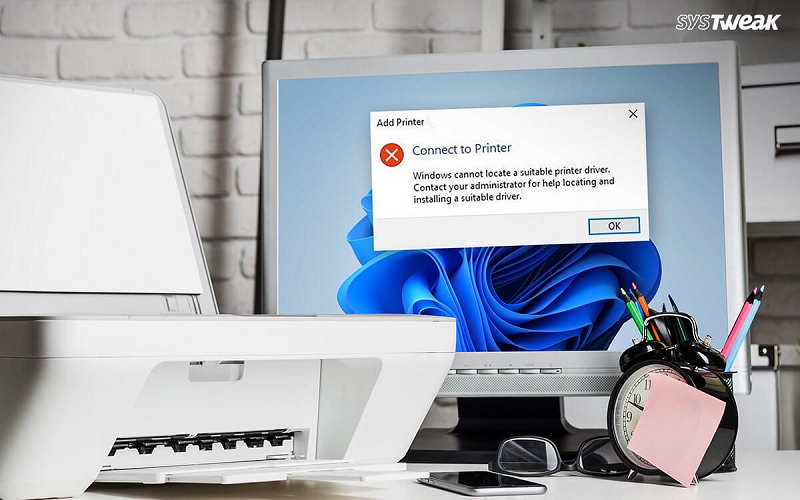
Since the printer spooler manages your print jobs, restarting it on Windows can quickly fix issues like frozen queues or unresponsive printers. To do this, open the Services app by typing “services.msc” in the Start menu search box and pressing Enter. Scroll down to find “Print Spooler” in the list of services.
Right-click it and select “Restart” from the context menu. If the service isn’t running, choose “Start” instead. This stops and then restarts the spooler, clearing any stuck print jobs.
You can also open Command Prompt as an administrator and type “net stop spooler” followed by “net start spooler” to achieve the same result. Restarting the spooler often resolves printing glitches without needing a full system reboot.
How to Restart the Printer Spooler on Macos
Wondering how to restart the printer spooler on macOS? Unlike Windows, macOS doesn’t have a specific “Printer Spooler” service, but you can restart the printing system to clear any stuck jobs.
First, open System Preferences and select “Printers & Scanners.” Right-click (or Control-click) in the printer list and choose “Reset printing system.” This will remove all printers and clear the print queue.
To clear the print queue, open Printers & Scanners in System Preferences, then right-click and select Reset printing system.
After resetting, add your printers back by clicking the plus (+) button and selecting your device. Alternatively, you can restart the CUPS service via Terminal by typing sudo launchctl stop org.cups.cupsd followed by sudo launchctl start org.cups.cupsd.
This command restarts the printing service without resetting your printers. Either method helps resolve common printing issues on macOS efficiently.
Restarting the Printer Spooler on Linux Systems
While macOS handles printing by resetting the printing system or restarting CUPS, Linux systems require managing the printer spooler through specific service commands. To restart the printer spooler on Linux, you typically use systemctl or service commands depending on your distribution.
The spooler service is usually called “cups”. Here’s a quick overview:
| Command | Purpose |
|---|---|
| `sudo systemctl restart cups` | Restart the CUPS service |
| `sudo systemctl status cups` | Check the CUPS status |
| `sudo service cups restart` | Alternative restart |
| `sudo service cups status` | Alternative status check |
Run the restart command in your terminal, and your print jobs should start processing again. This method is effective for most modern Linux distros.
Common Issues and Troubleshooting Tips
If your printer spooler won’t restart or keeps failing, there are a few common issues you might be facing. First, corrupted print jobs can clog the queue, preventing a clean restart. Second, outdated or incompatible printer drivers often cause conflicts.
Third, insufficient system permissions might block the spooler service from restarting properly. Finally, malware or viruses can interfere with spooler functionality.
To troubleshoot, try these steps:
- Clear the print queue to remove stuck jobs.
- Update or reinstall your printer drivers.
- Run the spooler service with administrative rights.
- Scan your system for malware that could disrupt printer services.
Preventing Printer Spooler Problems in the Future
To keep your printer spooler running smoothly, you’ll want to take proactive steps that minimize errors and interruptions. First, regularly update your printer drivers and operating system to patch bugs and improve compatibility. Avoid overloading the spooler by managing large or multiple print jobs carefully—send them one at a time if possible.
Clear out old print jobs from the queue promptly to prevent backups. Additionally, scan your system for malware, as infections can disrupt spooler functions. Make sure your printer hardware is well-maintained and connected securely.
Finally, consider setting the spooler service to restart automatically on failure through your system’s service manager. Taking these steps will help you avoid frequent spooler crashes and keep your printing tasks hassle-free.
Frequently Asked Questions
Can Restarting the Spooler Delete My Print Jobs?
Yes, restarting the spooler can delete your print jobs if they’re stuck or queued.
You should save important documents before restarting, or you might lose pending prints waiting in the spooler queue.
How Does the Spooler Affect Network Printers?
The spooler manages print jobs you send to network printers, queuing and directing them properly.
If it malfunctions, your print jobs might get delayed or lost, so keeping it running smoothly guarantees reliable printing across your network.
Is It Safe to Restart the Spooler During a Print Job?
Imagine interrupting a chef mid-recipe; restarting the spooler during a print job can cause errors or lost documents.
Can Malware Affect the Printer Spooler Service?
Yes, malware can target the printer spooler service, exploiting vulnerabilities to gain control or spread infections.
You should keep your system updated and use reliable security software to protect the spooler and your device from such threats.
What Are Alternatives to Restarting the Spooler for Printer Issues?
When your printer acts like a stubborn mule, you can try clearing the print queue, updating drivers, or running the troubleshooter. These tricks often tame the beast without rebooting the spooler, saving you time and hassle.
Conclusion
Now that you know how to restart the printer spooler across different systems, you’re well-equipped to tackle those pesky printing hiccups.
Remember, keeping your spooler running smoothly is key to avoiding a paper jam in your workflow. If problems pop up again, don’t throw in the towel—just revisit these steps.
With a little patience and know-how, you’ll keep your printer humming like a well-oiled machine in no time. Restarting the printer spooler regularly helps maintain efficient printing operations and minimizes downtime.