What Is an Airprint Printer
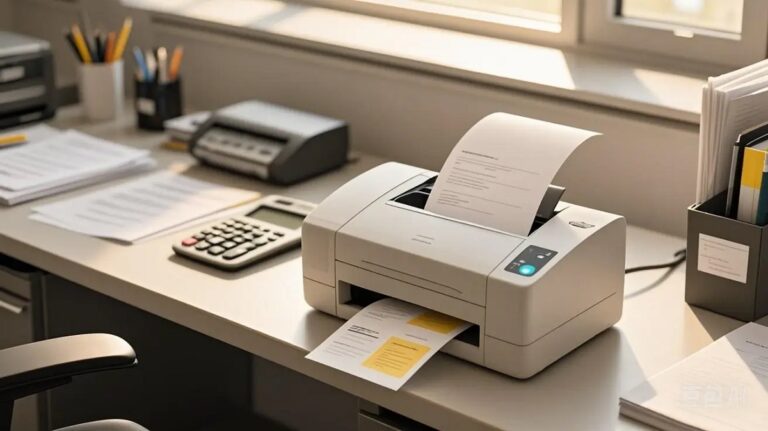
An AirPrint printer lets you print wirelessly from your iPhone, iPad, or Mac without needing extra drivers or software. This AirPrint technology ensures easy and quick printing as long as your Apple device and the printer are on the same Wi-Fi network.
You can print photos, emails, and documents straight away.
It’s simple to set up and works seamlessly with Apple apps like Mail and Safari. If you want to know more about how AirPrint works and its benefits, there’s plenty of useful info ahead.
Key Takeaways
- AirPrint is Apple’s wireless printing technology enabling direct printing from iPhone, iPad, and Mac without installing drivers or software.
- It allows printing over the same Wi-Fi network using a secure, automatic device detection protocol.
- AirPrint supports various file types and Apple apps like Safari, Mail, and Photos for quick, hassle-free printing.
- Printers must explicitly support AirPrint and be connected to the same Wi-Fi as the Apple device to print.
- AirPrint eliminates cables and complex setup, providing easy, shared printing for multiple Apple devices on one network.
Understanding AirPrint Technology
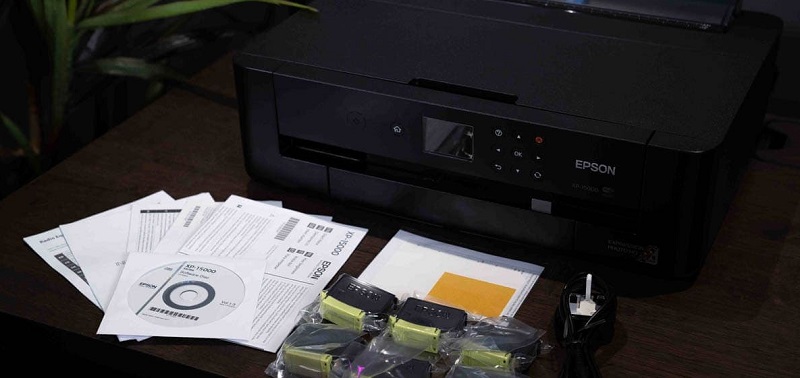
Although you might have heard about AirPrint as a convenient way to print from your Apple devices, understanding how it works can help you make the most of its features. AirPrint is a wireless printing technology developed by Apple that allows you to print directly from your iPhone, iPad, or Mac without needing to install drivers. It works by connecting your device and compatible printer to the same Wi-Fi network, enabling seamless communication.
AirPrint supports various file types, including photos, emails, and documents, ensuring versatility in printing tasks. By using AirPrint, you avoid the hassle of cables and software setups, making printing faster and simpler. Knowing these basics helps you troubleshoot or choose the right printer with AirPrint capabilities.
How Airprint Works With Apple Devices
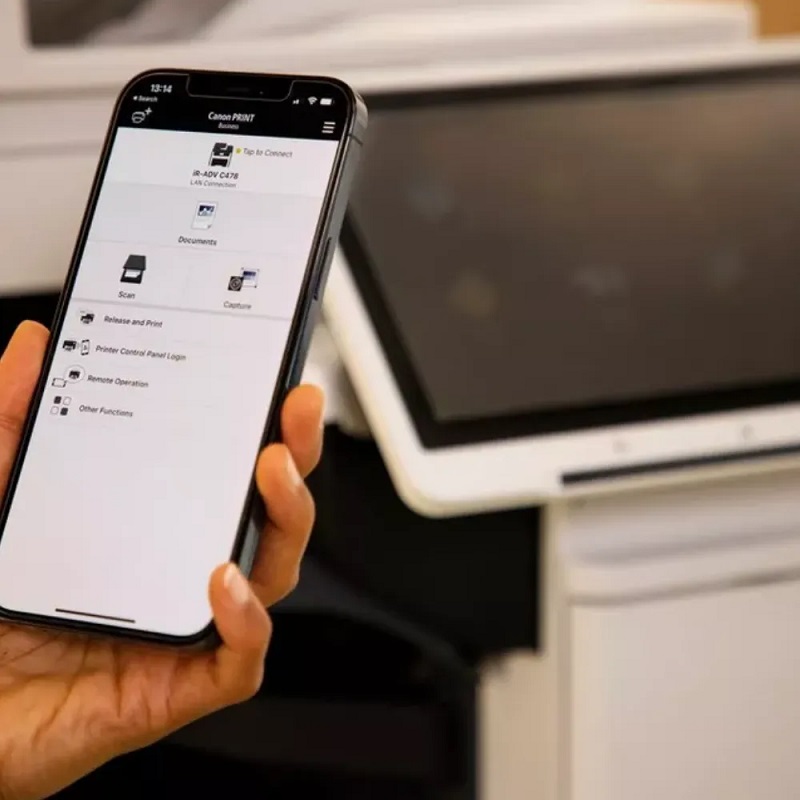
If you’re using an Apple device, you’ll want to know which models support AirPrint and how the wireless printing process works. It’s important to understand the network requirements to guarantee a smooth connection between your device and printer.
Let’s explore how these elements come together to make printing effortless.
Device Compatibility Overview
When you connect your Apple device to a compatible AirPrint printer, the process of printing becomes seamless and wireless. AirPrint works effortlessly with a range of Apple products, ensuring you don’t need extra drivers or apps. If your device supports iOS, iPadOS, or macOS, chances are it’ll pair easily with an AirPrint-enabled printer.
Here’s a quick overview of compatible devices:
- iPhone models running iOS 4.2 or later
- iPad and iPad Pro with iPadOS
- Mac computers with OS X Lion (10.7) or later
- iPod Touch from 4th generation onward
- Apple apps like Safari, Mail, and Photos support AirPrint
This broad compatibility means you can print directly from most Apple devices without any hassle.
Wireless Printing Process
With your Apple device connected to a compatible AirPrint printer, printing happens quickly and wirelessly without any extra setup. When you choose to print from your iPhone, iPad, or Mac, AirPrint automatically detects nearby printers on the same network. You simply select the printer, adjust any settings like copies or page range, then tap “Print.”
Behind the scenes, your device sends the document or photo directly to the printer using a secure, efficient protocol. This process requires no additional drivers or apps, making it effortless. Your device and printer communicate seamlessly, ensuring your print job starts promptly.
This streamlined wireless printing lets you focus on your work without worrying about complicated configurations or cables.
Network Requirements Explained
Because AirPrint relies on seamless communication between your Apple device and printer, both need to be connected to the same Wi-Fi network. This guarantees your device can detect the printer without any cables or additional setup. Your network should be stable and support Bonjour, Apple’s zero-configuration networking protocol, which helps devices discover each other automatically.
Also, your router must allow multicast traffic since AirPrint uses this for device discovery. Keep in mind that AirPrint doesn’t work over cellular data or different networks, so local Wi-Fi is essential.
Here’s what you need for AirPrint to work smoothly:
- Both devices on the same Wi-Fi network
- A stable and fast wireless connection
- Router supporting Bonjour and multicast traffic
- No VPN or network isolation interfering
- Compatible printer firmware updated regularly
Benefits of Using an AirPrint Printer
You’ll love how AirPrint lets you print wirelessly without any extra software or drivers. It works seamlessly with your Apple devices, making setup quick and hassle-free.
This convenience means you can focus on what matters, not on complicated printing processes.
Wireless Printing Convenience
Although setting up a printer used to be a hassle, AirPrint makes wireless printing effortless and quick. You don’t need to fuss with cables or complicated drivers—just connect to the same Wi-Fi network and print directly from your device. This convenience lets you print from anywhere in your home or office without being tethered to the printer.
Here’s why you’ll love the wireless printing convenience AirPrint offers:
- No need for extra software or drivers
- Print directly from your iPhone, iPad, or Mac
- Easy access from multiple devices on the same network
- Reduced clutter with no cables required
- Quick setup that saves you time and frustration
With AirPrint, printing becomes seamless and hassle-free every time.
Compatibility With Apple Devices
When you use an AirPrint printer, you can easily print from your iPhone, iPad, or Mac without any extra setup. AirPrint is designed specifically to work seamlessly with Apple devices, so you don’t need to worry about downloading drivers or additional software. Whether you’re sending a document from your Mac or printing photos directly from your iPhone, AirPrint ensures compatibility across your Apple ecosystem.
This means you can expect consistent performance and full access to printing features like duplex printing and selecting paper size. Plus, AirPrint supports various Apple apps, including Mail, Safari, and Photos, making it convenient to print from the apps you use daily. This tight integration saves you time and eliminates compatibility headaches.
Easy Setup and Use
Since AirPrint printers connect wirelessly without requiring driver installations, setting one up is incredibly straightforward. You just connect your printer to the same Wi-Fi network as your Apple device, and you’re ready to print. No need to hunt for software or deal with complicated configurations.
This ease of use saves time and frustration, making printing seamless and hassle-free.
Here’s why you’ll love the easy setup and use of AirPrint printers:
- No drivers or software downloads needed
- Print directly from iPhone, iPad, or Mac
- Automatic discovery of compatible printers
- Simple wireless connection through Wi-Fi
- Instant printing from apps like Mail, Photos, and Safari
You can focus on your tasks without worrying about printer setup.
Compatibility Requirements for AirPrint Printers
What devices and software do you need to make sure your printer works with AirPrint? First, your printer must explicitly support AirPrint, which most modern models from major brands do. You’ll want to verify this on the manufacturer’s website or in the printer’s specs.
On your end, you need an Apple device running iOS 4.2 or later or a Mac with OS X Lion (10.7) or newer. Both your Apple device and AirPrint printer must be connected to the same Wi-Fi network, as AirPrint relies on this local connection. Keep in mind, AirPrint doesn’t require additional drivers or apps, but your device’s software has to be up-to-date to maintain compatibility and security.
Setting Up Your AirPrint Printer
Before you start printing, you’ll need to connect your AirPrint-enabled printer to the same Wi-Fi network as your Apple device. This guarantees smooth communication between your devices. Here’s how to get your printer set up quickly:
- Power on your AirPrint printer and access its settings menu.
- Connect the printer to your Wi-Fi network, either via touchscreen or WPS button.
- On your Apple device, confirm it’s connected to the same Wi-Fi network.
- Open any app that supports printing, like Photos or Safari.
- Tap the Share icon, select Print, then choose your AirPrint printer.
Once set up, printing is just a tap away—no drivers or software needed. You’re ready to enjoy seamless wireless printing.
Troubleshooting Common AirPrint Issues
Setting up your AirPrint printer usually goes smoothly, but occasional issues can pop up that interrupt your printing. If your device can’t find the printer, first confirm both are connected to the same Wi-Fi network. Restarting your printer and router often resolves connectivity glitches.
If the print job gets stuck, cancel it and try again. Make sure your iOS or macOS is updated, as outdated software can cause compatibility problems. Sometimes, restarting your device clears temporary bugs.
If your prints come out blank or distorted, check ink levels and paper type. Finally, verify that your printer supports AirPrint, as some models may not. If problems persist, consult the printer’s manual or manufacturer support for detailed troubleshooting steps.
Popular AirPrint Printers on the Market
Though many printers support AirPrint, some models stand out for their reliability, features, and ease of use. If you want a hassle-free printing experience from your Apple devices, consider these popular AirPrint printers. They’re known for quick setup, consistent performance, and excellent print quality.
Here are five great AirPrint printers to check out:
- HP OfficeJet Pro 9015e – Great for home offices with fast, vibrant prints.
- Canon PIXMA TS8320 – Offers excellent photo printing and sleek design.
- Epson EcoTank ET-4760 – Features refillable ink tanks to save on costs.
- Brother MFC-L2750DW – A reliable monochrome laser printer with scanning and copying.
- Samsung Xpress M2020W – Compact and budget-friendly for simple tasks.
Choosing any of these models guarantees smooth AirPrint compatibility and convenience.
Frequently Asked Questions
Can Airprint Be Used With Non-Apple Devices?
No, you can’t use AirPrint with non-Apple devices directly because it’s designed specifically for Apple products. However, some third-party apps or software might help you print from other devices using AirPrint-compatible printers.
Does Airprint Support Duplex (Double-Sided) Printing?
Oh sure, because who wouldn’t want to print on just one side forever? Yes, AirPrint does support duplex printing, so you can save paper and look eco-friendly, even if you’re just pretending to care about trees.
How Secure Is Printing With Airprint?
AirPrint uses your local network, so it’s fairly secure if your Wi-Fi is protected. However, it lacks advanced encryption, so avoid printing sensitive info on open or public networks to keep your data safe.
Can Airprint Print From Cloud Storage Services?
Like a bridge over a river, AirPrint lets you print directly from cloud storage services without detours.
You can easily access and print your documents stored on iCloud, Dropbox, or Google Drive right from your device.
Is There a Cost Associated With Using Airprint?
There’s no extra cost for using AirPrint itself since it’s built into Apple devices.
However, you’ll still need to buy the printer and any necessary supplies like ink or paper, which can add up over time.
Conclusion
Now that you know how AirPrint makes printing from your Apple devices seamless, imagine effortlessly printing your important presentation right before a big meeting—no cables or complicated setups needed.
With just a compatible AirPrint printer and your iPhone or iPad, you’re ready to go. So whether you’re at home or in the office, AirPrint simplifies your print tasks, saving you time and hassle every step of the way.
In conclusion, choosing an AirPrint printer ensures convenience and efficiency for all your printing needs from Apple devices. Enjoy wireless printing without the fuss, making your workflow smoother and more productive.