Why Is My Printer Printing Blank Pages
If your printer is printing blank pages, it’s usually because of issues with the ink or toner cartridges. These might be empty, clogged, or not installed properly.
Incorrect paper settings, outdated drivers, or connectivity problems can also cause blank pages.
Sometimes, print heads need cleaning or alignment to restore proper ink flow. Checking these basics can often fix the problem quickly.
If the issue persists, there are more detailed steps that can help you get your printer working perfectly again.
Key Takeaways
- Check ink or toner levels and replace cartridges if they are empty or improperly installed.
- Run print head cleaning and alignment to clear clogged nozzles causing blank prints.
- Verify printer settings, ensuring paper type and size match the loaded paper tray.
- Update or reinstall printer drivers to fix software conflicts causing blank page output.
- Inspect connectivity and test printing from multiple applications to rule out connection or software issues.
Checking Ink or Toner Levels
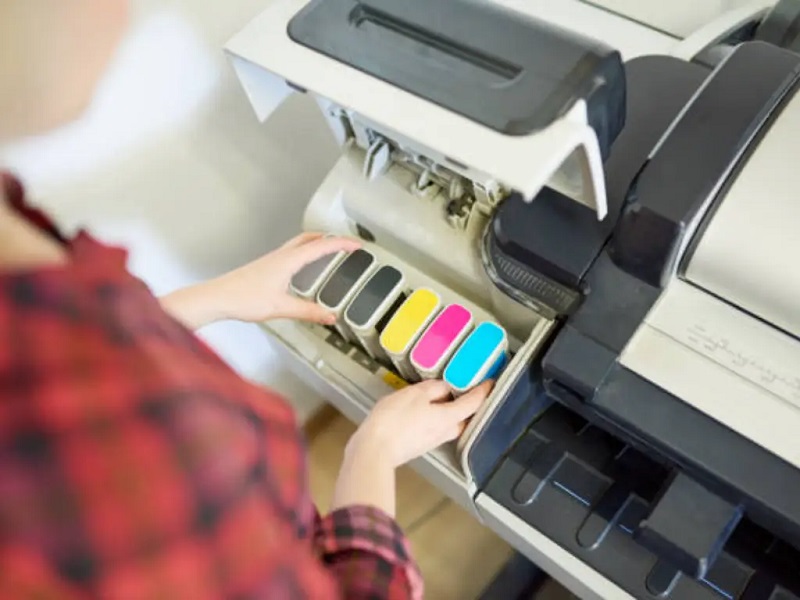
Before you plunge into more complicated troubleshooting, check your printer’s ink or toner levels. Low or empty cartridges are a common cause of blank pages. You can usually find the ink or toner status on your printer’s display panel or through the printer software on your computer.
If you see any cartridges marked as empty or near-empty, replace or refill them. Sometimes, the ink indicator might be inaccurate, so physically inspecting the cartridges can help. Also, make sure the cartridges are properly installed and clicked into place.
If you recently replaced a cartridge, double-check that you removed all protective seals. Taking these simple steps can often solve the problem without further hassle, saving you time and avoiding unnecessary repairs.
Inspecting Printer Nozzles and Print Heads
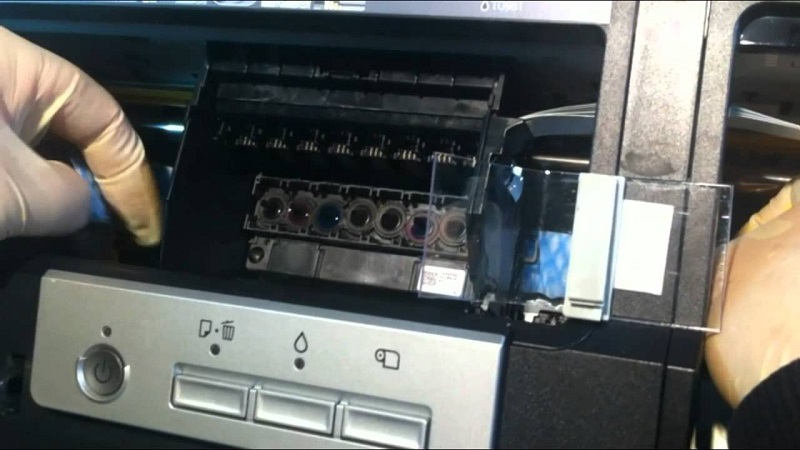
If your printer is still producing blank pages, it’s time to examine the nozzles and print heads. You’ll want to clean the nozzles to remove any clogs that might be blocking ink flow.
Also, make sure the print heads are properly aligned to ensure accurate printing.
Cleaning Printer Nozzles
Although your printer might seem fine at first glance, clogged nozzles can cause blank pages or streaky prints. To fix this, you’ll want to clean the printer nozzles regularly. Most printers have a built-in cleaning function accessible through the printer settings or control panel.
Run this cleaning cycle, which forces ink through the nozzles, clearing blockages. If the problem persists, try manually cleaning the print head. Turn off the printer and gently wipe the nozzles with a lint-free cloth dampened with distilled water or isopropyl alcohol.
Avoid harsh chemicals or excessive force, as they can damage the nozzles. After cleaning, run a test print to check if the issue’s resolved. Regular maintenance helps keep your prints clear and prevents future clogs.
Aligning Print Heads
Once you’ve cleaned your printer nozzles, the next step is to check and align the print heads. Misaligned print heads can cause your printer to produce blank pages or uneven prints.
Most printers have an automatic alignment feature accessible through the printer’s control panel or software. Running this alignment ensures the print heads are properly positioned for ideal ink distribution.
Here’s a quick checklist to guide you:
| Step | Action | Result |
|---|---|---|
| 1 | Access printer settings | Locate alignment option |
| 2 | Run print head alignment | Printer prints test pattern |
| 3 | Confirm alignment success | Clear, consistent printouts |
Follow these steps to fix blank pages caused by print head issues.
Verifying Printer Settings and Paper Selection
Before you print, make sure your printer settings match the paper type you’re using. Check that the paper size in the settings corresponds to what’s loaded in the tray. This helps prevent blank pages caused by mismatched or incorrect paper selection.
Check Paper Type Settings
Why would your printer spit out blank pages even when you have paper loaded? One common reason is incorrect paper type settings. Your printer needs to know the kind of paper you’re using—plain, photo, or glossy—to adjust ink application properly.
If it’s set to the wrong type, it might not print correctly, resulting in blank pages. To fix this, check your printer’s settings either on the device’s control panel or through the printer software on your computer. Make sure the paper type matches what’s actually loaded in the tray.
Adjusting this setting guarantees the printer uses the right amount of ink, preventing those frustrating blank pages. Double-checking this simple detail can often resolve your printing issue quickly.
Confirm Paper Size Match
How do you know if your printer’s settings match the paper size you’ve loaded? Start by checking the printer’s control panel or software settings on your computer. Look for the paper size option and verify it corresponds exactly to the physical paper in the tray—whether it’s letter, A4, legal, or any other size.
If the settings don’t match, your printer might not print correctly, sometimes resulting in blank pages. Adjust the paper size in the printer’s preferences to align with the loaded paper. This step ensures the printer knows what to expect and can properly align the print job.
Confirming this match prevents misfeeds and blank outputs caused by size mismatches, helping your printer perform as intended without wasting paper or ink.
Verify Tray Paper Loaded
Where exactly is the paper loaded in your printer? Checking this is vital because if the tray is empty or improperly filled, your printer might spit out blank pages. Make sure the paper stack is aligned neatly and not overfilled, as this can cause feeding issues.
Also, verify that your printer settings correspond to the tray you’re using. Sometimes, the printer defaults to a different tray, causing it to print blank pages since no paper is present there.
| Step | Action |
|---|---|
| Locate Paper Tray | Identify and open the tray where paper is loaded |
| Confirm Paper Presence | Ensure paper is properly loaded and aligned |
| Match Tray Setting | Check printer settings to select the correct tray |
Updating or Reinstalling Printer Drivers
Although your printer may seem fine, outdated or corrupted drivers can cause it to print blank pages. Drivers are the software that helps your computer communicate with the printer. If they’re not current or become corrupted, printing errors can occur.
To fix this, you should update or reinstall your printer drivers. Here’s how you can do it:
- Go to the printer manufacturer’s official website.
- Locate the support or drivers section specific to your printer model.
- Download the latest driver compatible with your operating system.
- Uninstall the current driver before installing the new one to avoid conflicts.
Keeping your drivers updated ensures smooth printing and helps prevent blank page issues.
Examining Connectivity and Cable Issues
Wondering why your printer might be spitting out blank pages despite everything seeming fine? One common culprit is connectivity or cable issues. First, check that all cables connecting your printer to the computer or network are secure and undamaged.
A loose or frayed USB or Ethernet cable can disrupt communication, causing blank prints. If you’re using a wireless connection, ensure your printer is properly connected to the Wi-Fi network and that the signal is strong. Sometimes, simply unplugging and reconnecting cables or restarting your router can fix the problem.
Also, try switching to a different cable or port to rule out hardware faults. Ensuring solid connectivity is crucial before moving on to more complex troubleshooting steps.
Troubleshooting Software and Document Formatting Problems
If your printer is still producing blank pages after checking connections, the issue might lie in software glitches or document formatting. First, verify your printer driver is up to date, as outdated software can cause printing errors.
Next, check the document itself—sometimes, invisible text or white font on a white background results in blank prints. Also, verify the print settings to make sure you’re not accidentally printing empty pages or a wrong page range.
Finally, try printing from a different application to rule out software-specific problems.
- Update or reinstall printer drivers
- Inspect document font color and content
- Review print settings for page selection
- Test printing from another program or file
These steps can help you identify and fix software-related printing issues.
Frequently Asked Questions
Can Expired Ink Cartridges Cause Blank Pages?
Yes, expired ink cartridges can cause blank pages because the ink may dry out or clog the printhead. You’ll want to replace old cartridges to guarantee proper ink flow and avoid printing issues.
Does Printer Firmware Affect Printing Quality?
Think of your printer’s firmware as its brain—if it’s outdated or buggy, your prints can come out distorted or blank. So yeah, keeping firmware updated helps guarantee your printer performs like a well-oiled machine.
How Do Environmental Factors Impact Printer Performance?
Environmental factors like humidity, dust, and temperature can affect your printer’s performance by causing ink to dry improperly, clogging nozzles, or affecting paper feed.
Keep your printer clean and in a stable environment for best results.
Can Using Third-Party Ink Cause Blank Prints?
Sure, using substandard third-party ink can cause blank prints. It might clog cartridges, cause compatibility complications, or dry improperly.
You should stick to suggested supplies to safeguard smooth, successful, and spotless printing every time.
Is Printer Maintenance Affecting Print Output?
Yes, if you don’t regularly clean and maintain your printer, clogged nozzles or dried ink can cause blank pages.
Running maintenance routines and ensuring proper cartridge installation helps keep print quality consistent and avoids blank outputs.
Conclusion
If your printer’s been spitting out blank pages, you’re not alone—studies show that 30% of printing issues stem from clogged nozzles or low ink. By checking ink levels, cleaning print heads, and verifying settings, you can often fix the problem yourself.
Don’t forget to update drivers and inspect cables too. With a little troubleshooting, you’ll have your printer back to work in no time, saving both frustration and unnecessary expenses.
In conclusion, addressing common causes like clogged nozzles, low ink, and printer settings is key to resolving why your printer is printing blank pages. Regular maintenance and proper troubleshooting can prevent this issue and keep your printer running smoothly.