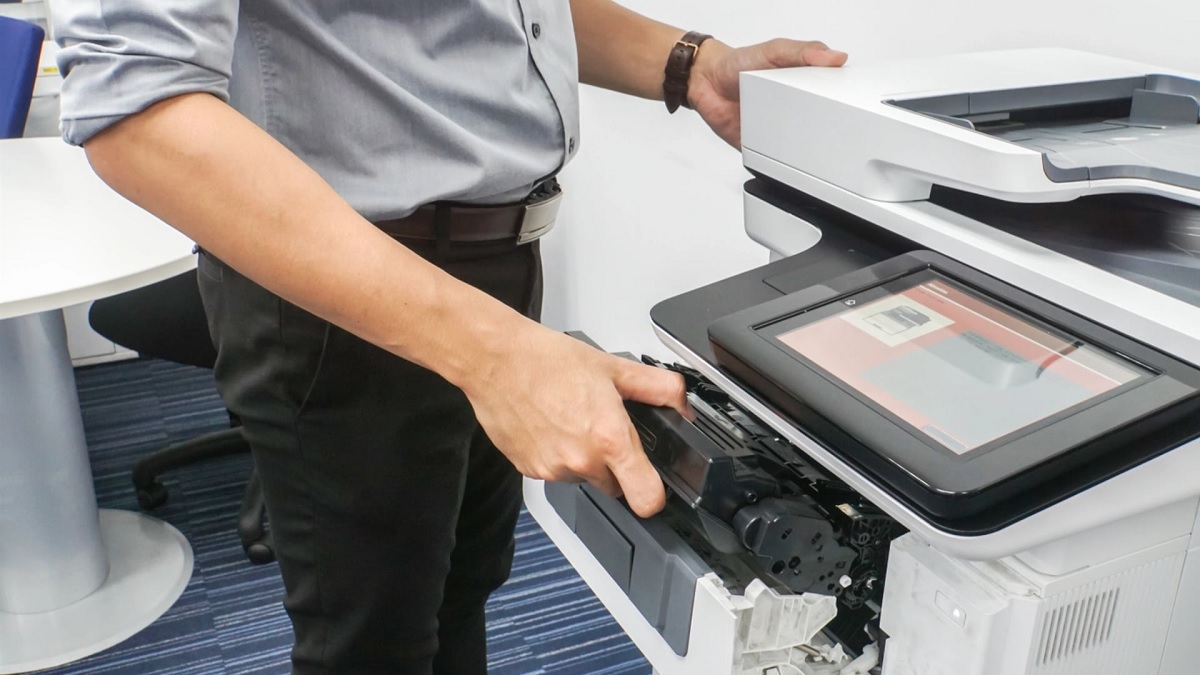
Why Won’t My Printer Print – Definitive Guide
If your printer won’t print, it’s often due to connection problems like USB or Wi-Fi issues, paper jams, or low ink or toner. Checking printer settings is essential to verify that your printer is set as the default device. Clearing any stuck print jobs can also resolve the issue.
Outdated or missing drivers can cause communication errors between your computer and printer. Taking these steps usually fixes the problem quickly.
Exploring further troubleshooting can help identify more specific hardware or software issues.
Key Takeaways
- Ensure the printer is properly connected to your device via USB or network and powered on.
- Check for paper jams or hardware issues like dirty rollers or foreign objects blocking the printer.
- Verify ink or toner levels and replace cartridges if low or empty to avoid print failures.
- Confirm the printer is set as the default device and clear any stuck print jobs in the queue.
- Update or reinstall printer drivers from the manufacturer’s website to fix communication problems.
Common Connectivity Issues
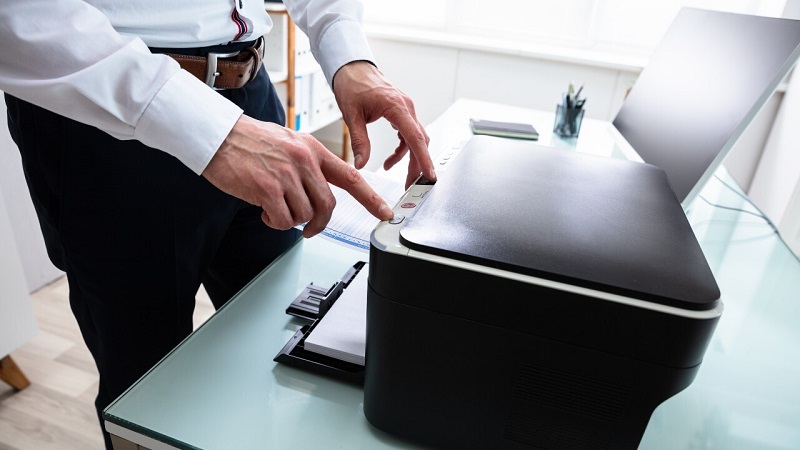
One of the most frequent reasons your printer isn’t printing is a connectivity issue. First, check if your printer is properly connected to your computer or network. If you’re using a USB cable, make sure it’s firmly plugged in at both ends.
For wireless printers, verify that your device is connected to the same Wi-Fi network as your computer. Sometimes, restarting your router and printer can resolve temporary network glitches. Also, ensure your printer is set as the default device in your computer’s settings.
If you recently changed your Wi-Fi password, update it on the printer as well. Finally, confirm that your printer’s drivers are up to date, as outdated drivers can cause communication problems between your computer and printer.
Troubleshooting Paper Jams and Hardware Problems
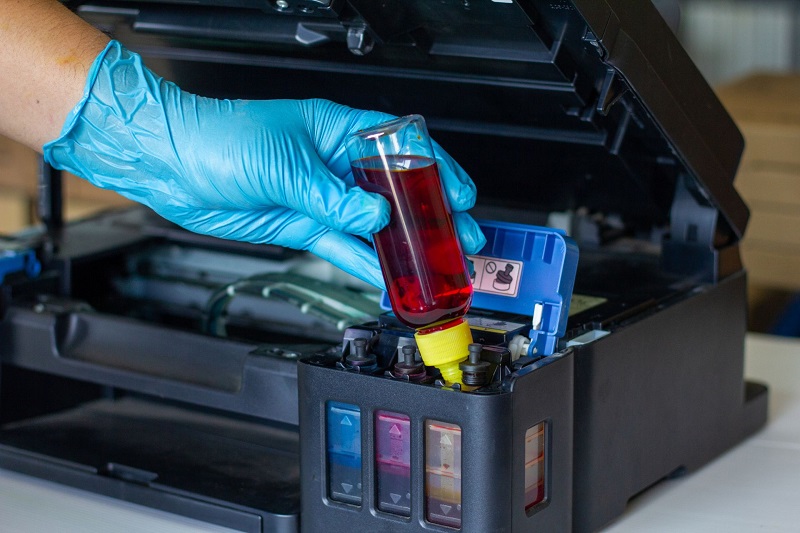
If your printer is connected properly but still won’t print, the issue might lie with paper jams or hardware problems. First, check for any stuck paper inside the printer. Open all accessible panels and gently remove any jammed sheets to avoid tearing.
Make sure the paper tray is loaded correctly and the paper size matches your print settings. Next, inspect the printer’s rollers for dirt or wear; clean them with a lint-free cloth if needed. Also, ensure there are no foreign objects inside that could block paper movement.
If your printer has indicator lights or an error screen, note any codes shown—they can guide you to specific hardware issues. If problems persist, consider restarting the printer or consulting the user manual for further hardware troubleshooting steps.
Updating and Installing Printer Drivers
Although your printer might seem fine hardware-wise, outdated or missing drivers can prevent it from working properly. Drivers act as the bridge between your computer and printer, so keeping them updated is essential. Here’s how you can update or install them:
Printers may appear fine, but outdated drivers often cause issues; updating them ensures smooth communication with your computer.
- Visit the printer manufacturer’s official website.
- Find the support or downloads section and locate your printer model.
- Download the latest driver compatible with your operating system.
- Run the installer and follow the on-screen instructions to complete the installation.
After updating, restart your computer and try printing again. This often resolves compatibility issues and guarantees your printer communicates effectively with your system. If problems persist, double-check that you downloaded the correct driver version for your device and OS.
Managing Ink and Toner Levels
Once your drivers are up to date and your printer still isn’t printing, checking your ink or toner levels is a smart next step. Printers won’t print if ink cartridges are empty or toner is low, so inspect these levels either via your printer’s control panel or the software on your computer.
If you spot a low or empty cartridge, replace it promptly to avoid print errors. Sometimes, cartridges may report full but are clogged or dried out; in this case, try cleaning the print head or removing and reinstalling the cartridge.
Avoid mixing different brands or refilled cartridges, as they can cause recognition issues. Keeping an eye on ink or toner levels helps ensure smooth printing and prevents unexpected interruptions.
Printer Settings and Queue Management
When your printer isn’t responding, checking the printer settings and print queue can often reveal the issue. You might find that a simple adjustment or clearing a stuck job will get things moving again. Here’s what you should do:
- Open the print queue on your computer to see if any documents are stuck or paused.
- Cancel or restart any stalled print jobs that could be blocking new ones.
- Verify that your printer is set as the default device, especially if you have multiple printers installed.
- Check the printer properties to ensure the correct paper size, type, and print quality are selected.
Frequently Asked Questions
Can Environmental Factors Affect Printer Performance?
Yes, environmental factors can affect your printer’s performance. Humidity, temperature, and dust can cause paper jams, ink smudging, or hardware issues.
Keeping your printer in a clean, stable environment helps it work reliably and efficiently.
How Does Printer Firmware Impact Printing Issues?
Printer firmware manages your device’s functions, so outdated or corrupted firmware can cause errors, connectivity problems, or poor print quality.
Keeping it updated guarantees smooth operation and fixes bugs that might be stopping your prints.
Are There Specific Printing Requirements for Different Paper Types?
You know what they say, “Different strokes for different folks.” You’ll want to adjust settings for paper types—thicker stock needs specific trays and print modes, while glossy requires slower drying.
Check your manual for these vital details.
Can Third-Party Software Interfere With Printer Functionality?
Yes, third-party software can interfere with your printer’s functionality by causing driver conflicts or blocking print jobs.
You’ll want to check for compatibility issues and make certain any installed software is up to date to avoid problems.
How Do Network Security Settings Block Printer Access?
Network security settings can block printer access by restricting IP addresses, disabling necessary ports, or enforcing strict firewall rules.
You might need to adjust these settings to allow your device and printer to communicate properly on your network.
Conclusion
If your printer still won’t print after checking connections, clearing jams, updating drivers, and managing ink levels, don’t lose hope—it’s not the end of the world. Sometimes, the tiniest setting or queue glitch can cause chaos bigger than a thunderstorm in a teacup. Keep troubleshooting step by step, and you’ll have your printer back to work in no time.
Remember, patience is your best tool in conquering printer problems. Whether it’s a hardware issue, a software glitch, or a settings mishap, staying calm and methodical will guide you through. By following these steps, you’ll resolve why your printer won’t print and get back to your tasks quickly.